| Bookmark Name | Actions |
|---|
Transfers
Use the feature to transfer funds between user's and other accounts, schedule and manage transfers including recurring transfers, and manage recipients.
NOTE: A business user with access to both retail and business accounts can transfer funds to any of the recipients - both personal and business, based on the permissions that are assigned to the user. Accounts are segregated by personal and business type at all relevant places in the application during transfers and other flows and icons against each account indicates the type of account.
The application supports the following:
- Transfers to user's own accounts in the same bank
- Transfers to other members of the same bank
- Transfers to other banks
- International transfers
- Wire transfers
Users can schedule a transfer to be executed at a later date. It is also possible to set up recurring transfers. Recurrence can be defined to end on a specific date, after a certain number of recurrences or when the user cancels the transaction.
For scheduling recurring transfers, the application provides a common data model and the capability to integrate with the third-party systems. The actual storage of running any back-end recurring jobs, communicating with the core banking or other system is determined by the third-party provider.
Menu path: On the top menu > Transfers
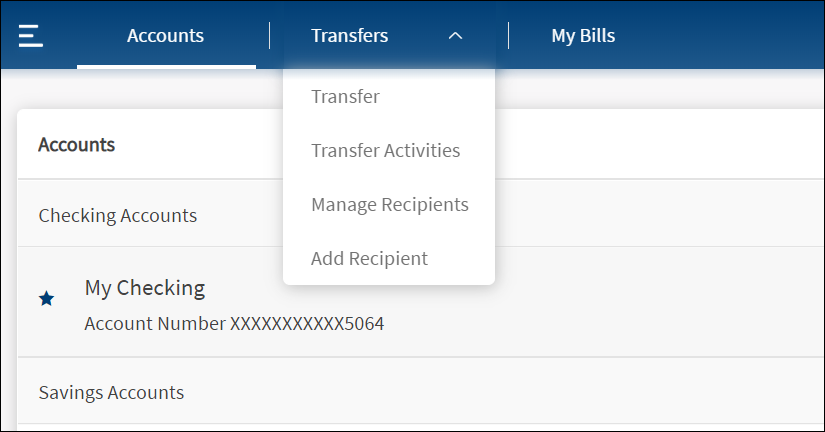
The application displays the following sub-menus:
- Transfer: Initiate a new fund transfer to the user's own accounts within the same bank, to other accounts within the same bank, to external bank accounts, to international accounts, and person to person transfers through email or phone number.
- Transfer Activities: View the list of recent transfers and scheduled transfers. Click any transaction to view its in-depth details and perform applicable actions.
- Manage Recipients: Manage recipients and transfer money.
- Add Recipients: Add members as recipients to transfer funds in the same bank, other banks, and international banks. You can add the following recipients:
- Add Digital Banking Account. You can add a recipient who has an account within the bank by providing the details such as account number, account type (Checking/Savings), account beneficiary's name, and nickname.
- Add External Account. You can add a recipient who has an account in another bank (domestic) by providing the details such as bank name, account number, account type (Checking/Savings), routing number, account beneficiary's name, and nickname.
- Add International Account. You can add a recipient who has an account in an international bank by providing the details such as SWIFT code, bank name, account number, account type (Checking/Savings), routing number, account beneficiary's name, and nickname.
- Add Person to Person Account. You can add a recipient by providing the person's email address or mobile number.
NOTE:
- Only those users with permission to create transactions for a particular service can create respective transactions.
- Only the users with permission to manage recipients for a particular service can add recipients.
- Users can create debit transactions only on those accounts to which they have access.
Configuration
- The visibility of each feature is controlled through the permissions defined for the user. See permissions for more information. The permissions at user levels are defined during user creation and while editing the user details after the user is created. In case the user does not have access to any of the features, that option will not be visible on the form and on the menus. The permissions at the company level and role level are defined in the Spotlight application.
- The elements on the screen depends on the user account type and the permissions to access features and perform associated actions.
- The capability to revoke or restore the features is available in the Spotlight application.
- The Feature/Role/Company level transaction limits for recurring, nonrecurring, non-scheduled, and scheduled transactions are managed in the Spotlight application. User level limits can be managed in Spotlight and the customer-facing application.
Add Bookmark
save your best linksView Bookmarks
Visit your best links BACK
BACK


Are you sure you want to log-off?