| Bookmark Name | Actions |
|---|
Settings
Use the feature to view, edit, and update the settings as required.
NOTE: A business user with access to both retail and business accounts can view the details that have been set for both business and personal use based on the permissions that are assigned to the user.
Menu path: Side Menu > Settings
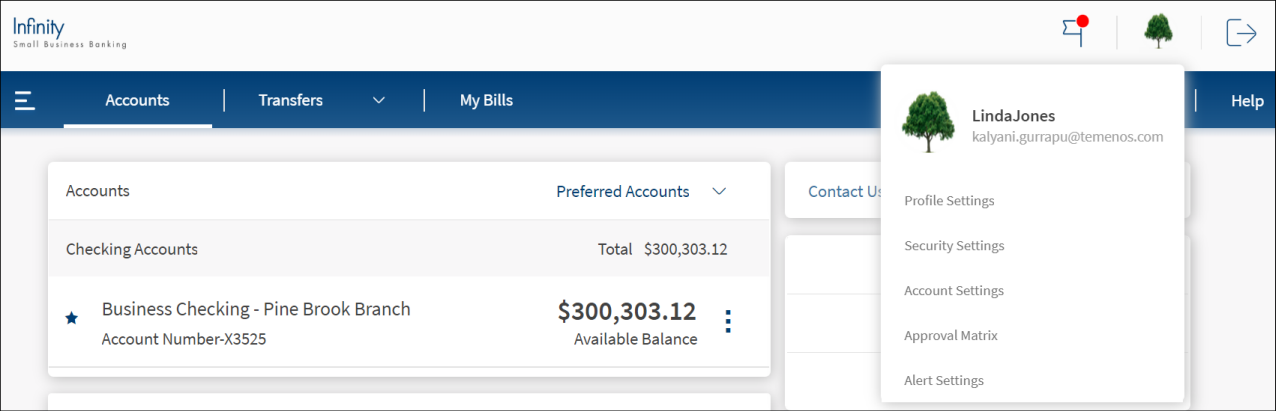
Alternatively, on the top menu, click the profile picture located on the upper-right corner of the screen. The application displays a list of options.
You can manage the following:
- Profile Settings. Click to view your personal details like phone number, email address and more, manage user name and password, and raise name change request. A business user with access to both retail and business accounts can view the profile details that have been set for both business and personal use.
- Security Settings. Click to add or modify your security questions and secure access code.
- Account Settings. Click to set or modify various account preferences and business' default account for different types of transactions.
- Alert Settings. Click to set or modify your transaction and payments, security, and promotional alert preferences.
- Approval Matrix. Click to view the approval matrix of the designated accounts.
Configuration
The visibility of each feature is controlled through the permissions defined for the user. See permissions for more information. The permissions at user levels are defined during user creation and while editing the user details after the user is created. In case the user does not have access to any of the features, that option will not be visible on the form and on the menus. The permissions at the company level and role level are defined in the Spotlight application.
Add Bookmark
save your best linksView Bookmarks
Visit your best links BACK
BACK


Are you sure you want to log-off?