| Bookmark Name | Actions |
|---|
Dashboard
After a successful sign in, the application displays the accounts dashboard screen which is also the main page of the application. A user can see a customized dashboard based on the type of user. The user type is derived from the role that is assigned to the user - a user can be a retail user or a business user.
A user may have multiple roles assigned such as,
- If a user has single/multiple retail type of roles assigned, such a user is a retail user.
- If a user has a single business type of role assigned, such a user is a business user.
- If a user has a single/multiple retail type of roles and a single business type of role assigned, such a user is a combined retail and business user (combined user). The user will have access to the combined experience on the online banking and mobile banking applications for personal and business functions.
For a combined user, the application displays a dashboard with a combined view of all business and personal financial assets that the user has been given access to and graphical representation of cash position and synopsis of approvals and requests among other associated sections that are relevant to the signed-in user. The user can switch easily between the retail and business accounts and can distinguish between the accounts. The accounts are segregated by personal and business type at all relevant places in the application during transfers and other flows and icons against each account indicates the type of account. For mobile banking experience, see the mobile banking dashboard.
Additional filtering capabilities are provided to the user to create a tailored view of accounts on the dashboard. The first level of filters provides the user the ability to view a subset of accounts through, default and custom views. An interactive advanced filter  is available to group and sort the accounts.
NOTE:
- The layout of the dashboard and the elements visible on the dashboard depends on the type of signed-in user and the permissions assigned to the user to access the features and corresponding actions.
- The content on this page explains the features available to a combined retail and business user (combined user).
 View Screens
Combined User Dashboard
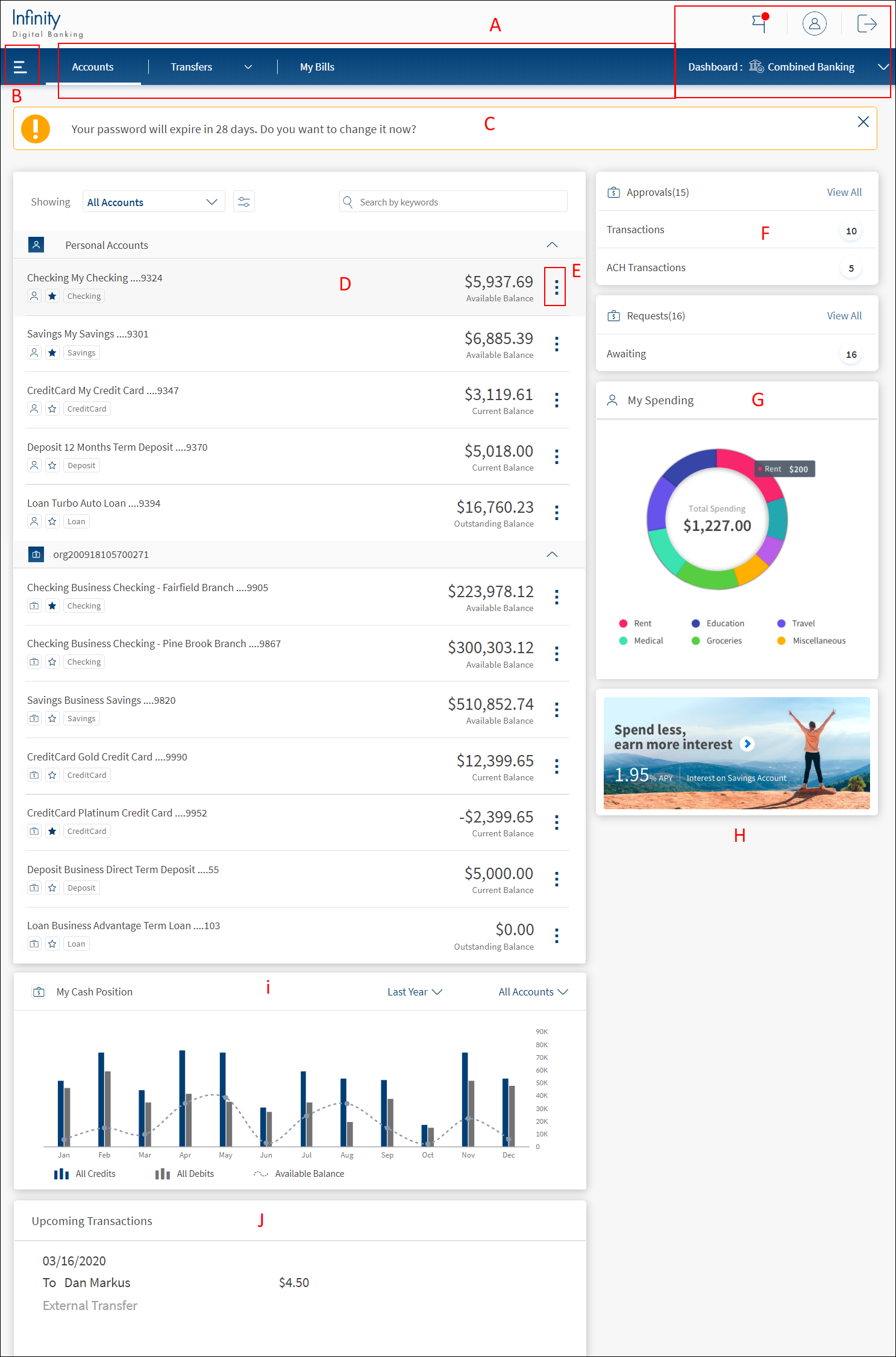
- Top bar or top menu including dashboard switch
- Hamburger or side menu
- Notifications. The notifications appear above the accounts list
- Accounts list.
- Quick actions (Contextual actions)
- Approvals and requests
- My spending chart
- Marketing placeholder
- Cash position chart
- Upcoming transactions
Business User Dashboard
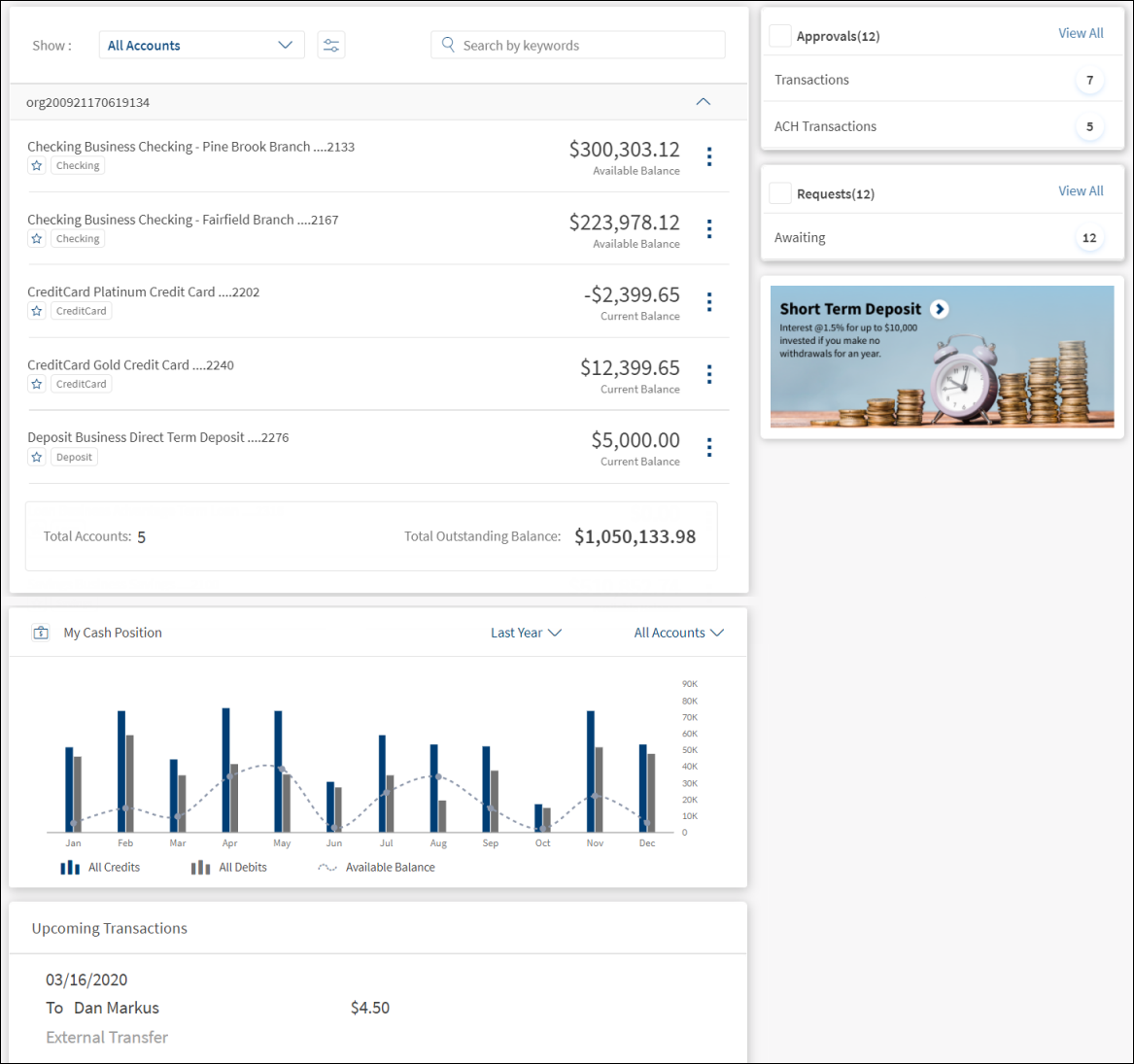
Combined User Dashboard (Mobile)
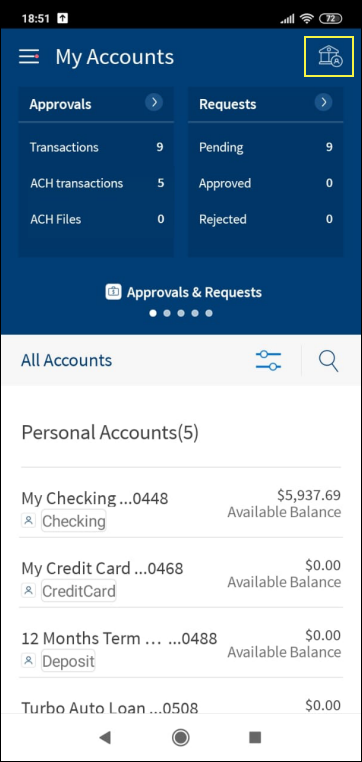
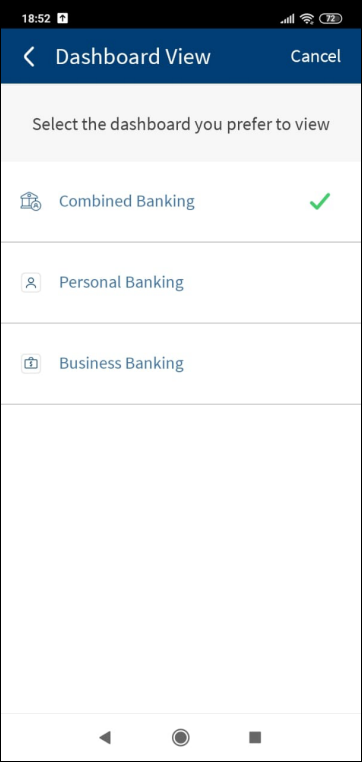
Business User Dashboard (Mobile)
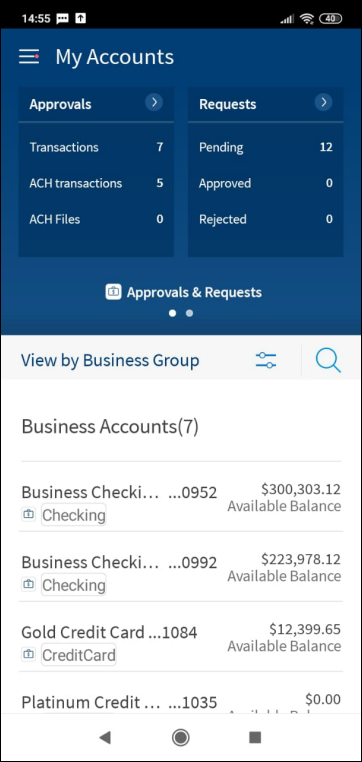
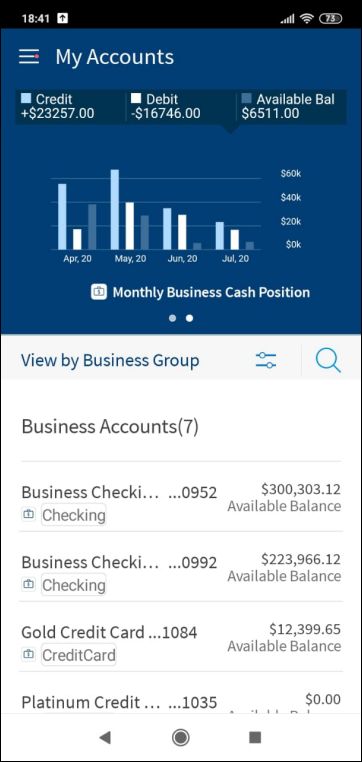
The following elements are available on the online banking dashboard depending on the type of user and the permissions available to the user:
- Menus
- Dashboard switch
- Accounts list filter - default and custom views
- Quick actions (Contextual actions)
- Advanced accounts filter
- Marketing placeholder
- Widgets on dashboard - Approvals and requests, cash management, and upcoming transactions
- Other actions
- Cash position chart
For mobile banking experience, see the mobile banking dashboard.
Menus
The menu items are displayed depending on the user type and permissions.

Top menu or top bar
Do any of the following:
- Navigate to modules (Accounts, Transfers, and My Bills). The application displays the Accounts module by default.
- Open the
 hamburger or side menu.
 - Manage profile - profile settings, account settings, alert settings, approval matrix, and security settings.
- Manage alerts and messages.
- View the help pages.
- Provide feedback.
- Sign out of the application.
Hamburger or side menu
Navigate to modules .
- My Accounts
- Transfers
- My Bills
- ACH
- Approvals & Requests
- Wire Transfer
- User Management
- Messages
- Settings
- About Us.
See Menus for more information.
Dashboard Switch
The switch is only for users who have been provided a combined access to their retail and business accounts.
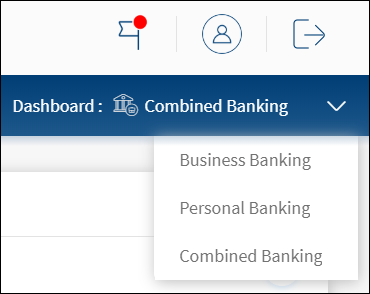
Click the down arrow to choose the required dashboard. The options are:
- Combined Banking. This is the default setting. Displays all business and retail accounts, and widgets for both business and personal banking. The following features are available:
- Business and personal accounts list with accounts filter and advanced filter.
- Search by account name, account number, account type, or company name on the search bar.
- Marketing placeholder
- Upcoming transactions show all upcoming transactions on business and personal accounts.
- My Approvals widget available to users who have approval access.
- My Requests widget available to all users whose transactions have been submitted for approval.
- Business cash position chart.
- Business Banking. Displays the business only variation of the unified dashboard. Applies to users who have been provided access to only their business accounts. The following features are available:
- Business accounts list with accounts filter and advanced filter.
- Search by account name, account number, account type, or company name on the search bar.
- Marketing placeholder
- Upcoming transactions
- My Approvals widget available to users who have approval access.
- My Requests widget available to all users whose transactions have been submitted for approval.
- Business cash position chart.
- Personal Banking. Displays the retail only variation of the unified dashboard. Displays all the retail accounts and removes the following: Widgets pertaining to business banking (Approvals, Requests, and Cash Position charts. The upcoming transactions show only transactions on personal accounts. The following features are available:
- Retail accounts list with accounts filter and advanced filter.
- Search by account name, account number, account type, or company name on the search bar.
- Marketing placeholder
- Open new account
- Upcoming transactions
- My spending chart.
Accounts List Filter - Default and Custom Views
The application displays a list of accounts (represented as a row) that the user has been given access with balance amount. The accounts are grouped by company/personal account type by default. The personal and business accounts can be distinguished by different icons. The application lists the accounts by their nicknames, if available. Otherwise, displays the account name with the masked account number (X1234). The accounts list is integrated with Transact to pull the list of accounts the authorized user has access, which includes Savings, Checking, Loans, and Deposits. See integration for more information.
For a business user, all the accounts from the companies are listed. For a combined user, the application displays accounts as personal and business and within business different companies followed by accounts of each company. A combined user can view all the retail (personal) and business accounts or choose to view a subset of retail and business accounts. By default, the application displays all retail and business accounts when Combined Banking dashboard is selected.
The personal accounts are represented by  icon and business accounts by
  icon, and the preferred accounts are represented by a blue star.
Click any account row (for example, Checking account) to view the account details and transactions.
Use the Dashboard Switch and accounts list filter as required. Additional filtering capabilities are provided to the user to create a tailored view of accounts on the dashboard. The first level of view filters provides the user the ability to view a subset of accounts through,
- Default views. The options are all accounts, personal accounts, preferred accounts, and view by company.
- Custom views. Available as a configurable feature that can be turned on or off from the Spotlight application.

Only the options relevant to the user appear in the filters. For instance if a user does not hold any Savings account or any favorite accounts, the options are not displayed in the filter view.
| Dashboard switch | Accounts list filter | Account list displayed |
|---|---|---|
| Default Views | ||
| Combined Banking | View All Accounts | Default list. All retail (personal) and business accounts. |
| View Preferred Accounts | Only the preferred retail and business accounts. These accounts are represented by blue star in front of the account row. | |
| View Personal Accounts | Only the retail accounts. | |
| View <company name> Accounts | Only the business accounts associated with the selected company. | |
| Business Banking | View all Accounts | Default list. All business accounts. |
| View Preferred Accounts | Only the preferred business accounts. | |
| View <company name> Accounts | Only the business accounts associated with the selected company. | |
| Personal Banking | All Personal Accounts | Default list. All personal accounts. |
| View Preferred Accounts | Only the preferred personal accounts. | |
| View All Personal Accounts | All personal accounts. | |
| Custom Views | ||
| Combined Banking | List of all custom views | Click to select and apply the custom view. See Custom Views for more information. |
| Business Banking | List of all custom views | Click to select and apply the custom view. |
| Personal Banking | List of all custom views | Click to select and apply the custom view. |
Do any of the following:
- Select the dashboard from the Dashboard Switch.
- Select the required accounts from the accounts filter list and use the custom views as required.
- Use the advanced accounts list filter.
- All accounts are sorted by account type under Personal and Business accounts.
- Use the up or down arrow to collapse or expand the personal or business accounts list.
- Use the search option to look for a specific account within the selected dashboard. Search by account name, account number, account type, or company name on the search bar.
Quick Actions (Contextual actions)
The quick actions menu  is available in the accounts list to perform actions based on the account type without having to drill down the account. The visibility of the contextual actions for every account is controlled by user permissions. A user must have the permission to perform certain actions on an account. Only then the associated actions are visible.
When a particular action on an account is selected from the contextual menu, the account selection on that page displays various accounts with grouping as personal, business, and within business –account grouping based on Companies(CIF).
View quick actions per account type
The following table lists the account type and the corresponding actions that can be performed using the quick actions menu. The quick actions are shown based on the permissions of the user. See Permissions for more information on permission controls.
| Account type | Contextual Actions |
|---|---|
| Savings |
|
| Checking |
|
| Credit Card |
|
| Loan/Mortgage |
|
| Deposits, IRA, Certificate Share/Deposits |
|
NOTE:
- For any account, the View Statements action is available only when the e-statements option is enabled in the account settings for that account.
- The following actions are available only to those users who have permissions to perform these actions: Make a Transfer, Stop Check Payment, Pay a Bill, Send Money, and Pay Due Amount.
Advanced Accounts Filter
In addition to the accounts list filter, an interactive advanced filter is available to group and sort the accounts. Click the filter icon to open the advanced filter.

Use the following filter options and click Apply for the filter to take effect:
- Group By: Company or Account Type. By default, Company is selected.
- Sort By: Account Type, Account Name, or Balance. By default, Account Type is selected. The default sort order for group by Account Type is Account Name.
- Types of Accounts: An option each for the different types of accounts held by the user. For example, Checking, Savings, Loan and so on. Select multiple account types as required or select all accounts.
- Currency: An option each for each unique currency in all the accounts held by the user, for example - USD. Select currencies as required or select all currencies.
Click Apply to apply the filter.
NOTE:
- The Group By and Sort By options are interconnected. When the Group By is chosen as Account Type, the Sort By Account Type option is not available to the user.
- The Currency and Type of Accounts filters are interconnected and work in conjunction. When a specific currency is chosen, the type of account filter options are then restricted to only those available for the selected currency/currencies. The other options in the account filter remain disabled.
- Reset enables the user to reset all the set filters.
- Click X to close the filter.
Marketing Placeholder
Displays promotional and informational content to educate or inform about new deals and offers. This content is in the form of multiple images and user can navigate between the images.
NOTE: The images may or may not be linked to a page on the bank's website. If required, you can open the images in another tab; the functional flow in the application will not be interrupted.
Widgets on Dashboard
The following widgets are available on the dashboard and depends on the user type and user permissions (access to features and actions).
NOTE: The widgets show static data.
Approvals and Requests
This widget shows the approval items along with the count that are due for approval of the signed-in user. This also shows the count of requests raised by the signed-in user whose transactions have been submitted for approval along with the status. Using this widget, a user can navigate to the My Approvals and My Requests modules. The widgets are permission controlled. Users who do not have approval permission do not see My Approvals widget. The My requests widget is seen by only those users who have created a transaction pending approval.
Upcoming Transactions
Displays the upcoming transactions for the next seven days where the user has been given access to at least view the debit account. The list is sorted by date (closest date first) and displays the payee name, payment description, and amount. In case any of these transactions cause an overdraft on the associated account, a banner with an associated message is displayed on top of the dashboard. See Account Details and Transactions for more information.
Cash Position Chart
The chart represents the credits and debits using two distinct bars and there is a line graph that shows the average available balance. This is for business users only.
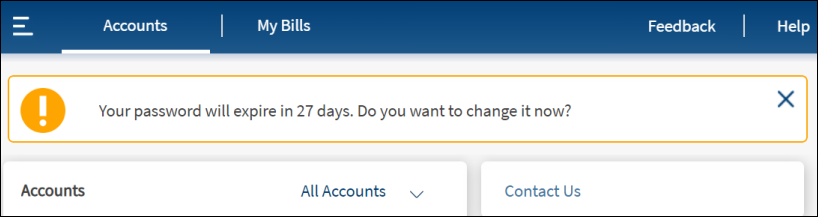
Notifications
Displays notifications such as outage messages, overdraft notification and more. The notifications appear below the top bar and above the accounts list.
My Spending - Spending insights
This widget shows spending limited to the user’s personal spends and provides an insight into the spending pattern in percentages across all accounts in a chart. Total expenditure for the current month across all accounts (checking, savings, and deposit accounts) for the current month is shown.
Other Actions
You can do the following actions:
- Open a new retail account.
- Locate the nearest ATM or branch based on your current location or call your banking service for any queries.
- View the privacy policy of the bank.
- View the terms and conditions to use the banking application.
- Access FAQ pages to use the application features.
Business Cash Position Chart
Use the feature to view the cumulative values of all the credits, debits, and available balance for the time frame of choice either for a specific company or for all business accounts across different companies to which the user has access permissions.
The business cash position chart is applicable to authorized standalone business users and combined users.
The chart contains the time along its horizontal axis and the currency amount represented along its vertical axis .The three data components of the chart are:
- Credit: Represented by a continuous line graph (green) over the selected time period.
- Debit: Represented by a continuous line graph over the selected time period.
- Total Balance: Represented by bar graphs at specific points of significance in the selected time period.
NOTE:
- The Credit, Debit, and Total Balance for a given data point are displayed on top of the graph.
- The user can hover over the graph to see the respective values for different data points along the graph.
- By default, the Credit component of the graph remains highlighted. The user can switch to a different highlight by tapping on Debit or Total Balance at the top of the graph.
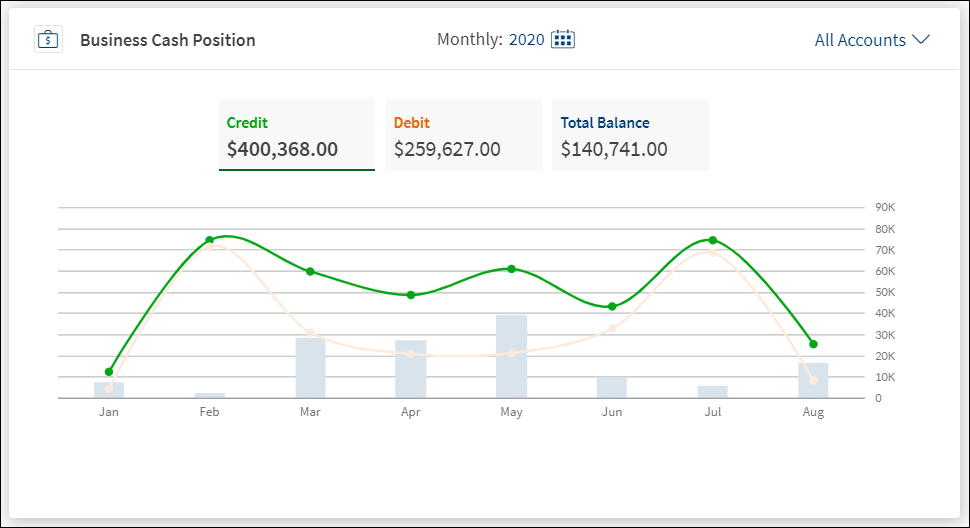
Two filters are provided - Account filter and time frame filter. The default view is a daily view or the current month for All Accounts.
Accounts filter
- All Accounts
- Company-specific accounts
Time frame filter
The user can switch between different views by clicking on the time filter. Use the calendar to specify the time period and apply. By default, the graph of all days of the current month is displayed.
| Time Period | Parameter |
|---|---|
| Daily | All days in the selected month and year. The user can pick a particular month of a year from the calendar element and click Apply. The daily graph is shown for the selected month. The graph contains 30/31 data points, one for each day of the month. |
| Weekly | Weeks in the selected month and year. The user can pick a particular month of a year from the calendar element and click Apply. The weekly graph is shown for the selected month. The graph contains data points for each week of the month. |
| Monthly | Months in the selected year. The user can pick a particular year from the calendar element and click Apply. The monthly graph is shown for the selected year. The graph contains twelve data points, one for each month of the year. |
| Yearly | Selected year range. The user can pick a particular range of years from the calendar element and click Apply. The yearly graph is shown for the selected range. |
Dashboard - Mobile Banking
After successfully signing into the phone application, the user sees a customized dashboard based on the type of user. The user type is derived from the role that is assigned to the user - a user can be a retail user, a business user, or a combined user who has single/multiple retail type of roles and a single business type of role assigned.
For a combined user, the application displays a dashboard with a combined view of all business and personal financial assets that the user has been given access to and the graphical representation of cash position and synopsis of approvals and requests among other associated sections that are relevant to the signed in user. The user can switch easily between the retail and business accounts and there are icons against each account that distinguish between the retail and business accounts.
NOTE:
- The layout of the dashboard and the elements visible on the dashboard depends on the type of signed-in user and the permissions assigned to the user to access the features and corresponding actions.
- The content on this page explains the features available to a combined retail and business user (combined user).
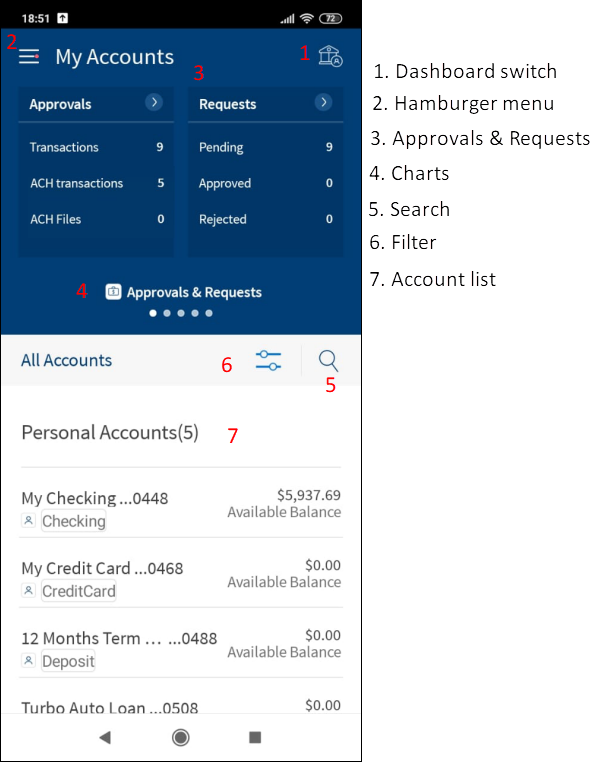
The following sections are available on the dashboard depending on the type of user and the permissions available to the user:
- Dashboard switch
- Menus
- Approvals and requests
- Charts
- Pull-down charts
- Search
- Accounts list
- Accounts list filter
Dashboard Switch
A signed in user can view the personal and business accounts and can switch between the views.
Click the  Switch on the dashboard screen to choose the required dashboard. The options are:
- Business Banking. Displays only the business accounts and can see the personal finance management (PFM) charts such as cash position and approvals and requests.
- Personal Banking. Displays only the retail accounts and can see the PFM charts such as account balance, spend analysis, and net worth summary.
- Combined Banking. Displays all business and retail accounts. The user has access to combined PFM charts. This is the default setting.
Hamburger or Side Menu
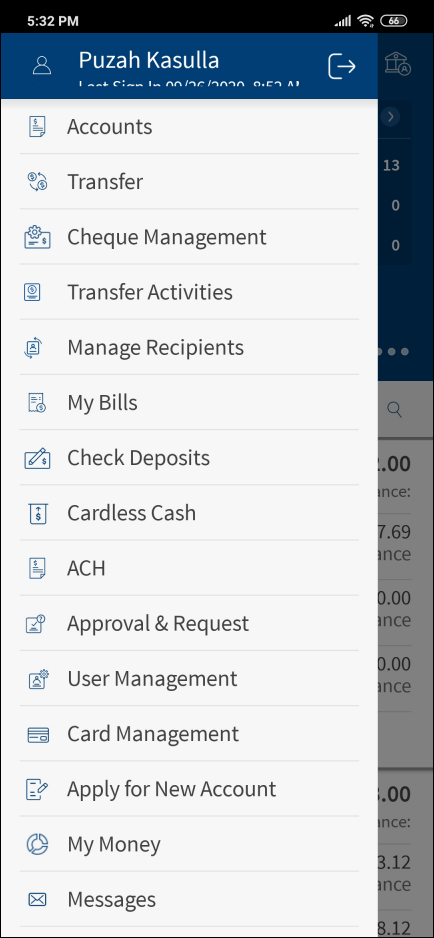
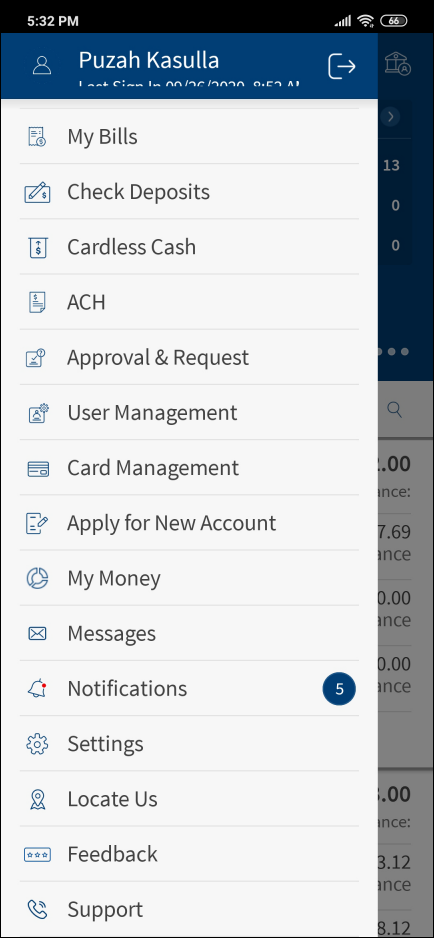
Tap the hamburger menu icon to view the menu. Tap to navigate to the required feature. See Menus for more information.
Approvals and Requests
For an authorized business user or a combined access user, the application displays the Approvals and Requests section on top section of the dashboard screen. This charts summarizes the number of requests and approvals pending under each type of transaction. If the user has permission to approve transactions, then this section is displayed with the count in parenthesis. On tapping Approvals, the application displays the page with details of the approvals and the user can complete the action. If the user does not have access to approve requests, then the section is not displayed.
If the user has raised few requests, then this section is displayed with the count in parenthesis. On tapping Requests, the application displays the page with details of the requests. If the user does not have access to raise requests, then the section is not displayed.
The individual line items cannot be clicked and are for visual representation only.
Pull-down Charts
On the dashboard, the application displays various personal finance management (PFM) pull-down charts applicable to personal and business accounts. The charts are represented as dots below the Approvals and Requests section. The charts cannot be clicked and are for visual representation only. The pull-down charts are an extension to the available charts. The charts can be expanded or opened by tapping the down chevron to see more details of each chart.
Swipe to view the various charts. The following graphs are available in combined view:
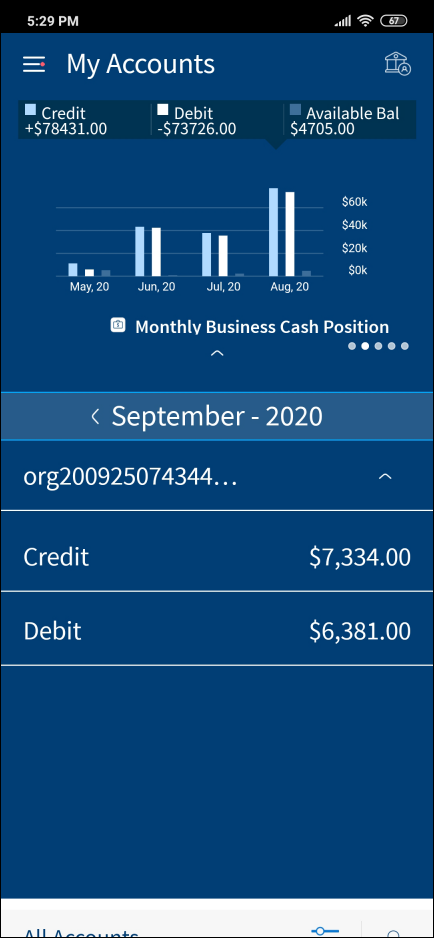
- Monthly Business Cash Position: An authorized business user or a combined access user can view a cash position chart with all credits, all debits, and available balance. This chart pertains to the business account position with data of last four months. Expand to view or do the following:
- Arrows on the header to switch the month. The user can switch until the month of the year where records exist.
- Details of credit, debit, and total balances across various companies.
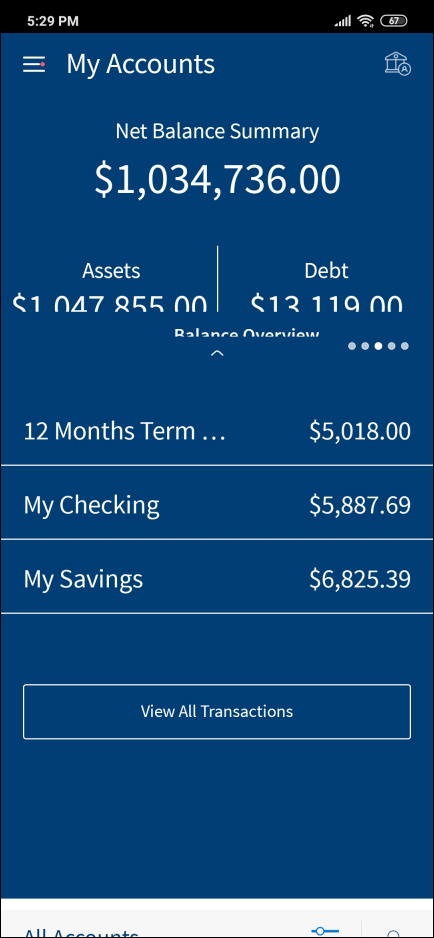
- Net Worth Summary: A business user with access to combined access or only retail accounts can view consolidated balance of all the personal accounts the user has access to are calculated and displayed with total assets and debts. Expand to view or do the following:
- The net worth split across various accounts.
- Arrows on the header to switch the chart to reflect previous data.
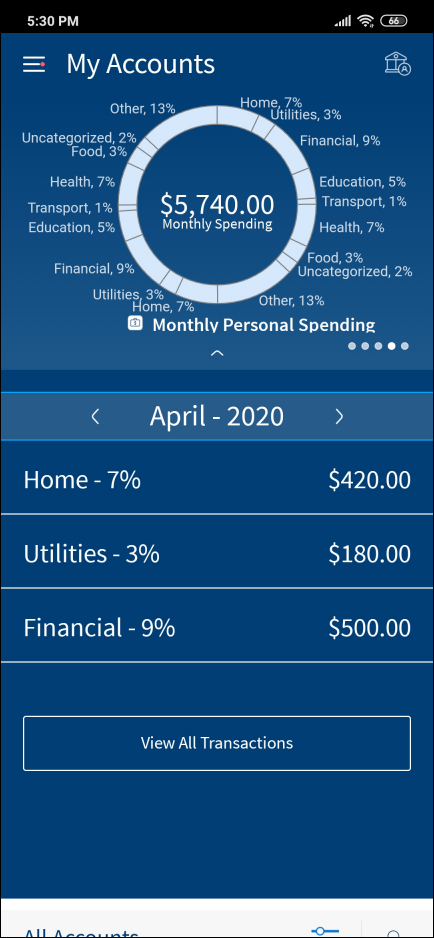
- Monthly Spending: A business user with access to combined access or only retail accounts can view a summary of monthly spending. This chart gives a gives a pictorial summary of the spending for the month. It pertains to the personal account with data of latest month (one month). Expand to view or do the following:
- Split of the different areas of expenditure with percentage and the corresponding amount.
- An option to View All Transactions for that specific month.
- Arrow menus on the month header to navigate to monthly spending summary for previous month.
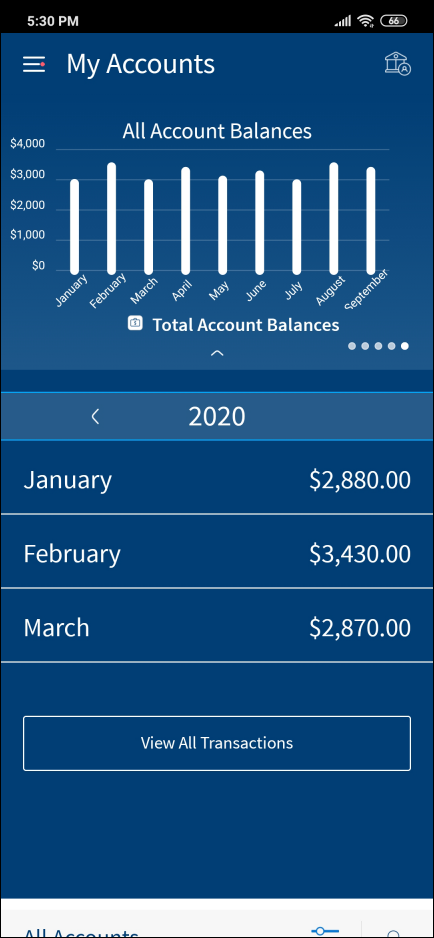
- Total Account Balance: A business user with access to combined access or only retail accounts can view the bar chart on the summary of personal account balances for the last 12 months. Expand to view or do the following:
- Month-wise account balances indicated against each month for the last 12 months.
- Arrow menus on header to view chart for data from previous year.
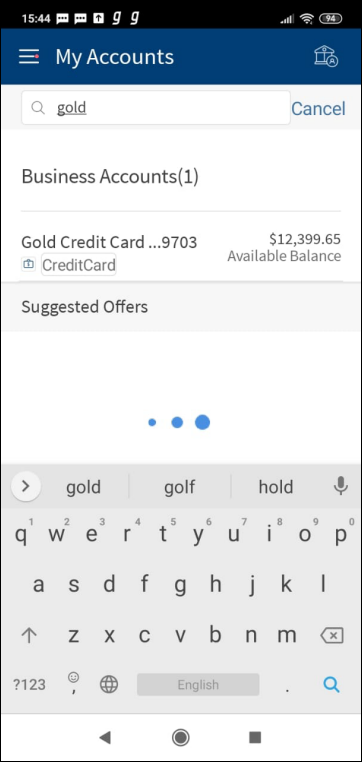
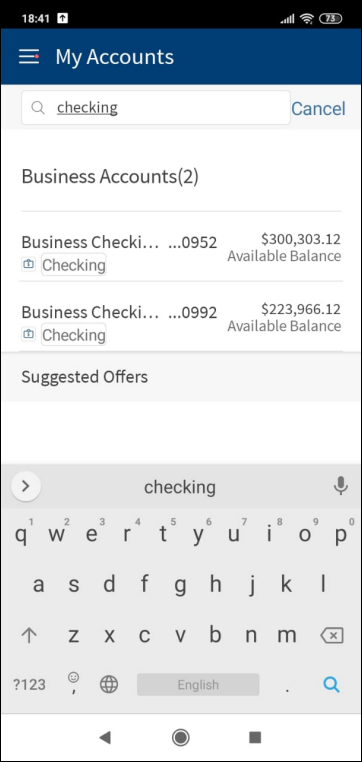
Search
Use the search option to find the specific accounts matching the search criteria. The following input parameter can be entered for search:
- Account name
- Account number
- Account type
The application displays the matching results.
Accounts List
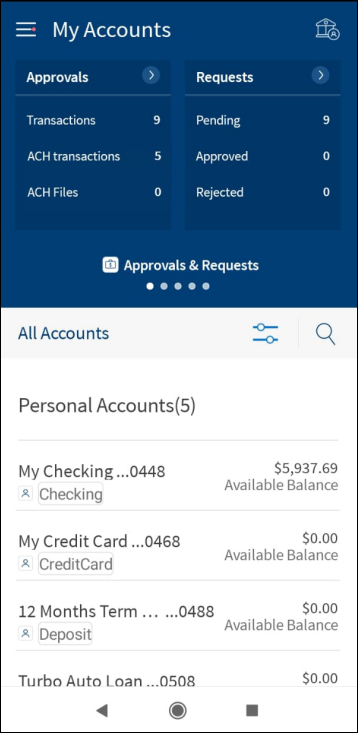
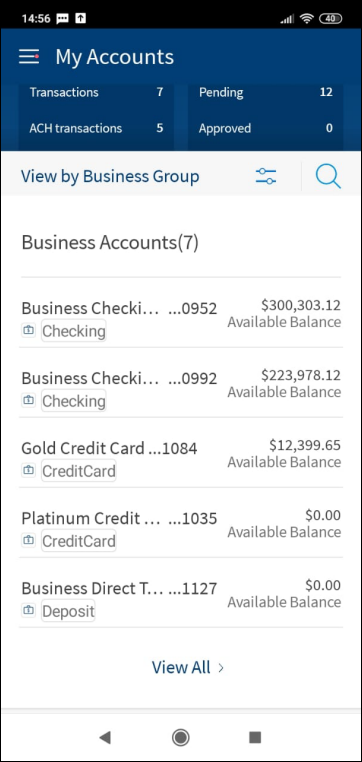
The application displays a list of accounts (represented as a row) that the user has been given access with balance amount and account type, grouped by account group. A combined user can view all the retail (personal) and business accounts or choose to view a subset of retail and business accounts. By default, the application displays all retail and business accounts when Combined Banking dashboard is selected using the dashboard switch.
- Select the required dashboard using the dashboard switch.
- Select the required accounts from the filter list.
- All accounts are grouped by account group under Personal and Business accounts.
- Use the search option to look for a specific account within the selected dashboard.
- The personal accounts are represented by icon and business accounts by icon.
- The preferred accounts are represented by a blue star.
By default, maximum five accounts are displayed under each account group with the total number of accounts shown in parenthesis on the account group header. If the accounts exceed five, use the View All button to view all the accounts.
Tap any account row (for example, Checking account) to view the account details and transactions.
Accounts List Filter

Use the Dashboard Switch and accounts list filter as required. Also see online banking accounts list filter and advanced filter for more information.
Additional filtering capabilities are provided to the user to create a tailored view of accounts on the dashboard. The first level of view filters provides the user the ability to view a subset of accounts through,
- Default views. The options are all accounts, personal accounts, preferred accounts, and view by company. Only the options relevant to the user appear in the list. Select the view and tap Apply Filter.
- Custom views. Available as a configurable feature that can be turned on or off from the Spotlight application. Select the view and tap Apply Filter.

In addition to the default and custom views, an interactive advanced filter is available to group and sort the accounts.

Use the following options and click Apply for the filter to take effect:
- Group By: Company or Account Type. By default, Company is selected.
- Sort By: Account Type, Account Name, or Balance. By default, Account Type is selected. The default sort order for group by Account Type is Account Name.
- Account Type: An option each for the different types of accounts held by the user. For example, Checking, Savings, Loan and so on. Select multiple account types as required or select all accounts.
- Currency: An option each for each unique currency in all the accounts held by the user, for example - USD. Select currencies as required or select all currencies.
Tap Apply Filter to apply the filter.
NOTE:
- The Group By and Sort By options are interconnected. When the Group By is chosen as Account Type, the Sort By Account Type option is not available to the user.
- The Currency and Type of Accounts filters are interconnected and work in conjunction. When a specific currency is chosen, the type of account filter options are then restricted to only those available for the selected currency/currencies. The other options in the account filter remain disabled.
- Reset enables the user to reset all the set filters.
- Click X to close the filter.
Configuration
Permissions
- The visibility of each feature is controlled through the permissions defined for the user. See permissions for more information. The permissions at user levels are defined during user creation and while editing the user details after the user is created. In case the user does not have access to any of the features, that option will not be visible on the form and on the menus. The permissions at the company level and role level are defined in the Spotlight application.
- The elements on the dashboard depends on the user account type and the permissions to access features and perform associated actions.
- The capability to revoke or restore the features is available in the Spotlight application.
Link Retail and Business Profiles option
The option to enable or disable the combined experience of viewing the retail and business profiles is configured in the Spotlight application - Configurations > Business Configurations > Business Banking Configurations.
Other configurations
- The Bank/CU can configure the details to be displayed for a particular account type. Account Nickname can be disabled, two types of balances can be displayed for the accounts; for example, available balance along with current balance; displaying account number can be disabled.
- The Bank/CU can disable a specific account type from being displayed in the account list. For example, loan accounts can be hidden in the account lists; external accounts can be enabled/disabled.
- The Bank/CU can disable/enable the marketing placeholder for the application. In case it is enabled, the content can be controlled by the admin at a user group level.
Extension hook
In case the Bank/CU allows users to add external savings/checking accounts, they can be listed on the account dashboard as External Accounts along with their available balances.
Integration with Transact using IRIS APIs
The list of accounts displayed on the dashboard is integrated with Transact using IRIS APIs to pull the list of accounts the authorized user has access, which includes savings, checking, loans, and deposits
- To show the account list on the dashboard, the list of accounts the user has access is checked. This information of the logged-in user is stored in DBX DB.
- On the dashboard only the accounts for the which the user has access is displayed.
- The account numbers are masked with last 4 digits displayed (XXXXX1234).
- The company name followed by the accounts are displayed.
- Based on the filter, the Available Balance or Current Balance is displayed.
- Online banking field names mapping in Transact:
- Account Name - GB SHORT TITLE(in account)
- Customer ID (CIF) - GB SHORT NAME(in customer)
- Account number - Account number(CUSTOMER.ACCOUNT)
- Account Type - Category
APIs
The following APIs are shipped as part of this feature:
| API |
|---|
| getAccountsPostLogin |
| trackDeviceRegistration |
| User |
| getCustomerTermsAndConditionsPostLogin |
| getUserProfileImage |
| getPasswordLockoutSettings |
| getOutageMessageRequest |
| getUnreadMessageCount |
| getUnreadNotificationCount |
| getUserScheduledTransactions |
| getRequests |
| getCashPositions |
| Counts |
| getCampaignSpecifications |
Add Bookmark
save your best linksView Bookmarks
Visit your best links BACK
BACK


Are you sure you want to log-off?