| Bookmark Name | Actions |
|---|
Accounts Details and Transactions List
Use the feature to view the details of the selected account and manage transactions. From the accounts dashboard screen, tap any account row (for example, Savings account) to view the account details and get the required information. A user with access to both retail and business accounts can view the details of an account for the accounts to which the user has been given permission. The accounts are segregated by personal and business type at all relevant places in the application during transfers and other flows and icons against each account indicates the type of account.
For authorized users, the account details including the list of all the transactions and balances pertaining to the selected account are integrated with Transact using IRIS APIs. See integration for more information.
The application displays the details of the selected account and you can do the following:
- Edit the account name on the contextual actions.
- View the account information (eCheck), account summary, and the balance details of the selected account.
- View recent, pending, and scheduled transaction details.
- Perform quick actions such as make a transfer, pay a bill and more.
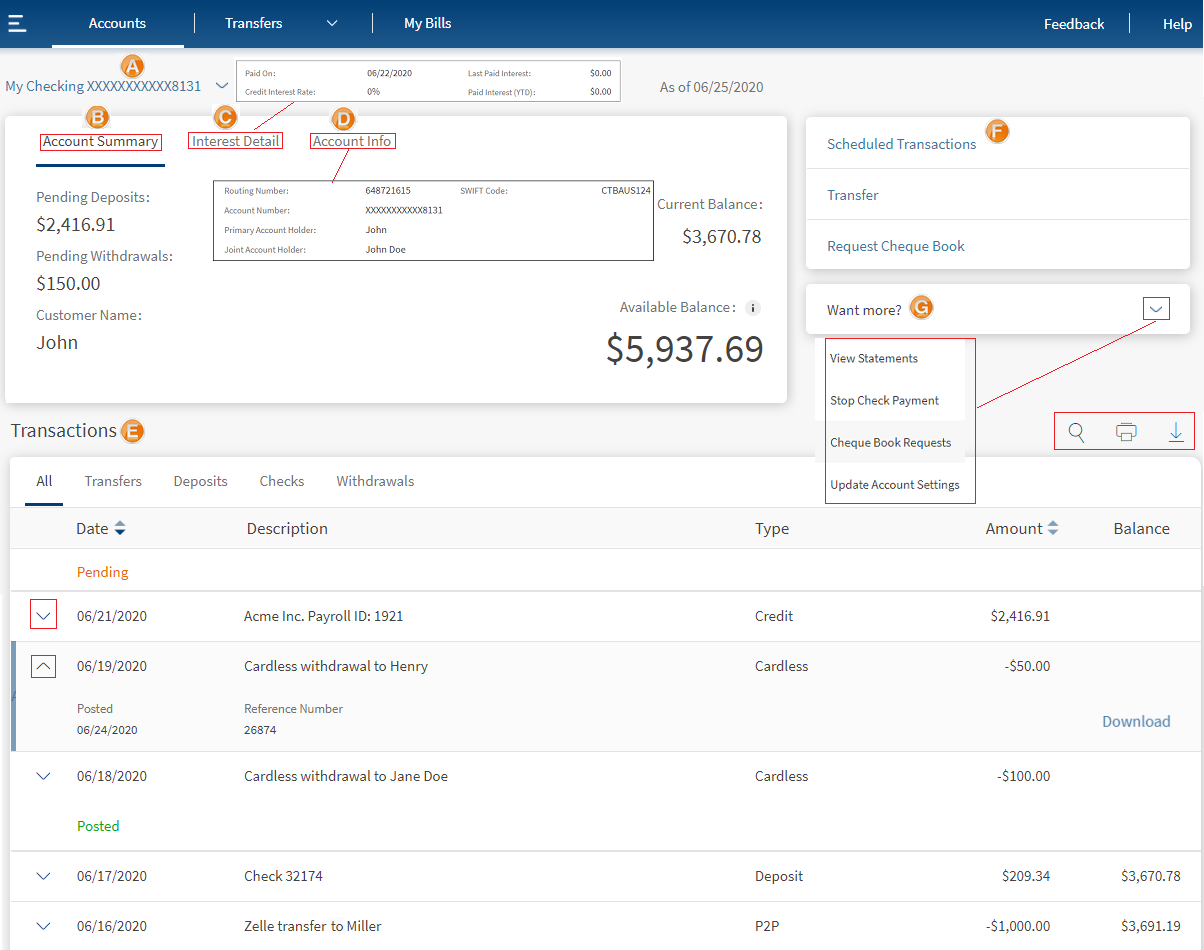
A. Accounts list filter
B. Account summary tab
C. Interest detail tab
D. View account information (eCheck)
E. Transaction details - Recent, Pending, Scheduled
F. Quick links
G. Other actions you can do (want more)
Accounts List Filter
Displays all your accounts held with the bank in a list. For a combined user, the personal and business accounts can be distinguished by different icons.
Click the down-arrow and select the required account from the list to view the details - Account information, Account Summary, and Interest details. For a business user, all the accounts from the companies are listed. For a combined user, the application displays accounts as personal and business and within business different companies followed by accounts of each company.
View Account Information (eCheck)
The Primary Account Holder name is displayed. If the account is associated with a business CIF which is business/company/corporate, the company name is displayed. If the account is associated with a CIF which is retail/personal, the Primary Account Holder name is displayed.
The company name is displayed for CIF of company/business. Otherwise, the Primary Account Holder name is displayed. If the account is associated with a business CIF which is business/company/corporate, the company name is displayed. If the account is associated with a CIF which is retail/personal, the Primary Account Holder name is displayed.
This feature is integrated with Transact using IRIS APIs to pull and display the details of a s elected account (includes Savings, Checking, Loans, and Deposits) to which the authorized user has access. The Account Info tab displays the following details. The fields vary depending on the account type:
 View Details
| Account Type | Summary Details |
|---|---|
| Savings/Checking |
|
| Credit Card |
|
| Loan/Mortgage |
|
| Deposits, IRA, Certificate Share/Deposits |
|
Click the Eye icon to view the account number. The account number is masked by default.
Account Summary Tab
The Primary Account Holder name is displayed. If the account is associated with a CIF which is retail/personal, the Primary Account Holder name is displayed.
This feature is integrated with Transact using IRIS APIs to pull and display the details of a selected account (includes Savings, Checking, Loans, and Deposits) to which the authorized user has access. View the account summary details with the following details. The fields change based on the selected account type.
View Details
| Account Type | Summary Details |
|---|---|
| Savings |
|
| Checking |
|
| Credit Card |
|
| Loan/Mortgage |
|
| Deposits, IRA, Certificate Share/Deposits |
|
Interest Detail Tab
This tab is applicable only for credit and loan accounts. View the account balance and interest details with the following details.
This feature is integrated with Transact using IRIS APIs to pull and display the details of a selected account (includes Savings, Checking, Loans, and Deposits) to which the authorized user has access. View the interest details with the following details. The fields change based on the selected account type.
View Details
| Account Type | Balance and Interest Details |
|---|---|
|
Savings and Checking |
|
|
Credit Card |
|
|
Loan/Mortgage |
|
|
Deposits, IRA, Certificate Share/Deposits |
|
Transaction Details
Displays the list of recent and pending transactions linked with the account, grouped by the transaction type (Transfer, Deposits, Checks, withdrawals, and so on are represented as tabs) with date, description, type, category, transaction amount, and account balance details. The list is sorted by date (most recent transaction on top) by default and all the fields have the sorting option.
This feature is integrated with Transact using IRIS APIs to pull and display the list of posted and pending transactions of a selected account to which the authorized user has access. The following details are available and the data in these fields are integrated with Transact:
- Transaction list (Internal Transfers, Deposits, External Transfers, and more).
- Transaction details
- Search Transaction by keying date, amount, transaction type as keyword.
- Upcoming Transactions
- Recent Transaction
- Download Transactions
- Download Transaction Advice
- Scheduled Transactions
The tabs change based on the selected account type.
View Details
| Account Type | Transaction Details |
|---|---|
| Savings |
|
| Checking |
|
| Credit Card |
|
| Loan/Mortgage |
|
| Deposits, IRA, Certificate Share/Deposits |
|
For View Checks, Bank Drafts, and SWIFT Payments
You can view the Checks, Demand Drafts, Swift MT103 messages as part of the transaction details so that you can quickly identify the beneficiary for that transaction as well as act as a proof of payment.
You can do the following:
- Click the check number or draft number to view the corresponding check image (front and back) and bank draft image (front and back).
- Click Swift MT103 Message transaction reference number to view the SWIFT payment details.
- In the image window, you can perform the following actions:
- Click the Print icon to print the check or bank draft image.
- Click the Download icon to download the check or bank draft image.
- Click the Download icon to download the Swift MT103 message in the PDF format.
- Click X to close the image.
The recent and pending transaction details are displayed under the Transactions section in the Account Details and Transactions screen. Click the Scheduled Transactions link in the Quick Links section to view the scheduled transactions.
View the transaction types and tabs for the selected account type
The following table shows the transaction types and tabs (Transfer, Deposits, Checks, and so on.) displayed under Transactions for the selected account type:
Example: If the Savings account is selected, the application shows the Transfers, Deposits, Checks, and Withdrawals tabs.
| Account Type | Transaction Type | Tab |
|---|---|---|
| Checking | Outgoing Fund Transfer | Transfers |
|
|
Incoming Fund Transfer | Deposits |
|
|
Check Deposit to Account | Deposits |
|
|
Check issued from the account | Checks |
|
|
Cash Withdrawal | Withdrawals |
|
|
Debit Card Transactions | Withdrawals |
|
|
Fees /Charges debit | Withdrawals |
|
|
Interest Deposited | Deposits |
|
|
Outgoing P2P | Transfers |
|
|
Incoming P2P | Deposits |
|
|
Bill Payment | Withdrawals |
|
|
Online Payments (Amazon, etc.) | Transfers |
| Savings | Outgoing Fund Transfer | Transfers |
|
|
Incoming Fund Transfer | Deposits |
|
|
Check Deposit to Account | Deposits |
|
|
Check issued from account | Checks |
|
|
Cash Withdrawal | Withdrawals |
|
|
Debit Card Transactions | Withdrawals |
|
|
Fees /Charges debit | Withdrawals |
|
|
Interest Deposited | Deposits |
|
|
Outgoing P2P | Transfers |
|
|
Incoming P2P | Deposits |
|
|
Bill Payment | Withdrawals |
|
|
Online Payments (Amazon, etc.) | Transfers |
| Credit Card | Debits | Purchases |
|
|
Credits | Payments |
| Deposits | Interest Added | Interest |
|
|
Amount Deposited | Deposits |
|
|
Amount Withdrawn | Withdrawals |
| Loans |
|
No tabs |
Recent and Pending Transactions
The list of recent and pending transactions linked with the account is grouped by the transaction type (Transfer, Deposits, Checks, Purchases, Payments, and Interest - represented as tabs) with date, description, type, transaction amount, and account balance details. The list is sorted by date (most recent transaction on top) by default, and you can even sort the list by amount.
You can do the following:
- Click any of the tabs (Transfer, Deposits, Checks, and Withdrawals) to view the corresponding transactions under Pending or Recent.
- Edit or delete a pending transaction.
- Search
 for transactions by using search and filter criteria.
 - Print
 the transactions list.
 - Download
 the transactions list as a PDF document.
Click the down-arrow placed on the transaction row to view the transaction details. The information displayed depends on the selected account and transaction type. The transaction details shown for the list on the All, Transfers, Deposits, and Withdrawals tabs are date, description, transaction type, transaction amount, balance amount, reference number, cheque number if applicable, and download link.
Scheduled Transactions
The list of transactions scheduled for any of your account are displayed with date, notes, type, transaction amount, and transaction action details. The list is sorted by date (most recent transaction on top) by default, and you can also sort the list by amount.
This feature is integrated with Transact using IRIS APIs for displaying the upcoming, scheduled, and recurring transactions of accounts to which the authorized user has access and updating the modified date in Transact for business and combined users.
- View the upcoming, scheduled, and recurring transactions.
- Edit the scheduled transactions.
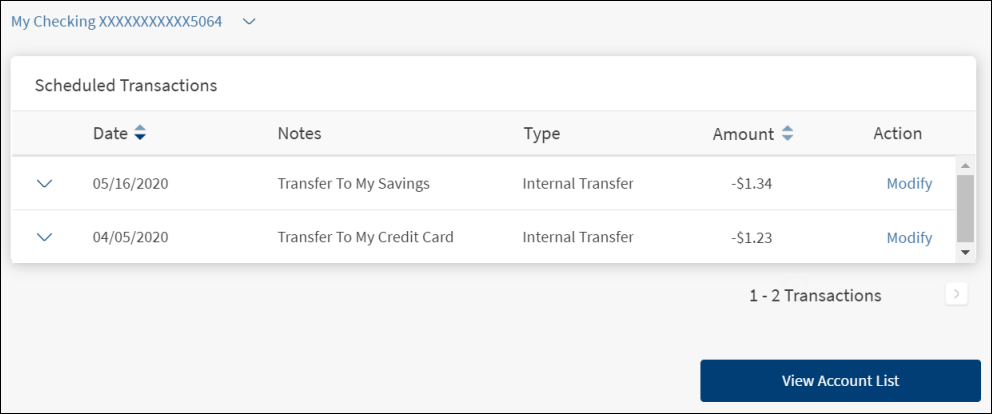
Do the following:
- Click the Scheduled Transactions link on the quick links to view the scheduled transactions list.
- Modify a transaction.
- Cancel a transaction.
- Click View Account List to go back to Account Details and Transactions screen.
Quick Links
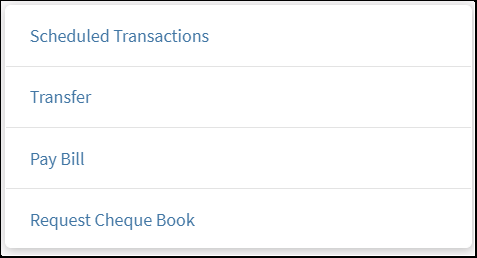
A one-stop section that contains logically grouped actions that you can perform from here. The actions change based on the selected account type. A few such actions are Scheduled Transactions, Pay Bill, and Transfer.
Other Actions (Want More)
The list that contains actions that you can perform from this screen. The actions change based on the selected account type:
- View statements
- Cheque book request
- Update account settings
View the quick links and other actions available for each account type
| Account Type | Available Quick Links | Available Other Actions |
|---|---|---|
| Savings |
|
|
| Checking |
|
|
| Credit Card |
|
|
| Deposit |
|
|
| Home Loan |
|
|
| Savings Max |
|
|
| Auto Loan |
|
|
| Study Loan |
|
|
| Car Loan |
|
|
| Secured Loan |
|
|
| Personal Loan |
|
|
Mobile Banking
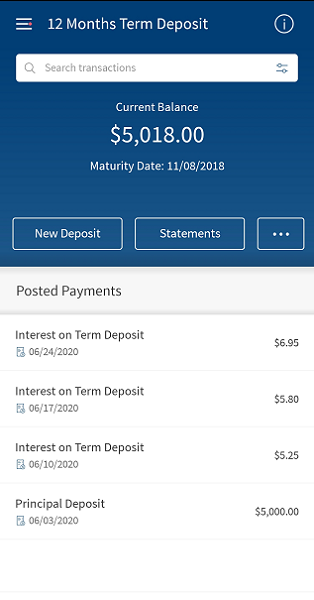
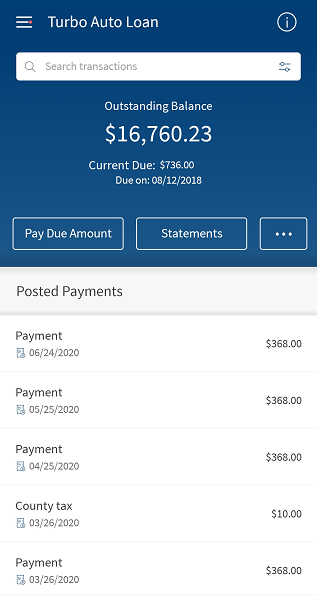
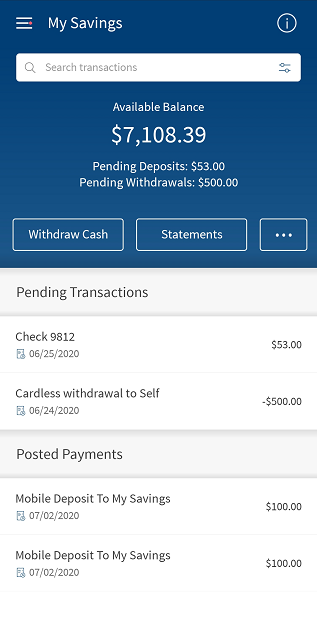
Use the feature to view the account summary of the selected account. From the accounts dashboard screen, tap any account row (for example, Savings account) to view the summary details.
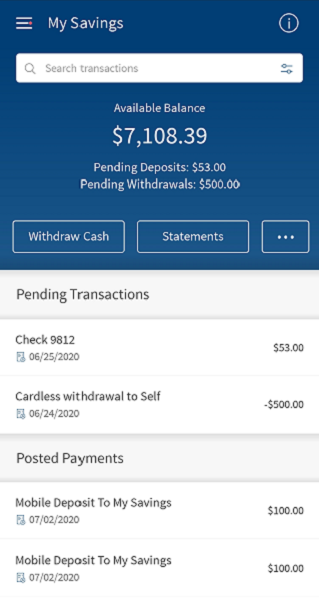
The summary screen displays the balances or relevant details of the selected account as on date on top of the screen, based on the account type. The accounts are segregated by personal and business type at all relevant places in the application and icons against each account indicates the type of account.
You can do the following in the account summary screen:
- Tap < to return to the accounts dashboard.
- Tap Search to search for transactions using filter criteria in the selected account.
- Tap
 to view and edit the account details.
 - Tap Statements to view the monthly account statements. The account statements are available for all account types (checking, savings, investment, credit card, and loan) except external accounts and does not have any restrictions in the product, but if a bank does not want to offer statements for a specific account type, the bank can do so by hiding the Statements button for that specific account type.
- Tap withdraw cash to perform a cardless cash withdrawal. This option changes as per the selected account type and it is not available for the external accounts. For example, for Credit card accounts, it is Make a Payment, for Term Deposit accounts it is New Deposit.
- Tap any recent or scheduled transaction row (record) to view the transaction details.
The summary screen displays the list of Recent and Scheduled transactions in the selected account with date, transaction notes, and amount. The list is sorted by date (most recent transaction on top). Tap any row (transaction record) to view the transaction details.
You can call the bank if you have the necessary permission to do so. The permission is tied up at user level. The Call option in the account info tab is visible if "Call Bank" permission is enabled. When you make a call, the bank phone number of the branch with which the account is linked is available on the dial pad.
Account Summary screens for various Account Types
Account Details
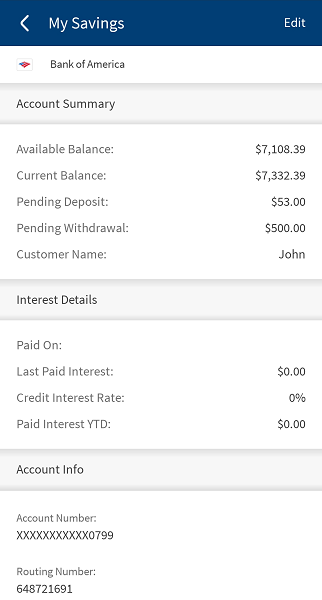
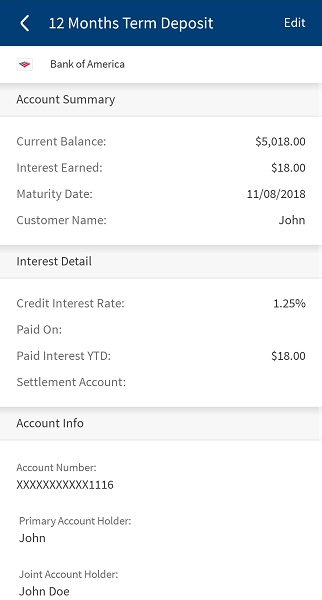
Use the feature to view in-depth information of the selected account. This page also provides options to contact the bank if you want to clarify any queries.
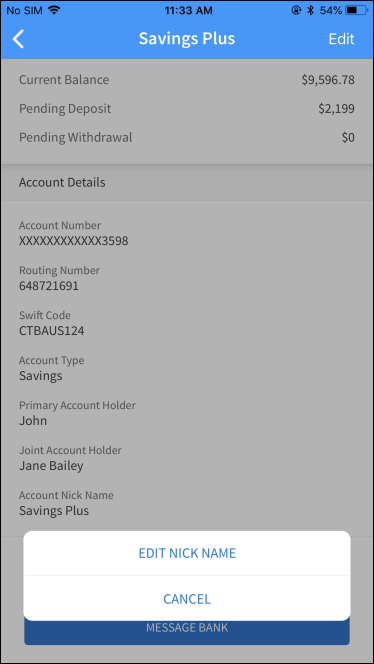
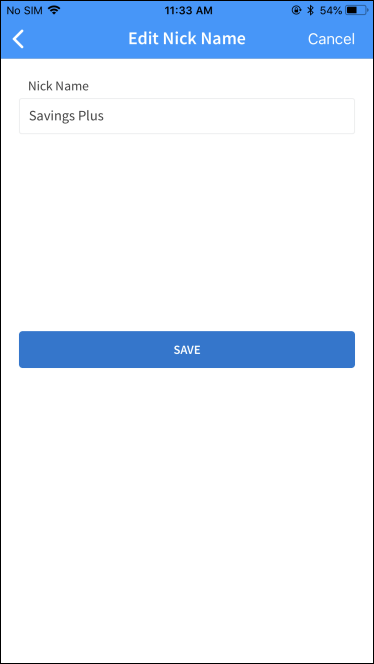
You can change the nickname to be used to identify the account. You can do the following:
- Tap Edit, and select Edit Nickname.
- Edit the nickname and Tap Save. The change will be reflected across all devices wherever the account name is displayed.
Tap < to return to the account summary.
Account Details
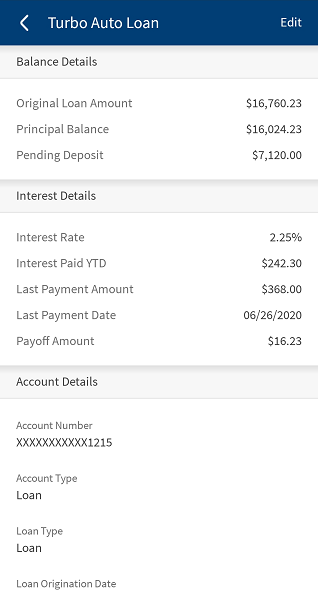
Edit Nick name
Recent Transactions
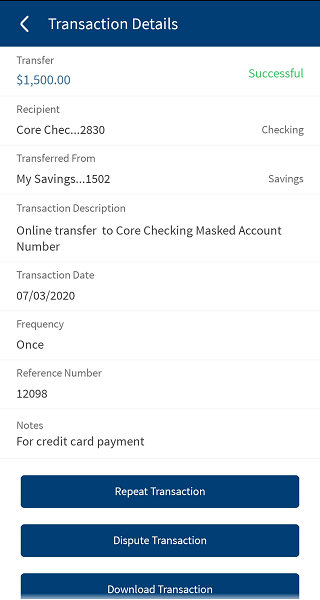
View the details, such as the transaction amount, the payee account, transaction description, the account from which the amount was transacted, the transaction ID, frequency, notes, and the transaction date.
For transactions where a check is involved (check deposit or check issued to a beneficiary), the app displays the check images in the Transaction Details screen. Tap the respective check images (front and back) as part of the transaction.
You can perform the following actions on this screen:
- Repeat Transaction. Tap the button to repeat the same transaction.
- Download Transaction. Tap the button to download the transaction. The transaction report is downloaded in PDF format, by default.
- Dispute Transaction. Tap the button to dispute the transaction.
- Tap the back button to navigate to the previous screen.
Scheduled Transactions
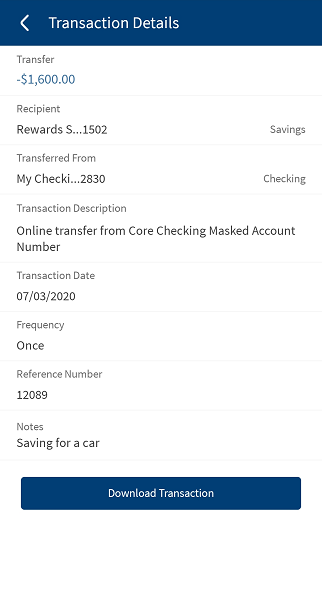
View the details, such as the transaction amount, the payee account, the account number, the account from which the amount was transacted, the transaction ID, the transaction scheduled for date, whether the transaction is a recurrence or one-time, and any provided notes.
For transactions where a check is involved (check deposit or check issued to a beneficiary), the app displays the check images in the Transaction Details screen. Tap on the respective check images (front and back) as part of the transaction.
You can perform the following actions on this screen:
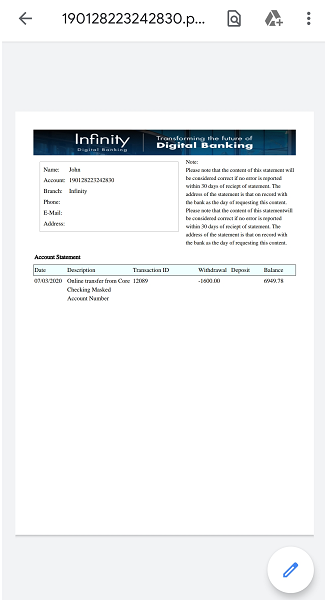
- Download Transaction. Tap the button to download the transaction. The transaction report is downloaded in PDF format, by default.
- Tap the back button to navigate to the previous screen.
Configuration
Permissions
- The visibility of each feature is controlled through the permissions defined for the user. See permissions for more information. The permissions at user levels are defined during user creation and while editing the user details after the user is created. In case the user does not have access to any of the features, that option will not be visible on the form and on the menus. The permissions at the company level and role level are defined in the Spotlight application.
- The elements on the screen depends on the user account type and the permissions to access features and perform associated actions.
- The capability to revoke or restore the features is available in the Spotlight application.
Integration with Transact using IRIS APIs
The following are integrated with Transact using IRIS APIs to pull and display the information:
- Account Summary tab: To pull and display the details of a selected account (includes Savings, Checking, Loans, and Deposits) to which the authorized user has access.
- Interest Detail tab: To pull and display the details of a selected account (includes Savings, Checking, Loans, and Deposits) to which the authorized user has access.
- Account Info tab: To pull and display the details of a s elected account (includes Savings, Checking, Loans, and Deposits) to which the authorized user has access.
- Transaction Details: To display the list of posted and pending transactions of a selected account to which the authorized user has access.
- Scheduled Transactions: To display the upcoming, scheduled, and recurring transactions of accounts to which the authorized user has access and updating the modified date in Transact for business and combined users.
API
The following APIs are shipped as part of this feature:
| Name | Description |
|---|---|
| loginAndDownload | This API is used to to sign in to AutoForm and download the document file based on the provided input parameters. The input parameters include keys such as customerId, accountId, transactionType, page, transactionRef, and mediaType. |
| loginAndView | This API is used to login to AutoForm and download the document file based on the provided input parameters. The downloaded file is returned as response in a base64 encoded string format. The input parameters include keys such as customerId, accountId, transactionType, page, transactionRef, and mediaType. |
Add Bookmark
save your best linksView Bookmarks
Visit your best links BACK
BACK


Are you sure you want to log-off?