| Bookmark Name | Actions |
|---|
Manage Alerts
Use the feature to view alerts that you received from your bank. You can view interactive alerts and take appropriate action on them, and not miss out on any important updates from the bank. You can also delete an alert.
Alerts and notifications are different from secure messages. Alerts generated by the system based on your alert preferences are displayed in the Notification Center. The Notification Center can also contain important notifications from the bank that are not controlled by your alerts preferences, for example, an upcoming downtime.
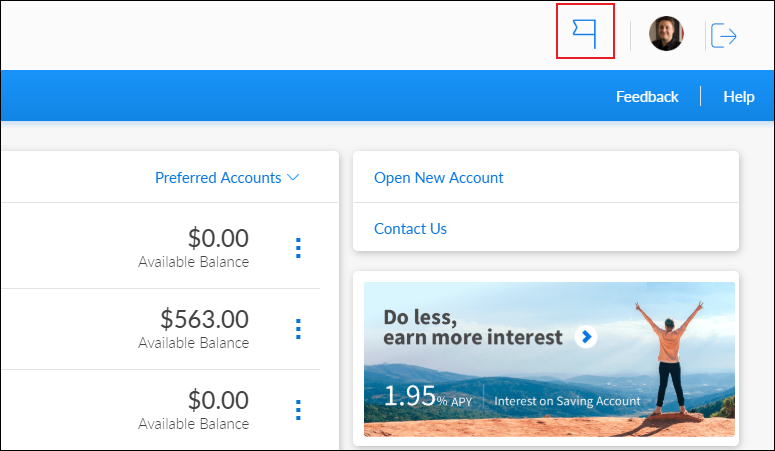
Menu path: Dashboard > Click the notifications flag icon  on the upper-right corner
If you have any new or unread alerts or secure messages in the Notification Center, the app displays a red circle at the top of the notifications flag icon. The app displays the Alerts & Messages screen. By default, the Alerts tab is selected. The app displays the number of unread alerts in brackets beside Alerts. Once you view an unread alert, the count for unread alerts incrementally decreases.

Click an alert from the list. The app displays the details of the alert, along with its subject, on the right side of the screen. Based on the alert management system, an alert may or may not have a subject.
Take action for an Interactive Alert
Use the feature to navigate to the appropriate module within the OLB application from an interactive alert from the alerts list. After navigating to the relevant module, you can take the required action.
Interactive alerts can include one or two interactive options.

For example, in case of a low balance alert, you can go to the appropriate account's details page to check the transactions or dismiss the alert. In case of a P2P Send Money request from a P2P payee, you can directly go the Send Money page from the alert. A bill payment reminder can take you to the Bill Payments module.
Delete an Alert
Use the feature to delete an alert.
Click Dismiss on the details section.

The app displays a pop-up message asking if you want to dismiss the notification.
Click Yes. The app deletes the alert message and removes it from the list of alerts.
Search for an Alert
Use the feature to search for an alert.
On the Alerts & Messages screen, type a keyword from the subject or description of the required alert in the search bar.

Click the search icon. The app displays the search results with the list of relevant alerts.
You can click the X icon to clear the search criterion at any time.
Add Bookmark
save your best linksView Bookmarks
Visit your best links BACK
BACK


Are you sure you want to log-off?