

| Bookmark Name | Actions |
|---|
JED Functions
This section shows the JED console functions that are supported by TAFJ.
Change a Record
You can modify a record by using the following methods.
 Edit a Field
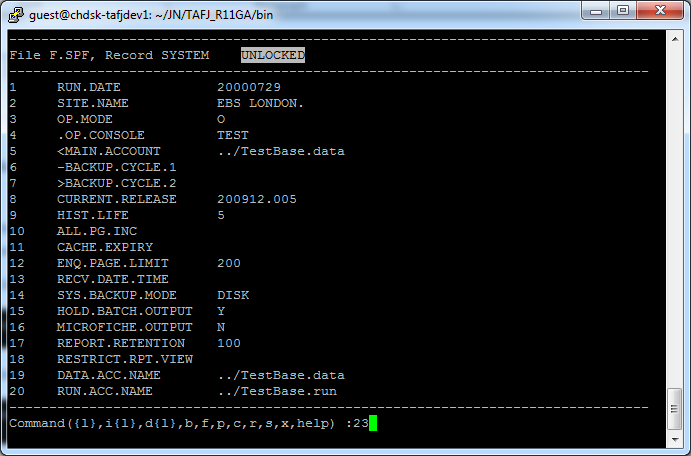
To edit an existing field, multi-value or sub-value, you need to type the field VM and SM number on the command line, even if the field is not present on the current page. A prompt appears on the related page and line, where you can specify the field value.
The current field value is placed into bracket that allows you to see if there are blank characters in the current value.
To validate the change, type enter and you will return to command line. You will see the record status changing from WAITING to PENDING during this process.

 Insert a Field
To insert a new field, multi-value or sub-value, type the i command followed by the field VM and SM number on the command line. A prompt appears on the related page and line, where you can specify the field value.
To validate the insertion, type enter and you will return to command line.
You will see the record status changing from WAITING to PENDING during this process.
For example, type i 2 to insert a field at the second position in the current record.


Type i 3.3 to insert a third multi-value in the third field of the record. If the third field is not a multi-value yet, its current value will be set as multi-value 1 and multi-value 2 and 3 will be added.


Type i 4.1.2 to insert a second sub-value in the first multi-value of the fourth field of the record. If the fourth field is not a multi-value neither a sub-value yet, its current value will be set as multi-value 1, sub-value 1 and sub-value 2 will be added.

 Delete a Field
To delete a field, multi-value or sub-value, type the d command followed by the field VM and SM number on the command line. The fields (including multi-values and sub-values) that follow the deleted field are renumbered.
You will see the record status changing to PENDING during this process.
For example, type d 2 to delete field number 2.


Type d 2.2 to delete multi-value 2 of field 2.


Type d 3.1.2 to delete sub-value 2 of multi-value 1 of field 3.


Delete a Record
You can delete a record using the d command. You need to confirm the action.


Validation
You can validate a record by using the following methods.
Cancel Pending Changes
You have the ability to cancel all your pending modifications using the c command. The record is restored at its initial state or at its state just after your last save. You will see the record status changing from PENDING to empty during this process.

 Save Pending Changes
To update your pending modifications into database, you can use the s command. You will see the record status changing from PENDING to SAVED.

 Refresh Data
The r command allows you to reload the record from the database. This allows you to see external modification that have been applied to the record since its last use. The record status is set to its default empty value.


Navigation and Display
You can navigate a record in JED console by using the following methods.
Change Page
The following commands are used to display a record that cannot be displayed on a single page (by default, 20 lines are displayed per page):
- f – Helps to move to the next page.

- b – Helps to move to the previous page.

Change Column Name Mode
If you launched JED console with -cn option, then you will be able to enable and disable the field name display in the margin on left part of the screen.
By default, field name display is enabled. You can disable it by using the cn command.

 Change Column Mode
By default, JED console splits into lines depending on the fields size.

You can pass into COLUMN MODE with the cm command; this will display the field on a single line and multiple columns.
NOTE: You should save your pending changes before switching to column mode, as console display is reinitialized and you may lose your unsaved modifications.
A flag in top right of the console indicates that column mode is on. You can now scroll right and left to view the entire field by using the sr and sl commands.

The sr command helps you to scroll right to next column and so on until the end of the field.

You can then use sl command to go back to previous column.

The cm command disables the column mode and get back to the classic mode.

 Display Help
An integrated help that sums up the available command can be accessed by using the help command. Type enter to exit help.

 Exit JED Console Application
The x command helps you to quit the console. You will lose all unsaved modification.

Add Bookmark
save your best linksView Bookmarks
Visit your best links BACK
BACK


Are you sure you want to log-off?