| Bookmark Name | Actions |
|---|
jBASE ODBC
Open Database Connectivity (ODBC) is an open standard Application Programming Interface (API) for accessing a database. By using ODBC statements in a program, you can access files in a number of different common databases.
In addition to the ODBC software, you need a separate module or driver to access each database.
jBASE ODBC Connector Architecture
jAgent on jBASE Database Server
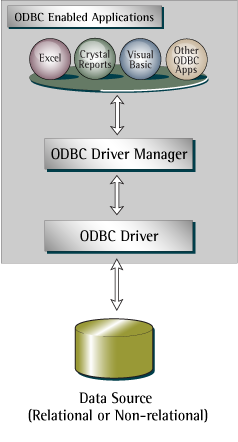
 ODBC Enabled Application
This is any ODBC compliant application, such as Microsoft Excel, Crystal Reports, Microsoft Access or similar application (Spreadsheet, Word processor, Data Access and Retrievable Tool, etc.).
ODBC Driver Manager
The ODBC Driver Manager loads and unloads ODBC drivers on behalf of an application. It is a system component, which on Windows is part of the MDAC (Microsoft Data Access Components) package and automatically included with the latest Windows operating systems. Odbcad32.exe is the ODBC Data Source Administrator and odbc32.lib or odbccp32.lib are import libraries to be used by client applications.
A jBASE specific driver manager is shipped with the jBASE ODBC package. This driver manager provides a command line interface to configure jBASE ODBC.
ODBC Driver
The ODBC driver processes ODBC function calls, submits SQL requests to a specific data source and returns results to the application. The ODBC driver may also modify an application’s request so that the request conforms to syntax supported by the associated database.
In case of jBASE, there is a driver called jBASE ODBC Connector which is an ODBC 3.0 compliant ODBC driver that works with most existing ODBC-compliant applications such as MS Excel, MS Access, Crystal Reports, etc. The ODBC Connector is only available to Windows platforms but SQL requests may be issued against a remote jBASE instance running on other platforms.
Data Source
The data source consists of the data that you want to access and its database management system. This can be relational databases like Oracle, DB2 or non-relational databases like jBASE.
Setting up jBASE ODBC
This section describes the system requirements, Installer package, how to install and manage the jBASE ODBC Driver.
System Requirements
The following platforms supports the jBASE ODBC Connector:
-
32-bit Windows Operating Systems(x86)
-
64-bit Windows Operating Systems(x64)
You must install the following system components before installing the ODBC Connector:
-
Visual C++ runtime components (version 8.0.50727.762 or higher)
It is possible to download these runtime libraries from Microsoft and they are supplied with the following package:
-
Visual C++ 2005 SP1 Redistributable Package (x86 / x64)
NOTE: These runtime components are already included in Microsoft .NET Framework 2.0 SP1 or higher.
Installer Package
The jBASE ODBC Connector is included in TAFC but may also be deployed on Windows operating systems, which do not have TAFC installed. A self-contained installer (mentioned as ODBC installer) is available which installs and registers the jBASE ODBC driver. The following are the list of release packages containing the jBASE ODBC Connector:
-
32-bit Windows TAFC ( from R09 onwards)
-
32-bit Windows ODBC Installer
-
64-bit Windows TAFC ( from R12 onwards)
-
64-bit Windows ODBC Installer
Installing the driver
The jBASE ODBC installer automatically registers the jBASE ODBC driver and ODBC setup libraries. The registration process is required to inform the ODBC Manager about the location of the ODBC driver libraries. The jBASE ODBC installer also adds the installation directory to the global user environment variable PATH. This is necessary since the jBASE ODBC driver depends on other shared libraries (for example, TAFC JCF, ACE, etc.).
Start the installation by executing jodbc32.msi. Follow the instructions on the installation wizard and complete the installation.

If the installation is successful, a new entry jBASE ODBC Driver will appear in the drivers list.

jBASE ODBC Manager
You can also use the jBASE ODBC Manager utility to install the jBASE ODBC Driver. This command line utility provides various functions like registering the ODBC driver, creating DSNs, testing connection to data sources, configuring DSNs, etc.
You can list all the available functions using jODBCManager.exe –h.
Use the following commands to install jBASE ODBC driver through jBASE ODBC Manager:
-
For 32bit jBASE ODBC driver:
jODBCManager.exe -i -driver="C:\WINDOWS\sysWOW64\jodbc.dll" - setup="C:\WINDOWS\sysWOW64\libjODBCSetup.dll"
-
For 64bit jBASE ODBC driver:
jODBCManager.exe -i -driver="C:\WINDOWS\system32\jodbc.dll" -setup="C:\WINDOWS\system32\libjODBCSetup.dll"
Configuring DSN
ODBC applications usually obtain the connection details from DSNs, which may be configured via Microsoft’s ODBC Data Source Administrator (also known as ODBC Manager, odbcad32.exe or Control Panel à Administrative Tools à Data Sources (ODBC)).
Use the following steps to add a DSN for jBASE connectivity:
-
Click Add in the ODBC Data Source Administrator, select jBASE ODBC Driver, and click Finish.
-
In the jBASE ODBC Data Source screen, specify the Data Source Name and Connection details.
-
Start the jbase_agent or tafc_agent on the jBASE Server machine to listen on the port defined in the last step.
-
Click the Test button to see if the connection can be established from the client machine to the jBASE Server.


| Parameter | Use |
|---|---|
|
Server |
IP address or hostname of the machine on which the jBase_agent or tafc_agent is running. |
|
Port |
Port number on which the jBase_agent or tafc_agent is listening. |
|
User |
User login ID |
|
Password |
Login Password |


Extracting Data from jBASE Server
You can extract data from jBASE server using any ODBC compliant application, such as Microsoft Excel, Crystal Reports, Microsoft Access, etc. When MS Excel is used, the following steps needs to be performed:
-
In MS Excel, navigate to Data > From Other Sources and select From Microsoft Query.
-
Select the DSN that was created earlier and click OK.
-
Select the file or table from which the data need to be imported. Also, select the fields of the table that are to be exported.
-
Select a field for sorting in the Sort by option and click Next.
-
Click Finish.
-
Click OK on the Import Data dialog box to produce the output in Table format.


You will see all the jBASE tables available in the current directory where jBASE_Agent is running.


You will see the jBASE table data exported and displayed in excel.

Additional Connection Properties
In R12, two additional properties are included in jBASE ODBC driver. They are
-
Timeout – To set the connection timeout for jAgent running on jBASE Server. If this property is not set, then the default connection timeout of jAgent will be used.
-
Env.Variables – To set the JEDIFILEPATH on jBASE Server. This will help you to query any table available in the specified path. By default, the query looks for tables or files in the default JEDIFILEPATH or the tables or files in the current directory, where jAgent is running.
These properties can be defined using the DSN configuration options in ODBC Data Source Admin.

jBASE Locale Configuration
Locales can be configured for the user id through the JBASE_LOCALE environment variable. The jlocales command displays a full list of available locales from the command line.
Configured locales are only applicable when executing an application in international mode or the JBASE_I18N environment variable is configured. The locale is based on the underlying OS locale configuration and the configured locale for the user id has no effect.
As configuration of the international mode is on an account basis, the state of international mode can change on execution of a LOGTO. If configuring an account with international mode false, then the JBASE_I18N environment variable will be unset as the result of the LOGTO.
Developing Client Applications
ODBC CLI is an API written in C but other frameworks like .NET provide ODBC wrapper classes. The following Visual Basic .NET examples use .NET’s Microsoft.Data.Odbc module.
Example 1
Reads data from the MY_TEST_TABLE table. A DSN named Temenos Transact is required.
Imports System
Imports Microsoft.Data.Odbc
Module Module1
    Sub Main()
        Dim connectionString AsString = "DSN=T24;UID=test;PWD=test"
        Dim SQL AsString = "SELECT * FROM MY_TEST_TABLE"
        Dim conn AsNew OdbcConnection(connectionString)
        Dim cmd AsNew OdbcCommand(SQL)
        cmd.Connection = conn
        conn.Open()
        Dim reader As OdbcDataReader = cmd.ExecuteReader()
        While reader.Read()
            Console.Write(("ID:" + reader.GetString(0).ToString()))
            Console.Write(" ,")
            Console.Write(("NAME:" + reader.GetString(1).ToString()))
            Console.Write(" ,")
            Console.WriteLine(("AGE:" + reader.GetInt32(2).ToString()))
        EndWhile
        reader.Close()
        conn.Close()
    EndSub
EndModule
Example 2
Creates a table with 100 records, followed by a SELECT. A DSN named Temenos Transact is required.
Imports System
Imports Microsoft.Data.Odbc
Module Module1
    Sub Main()
        Dim TimeStart, TimeEnd AsDate
        TimeStart = Date.Now()

        REM Open a connection
        Dim conn AsNew OdbcConnection("DSN=T24;UID=test;PWD=test")
        conn.Open()

        REM Create table
        Dim createCmd AsNew OdbcCommand("CREATE TABLE MY_TEST_TABLE(ID INTEGER, NAME VARCHAR(255), AGE SMALLINT, CREDIT_SCORE INTEGER, BALANCE DOUBLE, PRIMARY KEY(ID))", conn)
        Try
            createCmd.ExecuteNonQuery()
        Catch e As Exception
            REM Drop and create table
            Dim dropCmd AsNew OdbcCommand("DROP TABLE MY_TEST_TABLE", conn)
            dropCmd.ExecuteNonQuery()
            createCmd.ExecuteNonQuery()
        EndTry

        REM Insert records
        Dim insertCmd AsNew OdbcCommand("INSERT INTO MY_TEST_TABLE(ID, NAME, AGE, BALANCE, CREDIT_SCORE) VALUES (?, ?, 30, 345, 876.67)", conn)
        insertCmd.Prepare()
        insertCmd.Parameters.Add("@ID", OdbcType.Int)
        insertCmd.Parameters.Add("@NAME", OdbcType.VarChar, 255)
        Dim i AsInteger
        For i = 1 To 100 Step 1
            insertCmd.Parameters("@ID").Value = i
            insertCmd.Parameters("@NAME").Value = "Customer " & i.ToString()
            insertCmd.ExecuteNonQuery()
        Next

        REM Select all records
        Dim selectCmd AsNew OdbcCommand("SELECT ID, NAME, AGE, BALANCE, CREDIT_SCORE FROM MY_TEST_TABLE ORDER BY ID", conn)
        Dim reader As OdbcDataReader = selectCmd.ExecuteReader()
        While reader.Read()
            Console.Write(("ID: " + reader.GetInt32(0).ToString()))
            Console.Write(", ")
            Console.Write(("NAME: " + reader.GetString(1)))
            Console.Write(", ")
            Console.Write(("AGE: " + reader.GetInt32(2).ToString()))
            Console.Write(", ")
            Console.Write(("BALANCE: " + reader.GetInt32(3).ToString()))
            Console.Write(", ")
            Console.WriteLine(("CREDIT SCORE: " + reader.GetDouble(4).ToString()))
        EndWhile
        reader.Close()

        REM Close connection
        TimeEnd = Date.Now()
        Console.WriteLine("Elapsed:   {0} seconds", DateDiff(DateInterval.Second, TimeStart, TimeEnd))
        conn.Close()
    EndSub
EndModule
NOTE: SQLGetFunction() provides a list of supported SQL CLI methods. Stored procedures are supported via the ODBC CALL statement and provide way of calling jBASE subroutines.s
Enabling TABLEFILE functionality for jODBC
The previous jDP functionality allowed a list of files accessible to the current datasource to be specified in the connections string. Similar functionality is now provided via the TABLEFILE functionality.
To use:
-
Create and populate a catalog file on the jAgent server in the normal way.
-
When creating a new data source, specify the full path of the of the catalog file in either the advanced options dialog of odbcad32 or the USER_CATALOG parameter of the connection string. For example,
jODBCManager -add="DSN=MyTestjODBC;SERVER=localhost;UID=test;USER_CATALOG=c:\data\myCatalog"
Add Bookmark
save your best linksView Bookmarks
Visit your best links BACK
BACK


Are you sure you want to log-off?