| Bookmark Name | Actions |
|---|
Creating on-demand events
You can create an exit point to support event capture for D, L, W and T type of files and also for any AA Application or version except AA.ARRANGEMENT.ACTIVITY and AA.SIMULATION.CAPTURE.
Integration Framework provides various exit points to capture business events and also data events. All these ext_creting-on-demand-eventsit points can capture events that occur during a business transaction. In Trasact, there are applications that can get the data written directly. Events for these applications cannot be captured by Integration Framework. This exit point type covers this gap in Integration Framework.
Creating an on-demand event at design time
Procedure
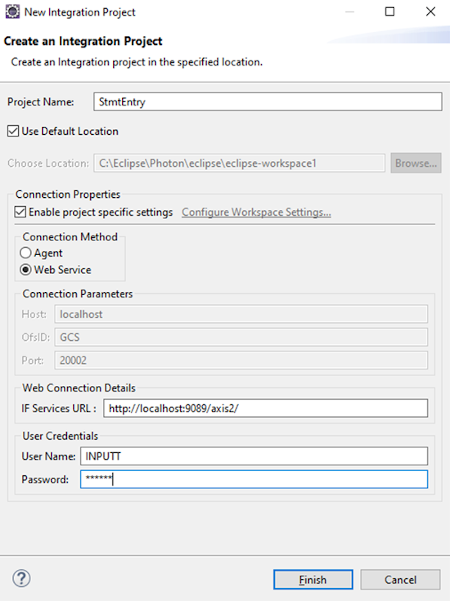
- Create an Event Designer project. You can skip this step and add an event to an existing project.
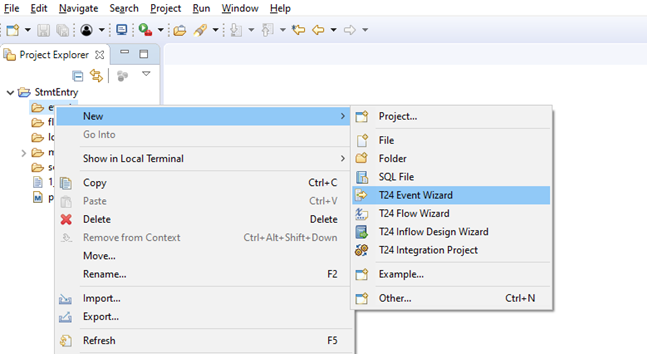
- Right-click the events folder and click New > T24 Event Wizard.
- Provide a name for the event and click Finish.
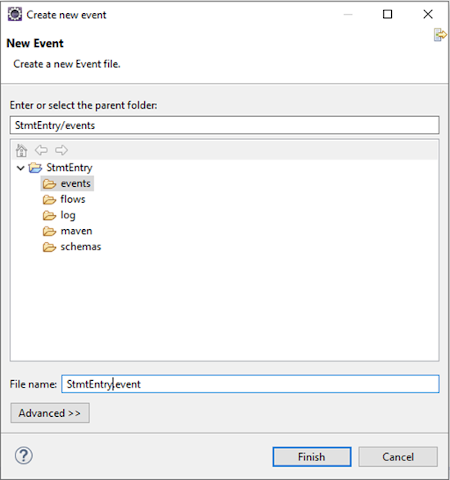
The event page is displayed.
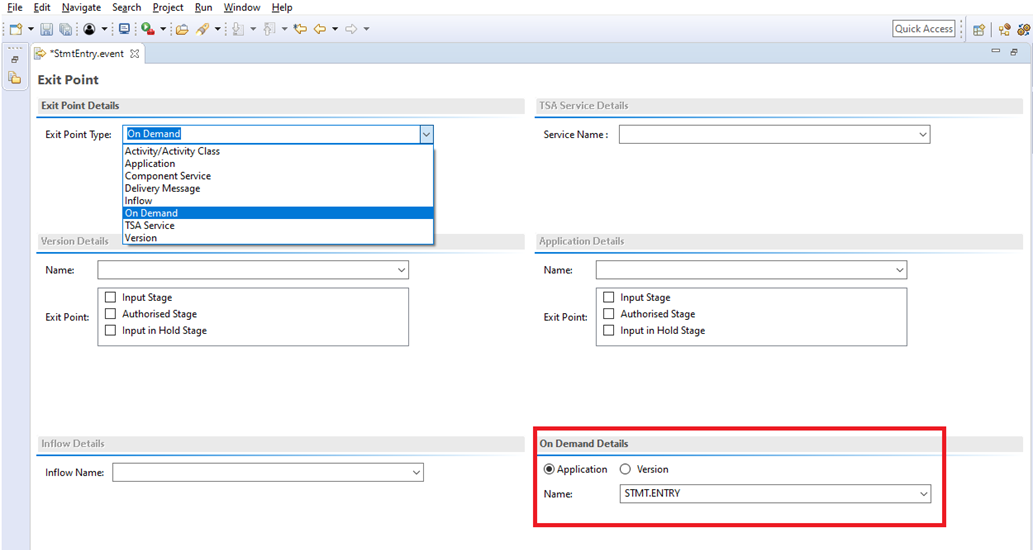
- From the Exit Point Type drop-down list, select On Demand.
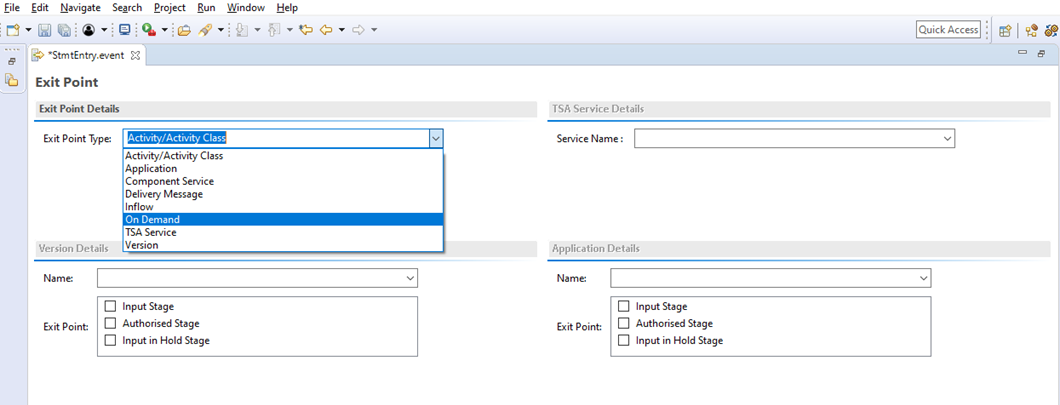
- Do one of the following:
- Define an on-demand exit point for an application or version for which a transaction cannot be done directly.
- Specify the applications to which the data is directly written
- Specify AA child transaction versions or applications.
Here the Application option is selected.
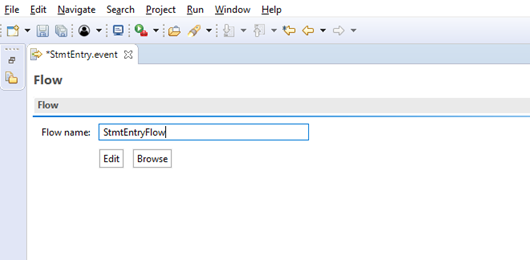
- Click the Flow tab.
- Provide the flow name and click Edit.
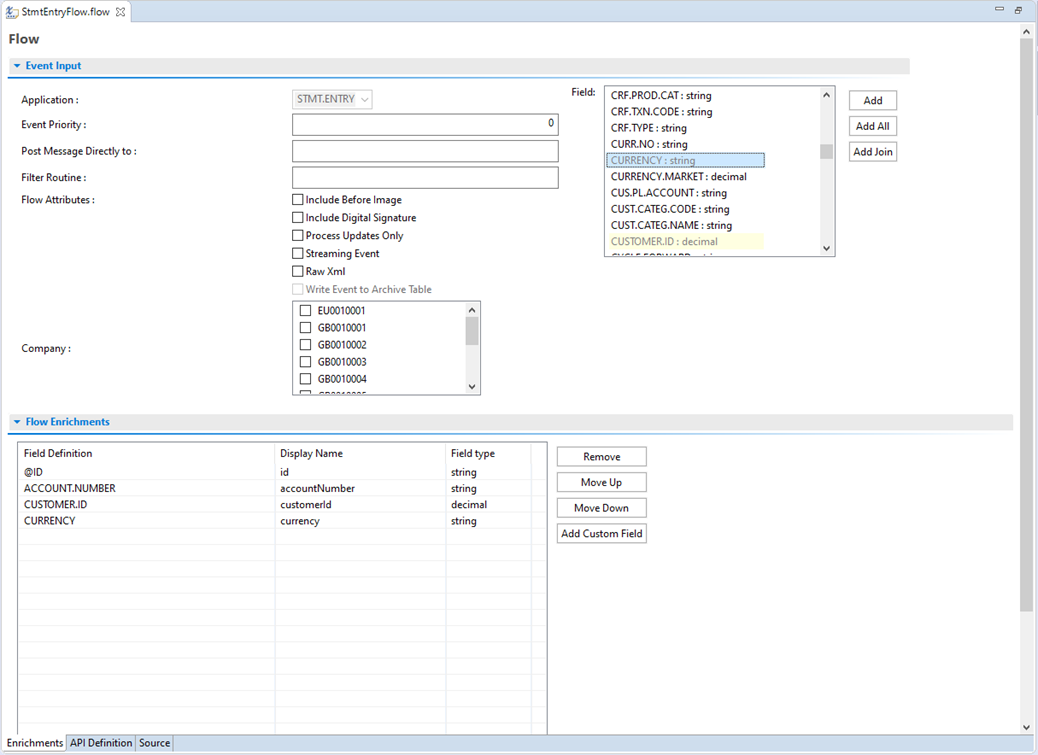
- Add the required fields and, if required, joins.TIP:
You can also define conditions based on which an event needs to be generated.
- Save and publish the flow.
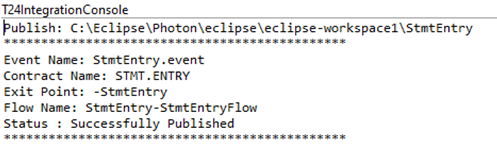
Runtime
Defining an on-demand event does not guarantee the generation of the event. But the API T24IntegrationFrameworkServiceImpl.generateOnDemandEvent needs to be invoked to trigger the event. This call needs to be done in any of the versions or application level routines or from the core application itself. If the call cannot be done by the client code, contact the respective product team with the requirement.
T24IntegrationFrameworkServiceImpl.generateOnDemandEvent API parameters are listed in the order of occurrence in the API:
- applicationName (IN)
-
Name of the application for which the event needs to be triggered.
- txnIds (IN)
-
Field Marker-separated Record IDs for which the events need to be triggered.
- oldTxnRecords (IN)
-
Field Marker-separated old image of the record for which the events need to be triggered.
- newTxnRecords (IN)
-
Field Marker-separated new image of the record for which the events need to be triggered.
- keyValuePair (IN)
-
This is the additional information that is added to the eventCommon section.
- eventIds (OUT)
-
Field Marker-separated IF Integration Event IDs.
Sample subroutine to call the T24IntegrationFrameworkServiceImpl.generateOnDemandEvent API and to trigger an event
SUBROUTINE testOnDemandEvent

    txnIds = "187860005637609.130001" : @FM : "187860005637880.220001" : @FM : "187860033139848.000001"
    keyValuePair<1> = LOWER("Test1" : @VM : "Val1" : @FM : "Test2" : @VM : "Val2")
    keyValuePair<2> = ””
    keyValuePair<3> = LOWER("Test1" : @VM : "Val1" : @FM : "Test2" : @VM : "Val2")

    applicationNameFile = "FBNK.STMT.ENTRY"
    applicationNameHandle = ""
    err = ""
    applicationName = "STMT.ENTRY"

    CALL OPF(applicationNameFile, applicationNameHandle)

    txnIDCount = DCOUNT(txnIds,@FM)

    FOR txnIDCnt = 1 TO txnIDCount

        CALL F.READ (applicationNameFile,txnIds<txnIDCnt>,newTxnRecordsTmp,applicationNameHandle,err)
        newTxnRecords<-1> = LOWER(newTxnRecordsTmp)
        tmpkeyValuePair<-1> = keyValuePair<txnIDCnt>

    NEXT

    CALL T24IntegrationFrameworkServiceImpl.generateOnDemandEvent(applicationName, txnIds, oldTxnRecords, newTxnRecords, tmpkeyValuePair, eventIds)


    CRT "Processed Id List : " : eventIds

RETURN
Add Bookmark
save your best linksView Bookmarks
Visit your best links BACK
BACK


Are you sure you want to log-off?