| Bookmark Name | Actions |
|---|
Configuring the WebSphere Application Server
You will need to perform a number of steps to configure the WebSphere application server for Relational Replication.
Configuring JVM parameters in WebSphere
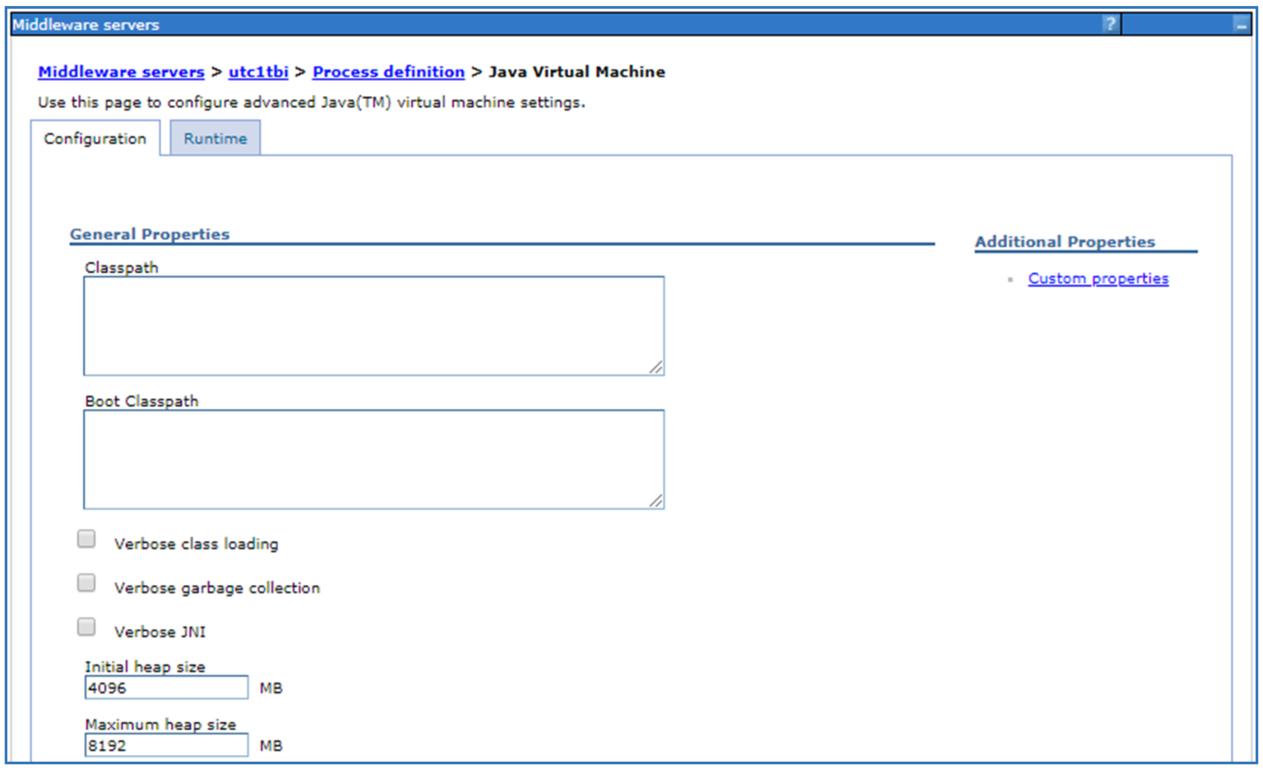
Some parameters need to be configured in the Java Virtual Machine settings of the WebSphere server where the RR Applications, Config, ETL and Purge are going to be deployed.
Procedure
-
Configure the Initial and Maximum heap size for the Java Virtual Machine
-
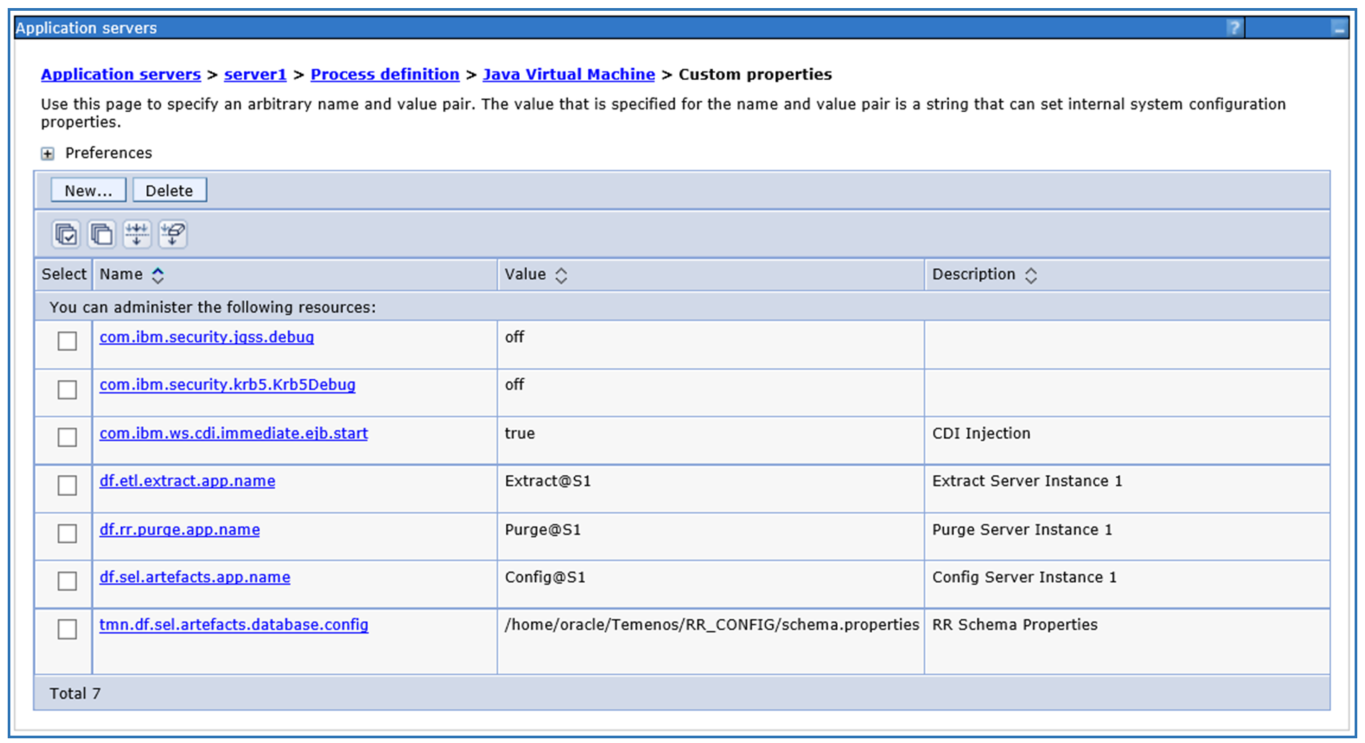
Set the following parameters.
Name Value Description Java Heap Size -Xms4096m –Xmx8192m Heap Size Configuration tmn.df.sel.artefacts.database.config <path>/RR_CONFIG/schema.properties RR Schema Properties com.ibm.ws.cdi.immediate.ejb.start true RR Extract CDI Enable df.sel.artefacts.app.name RR-CONFIG-x RR Config Instance x df.etl.extract.app.name RR-ETL-x RR ETL Instance x df.rr.purge.app.name RR-PURGE-x RR Purge Instance x
Configuring EJB parameters in WebSphere
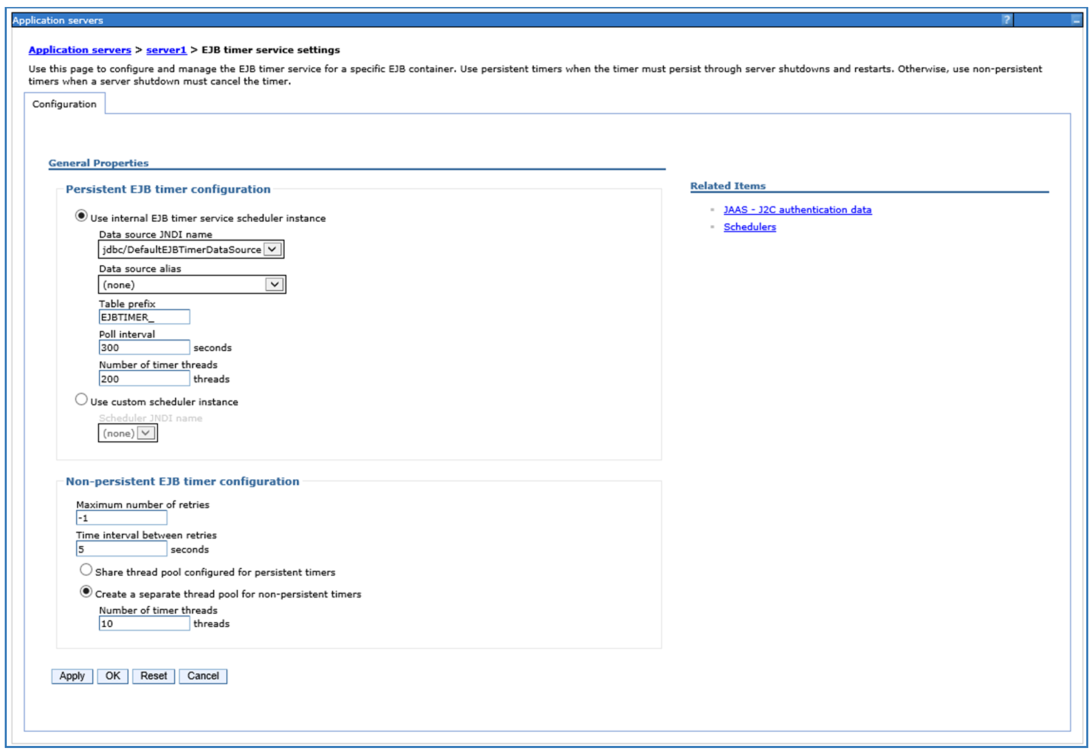
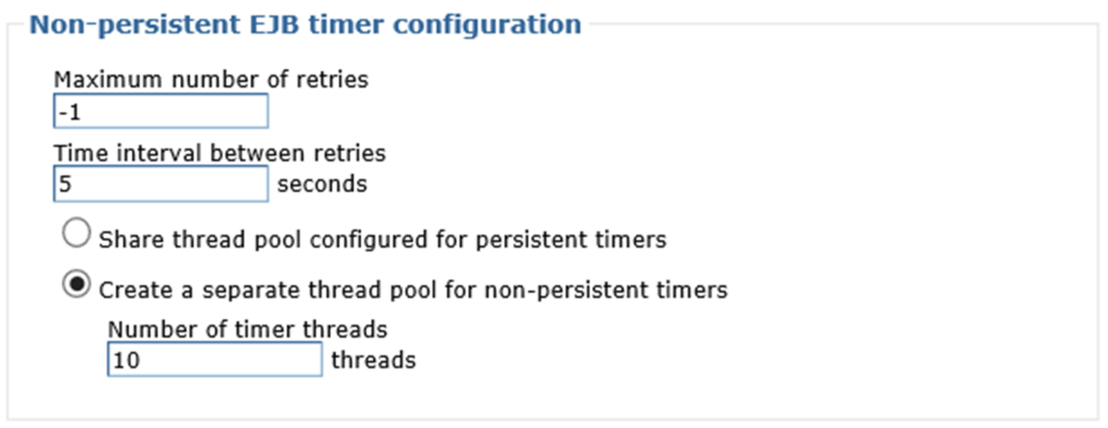
Configuring EJB timer service settings
Procedure
-
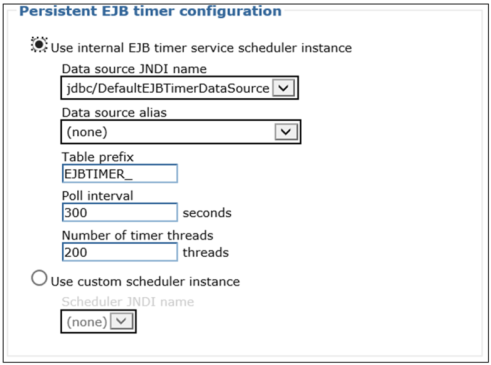
Set Persistent EJB timer configuration to 200.
-
Set Time interval between retries to 5.
-
Set Non-persistent EJB timer configuration to 10.
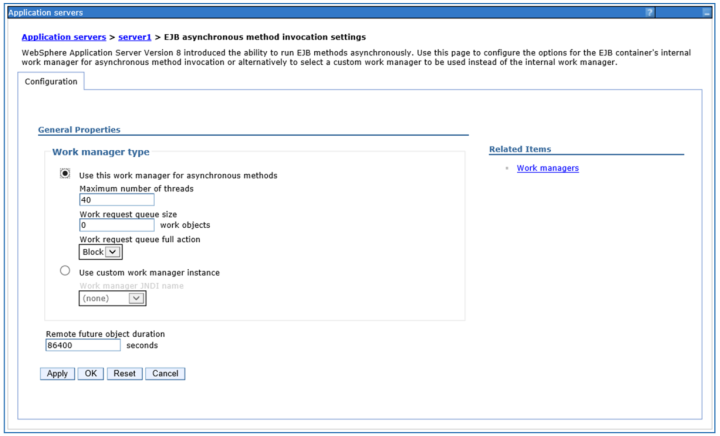
Configuring EJB asynchronous method invocation settings
Set Maximum number of threads to 40.
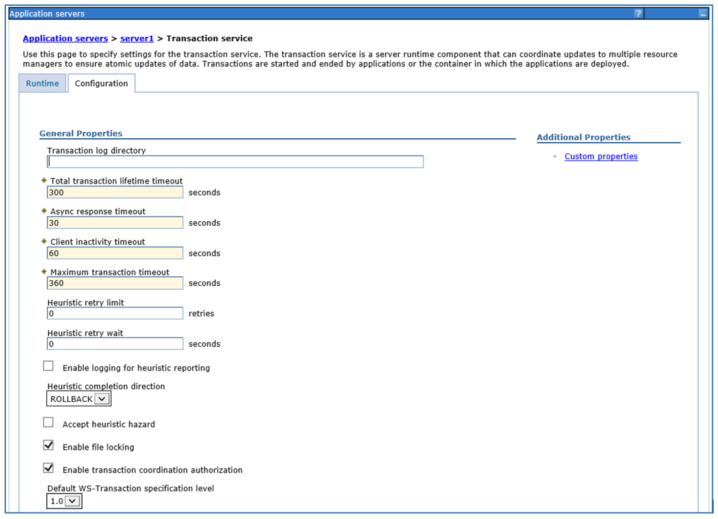
Configuring the Transaction service
-
Set Total transaction lifetime timeout to 300.
-
Set Maximum transaction timeout to 360.
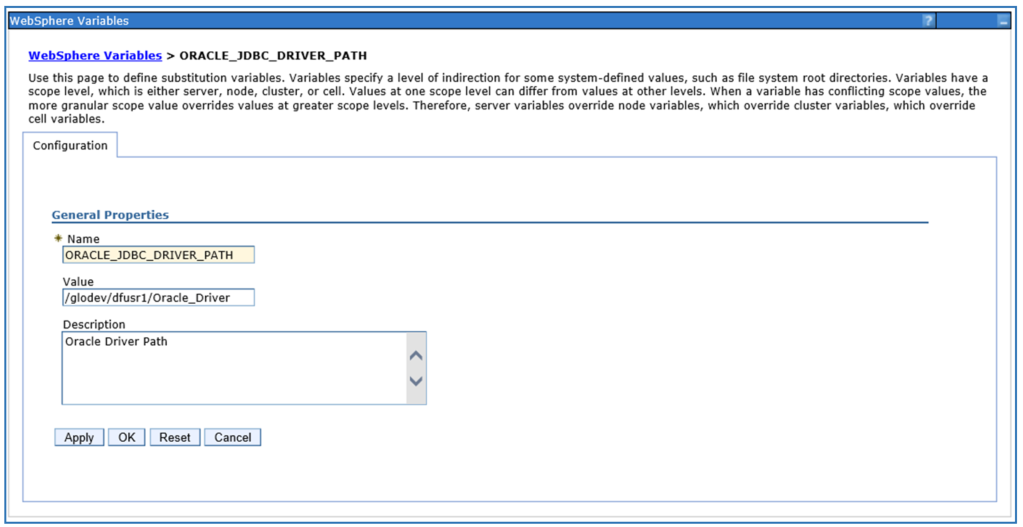
Configuring the Oracle JDBC driver
Before doing this, you must copy the relevant Oracle driver onto the server and define the path to the WebSphere variables in the Environment section.
Configure the Oracle JDBC driver as illustrated below.
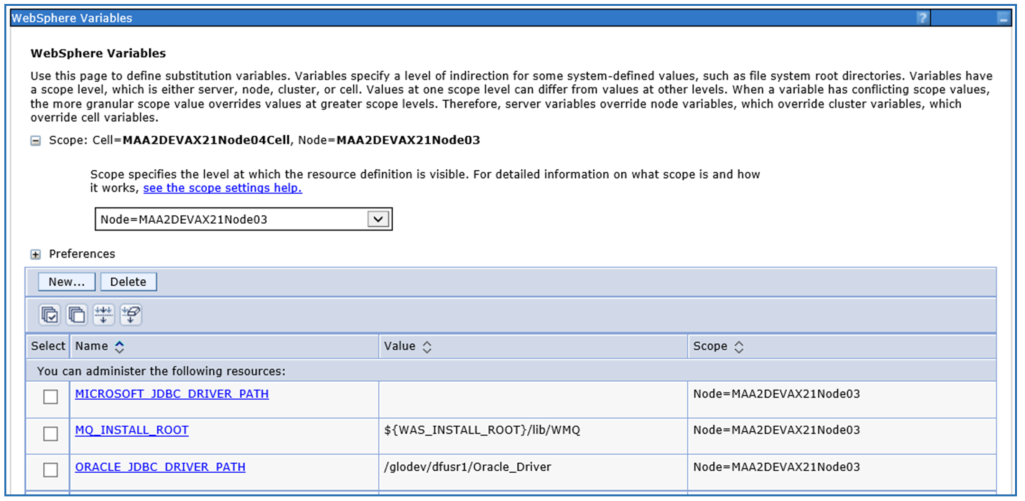
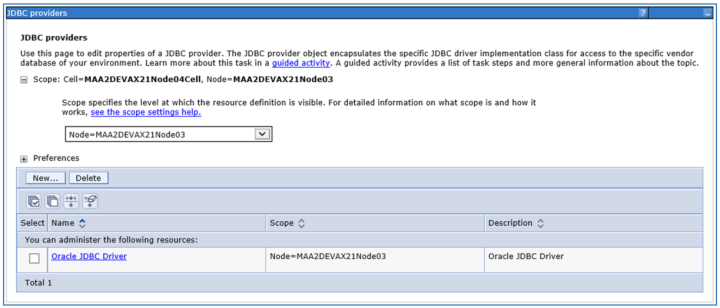
Creating an Oracle JDBC provider
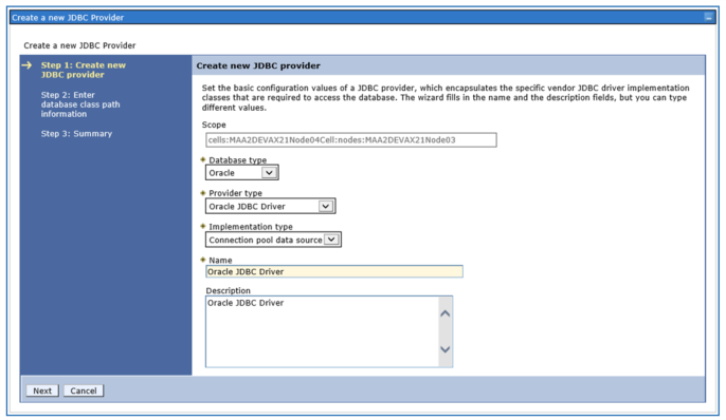
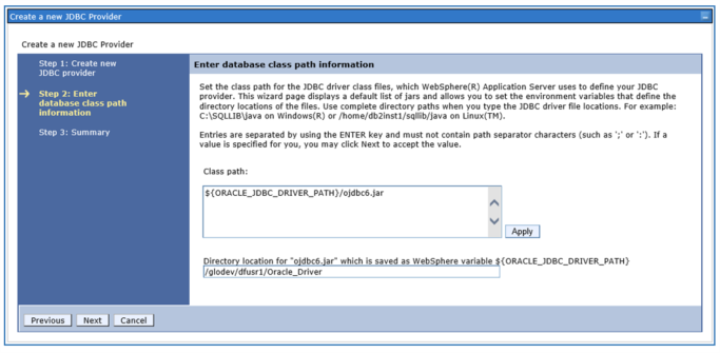
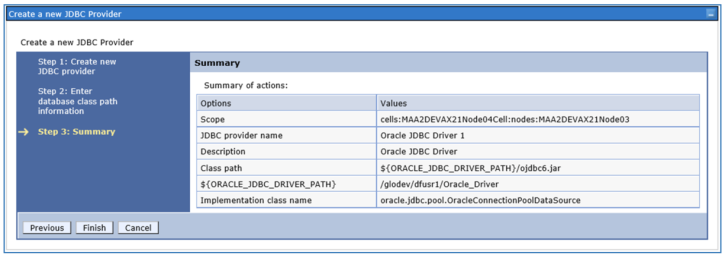
You will need to create an Oracle JDBC provider with the class path pointing to the Oracle driver path.
Configure the Oracel JDBC provider as illustrated below.
Creating and configuring the data sources in WebSphere
In order to access the database schema, you must configure the following datasources in WebSphere (using the recently created Oracle JDBC provider).
| Data source | Where the URL should point to |
|---|---|
| jdbc/confDataSource | The Relational Replication database. |
| jdbc/metaDataSource | The Relational Replication database. |
| jdbc/selDataSource | The Relational Replication database. |
| jdbc/t24DS | The Temenos Transact database. |
Create each datasource as illustrated below.
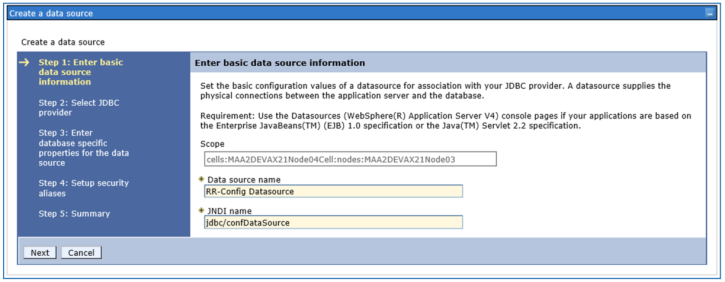
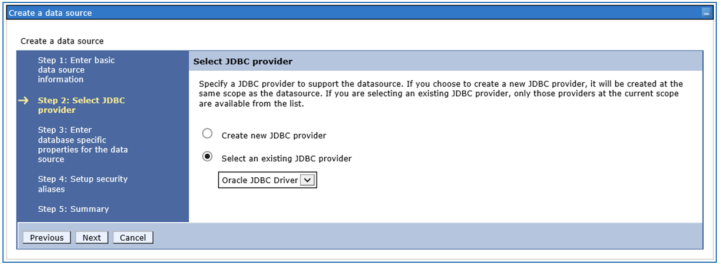
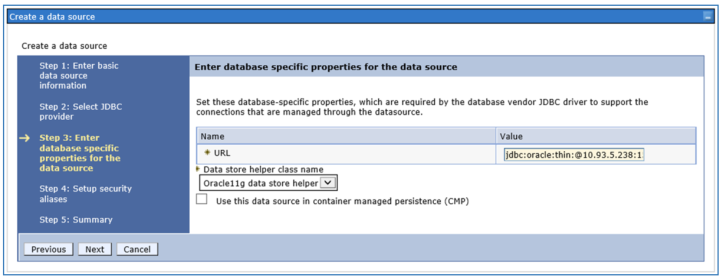
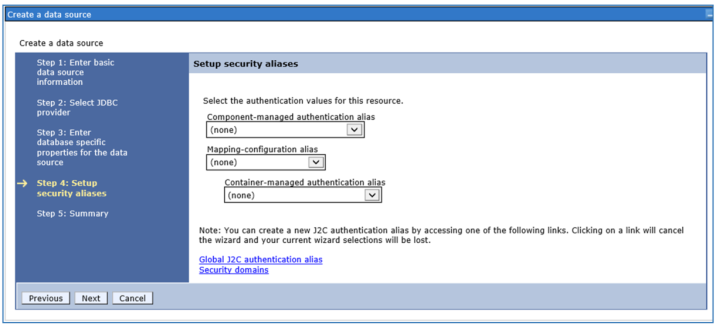
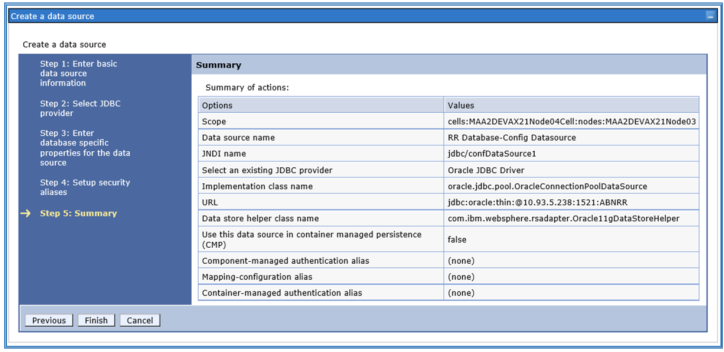
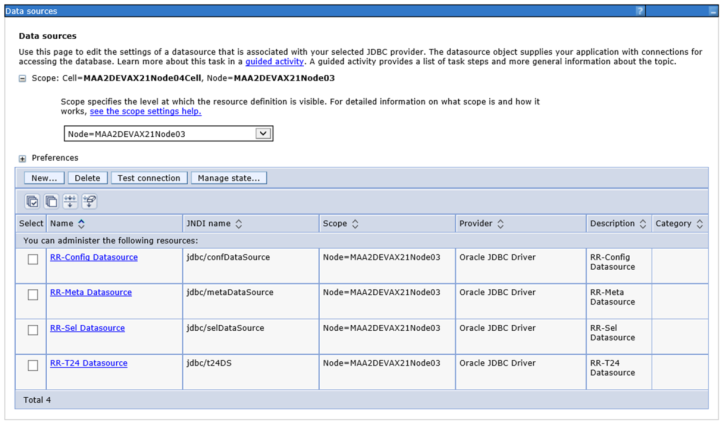
In the datasource configuration, using the J2C authentification option, enter the credentials to access the respective database schema. Perform the same for all the configured datasources.
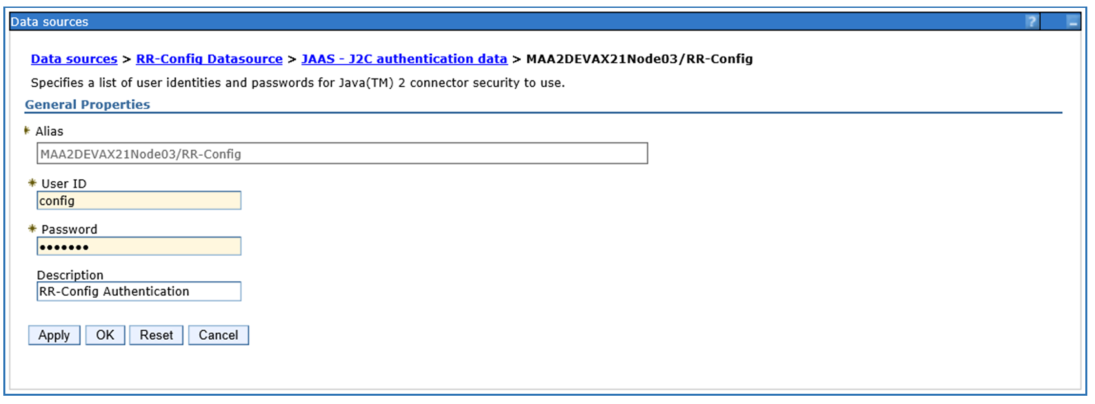
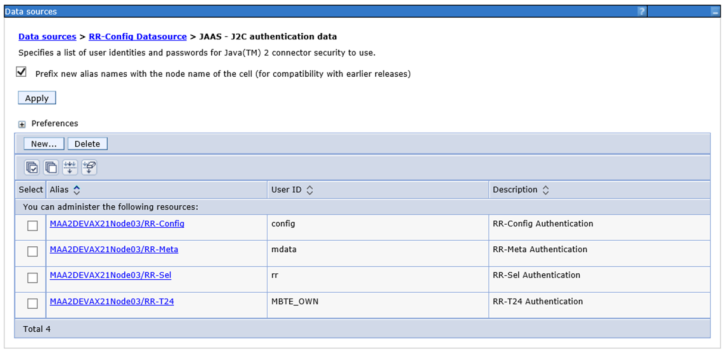
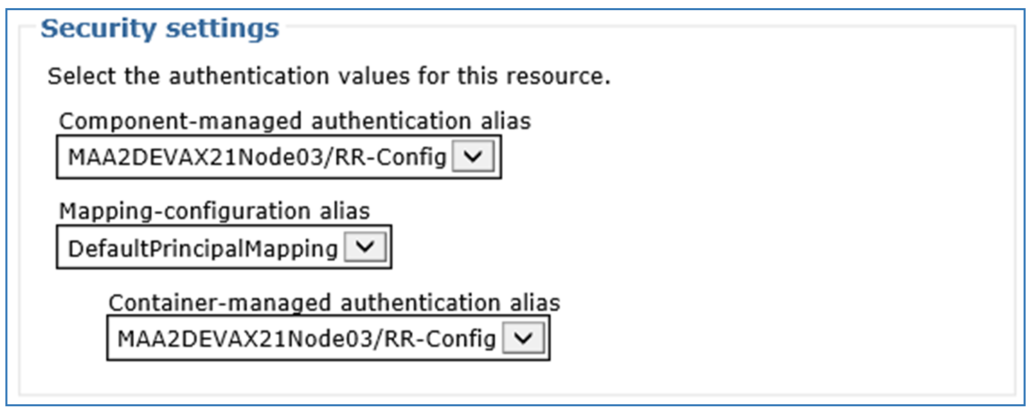
After creating the required J2C Authentication Alias for all the 4 data sources, you should able to map them in the data source configuration in the Security settings by choosing the respective authentication alias from the drop-down list, Mapping-configuration alias should be DefaultPrincipalMapping for all the 4 data sources.
For each data source, in Security settings, set the value of Component-managed authentification alias to the value of the respective authentification alias. This should appear as an option on the pulldown.
In each case, set Mapping-configuration.alias to DefaultPrincipalMapping.
Select Data sources, RR-Config Determiners and Connection pools.
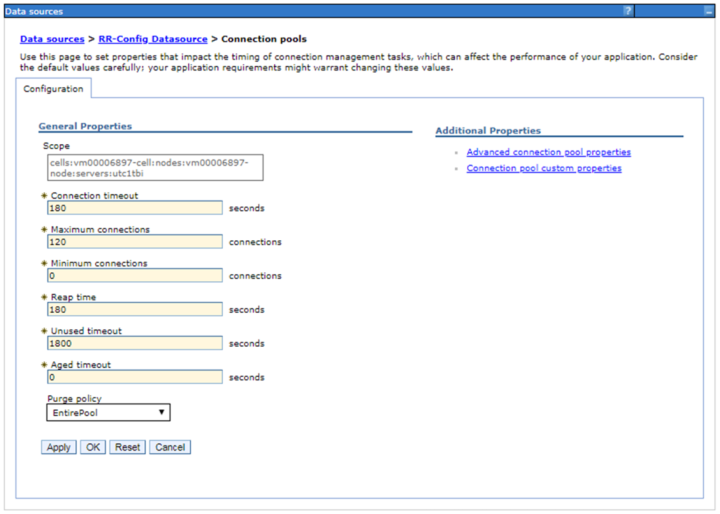
For each data source, set Maximum connections to the maximum number of connections needed for the data source to connect to the respective schema in the Relational Replication database. The values to use are given below.
| Data source | Value |
|---|---|
| jdbc/confDataSource | 120 |
| jdbc/metaDataSource | 20 |
| jdbc/selDataSource | 120 |
| jdbc/t24DS | 120 |
Select Data sources, RR-Config Determiners and WebSphere Application Server data source properties.
For each data source, ensure that Non-transactional data sources is checked.
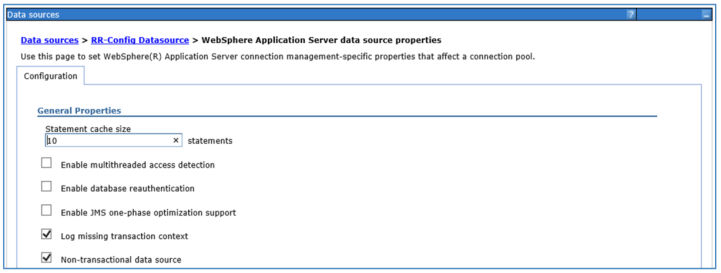
Follow the same set of steps to configure all the required 4 datasources by providing the respective JNDI name, JDBC provider and Database URL.
Configuring the JCA Connection Factory
You will need to configure the JCA Connection Factory so that that the RR-Config Application can connect with Temenos Transact.
Procedure
-
Download tocf.rar from the repository based on your target environment release.
-
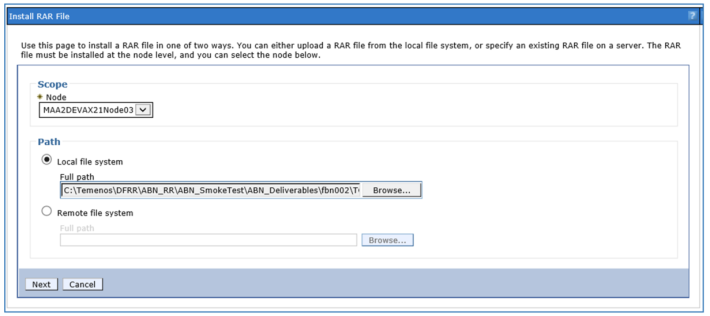
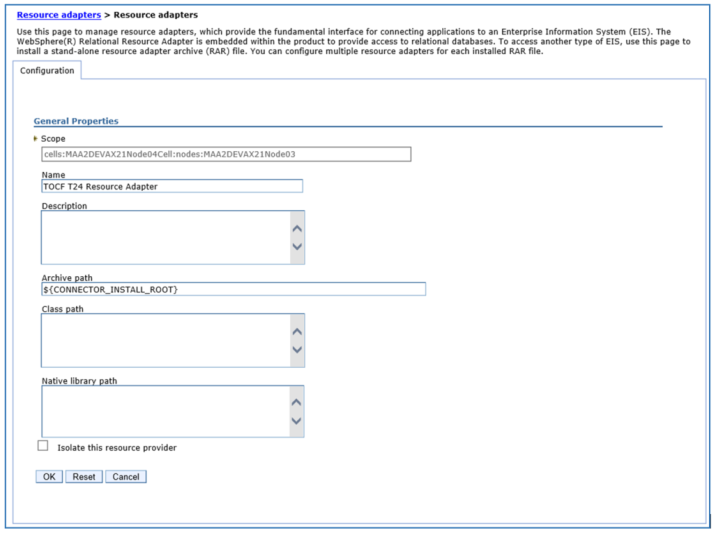
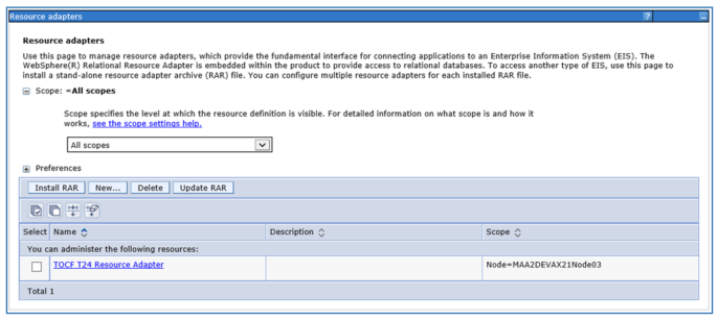
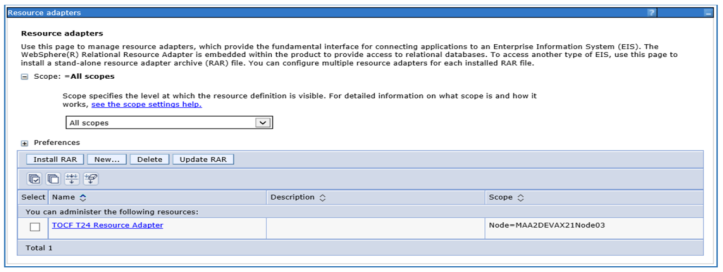
Use the following steps to install tocf.rar.
The transaction-support to be set as NoTransaction in the ra.xml file exists under the path tocfT24ra-ra.rar\META-INF\. Also note that the change mentioned is case sensitive.
-
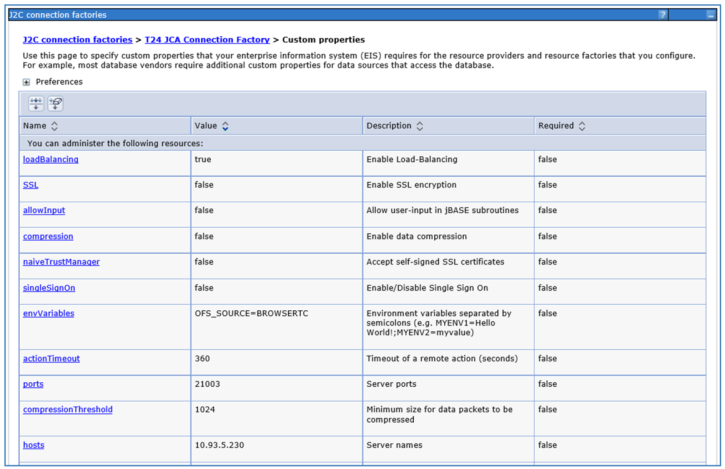
Follow the steps below to create and configure a New JCA Connection Factory.
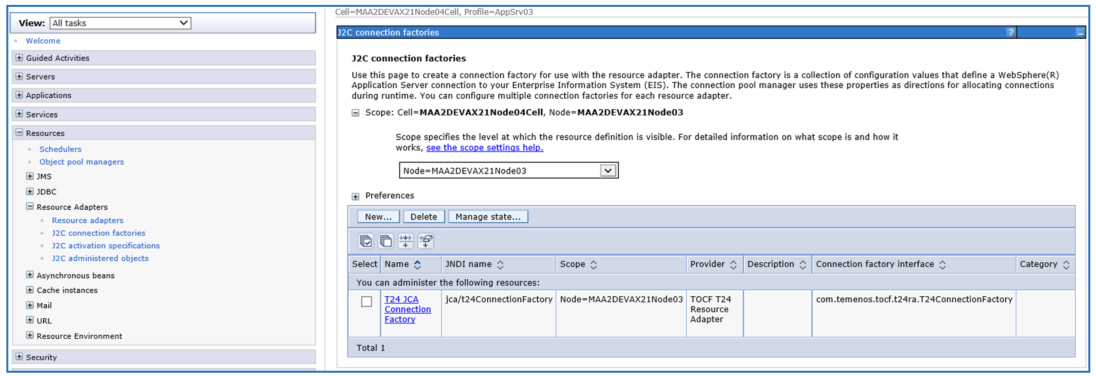
-
Ensure that the Temenos Transact Resource Adapter is selected in the Provider drop down of J2C connection factories setting.
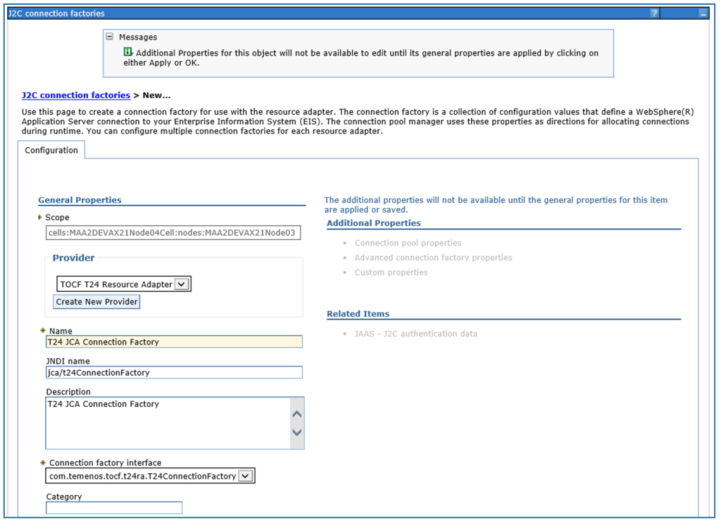
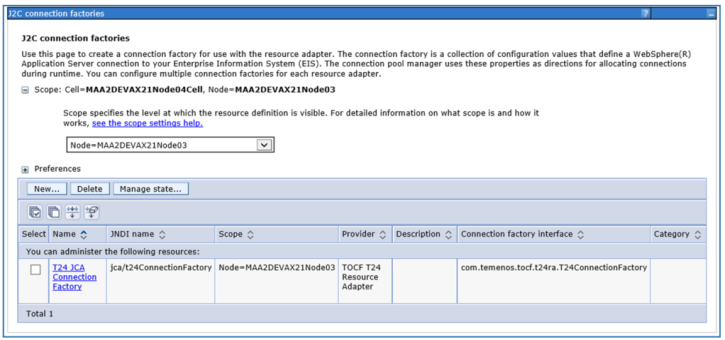
-
In the custom.properties of J2C connection factories, enter the following values for the below specified variables, based on your target environment.
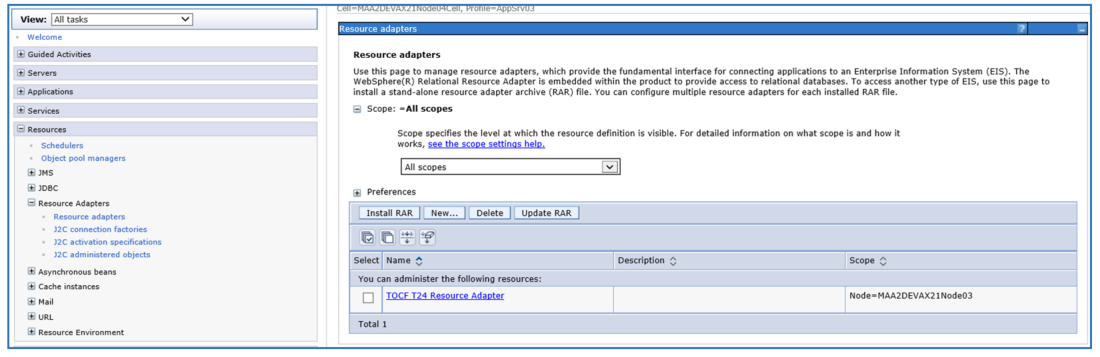
| Variable | Value |
|---|---|
| envvariables |
The OFS.SOURCE (PreAuthenticated to connect to Temenos Transact). |
| hosts | The IP Address of the server/machine where the JBase agent is running. |
| ports | The JBase Agent Port Number. |
Deploying Relational Replication applications in WebSphere
Procedure
-
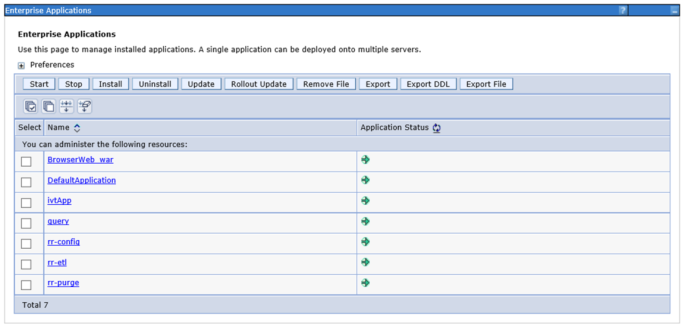
Download the EAR files to be deployed in the WebSphere by following the detailed deployment path in WebSphere. If the deployment is performed in multiple App Server instances then the corresponding instance name must be chosen during the deployment.
After installing, all the deployed applications will be in a stopped state.
-
Restart the following applications.
-
rr-config-xxxxxx.x.x.ear
-
rr-etl-xxxxxx.x.x.ear
-
rr-purge-xxxxxx.x.x.ear
-
Add Bookmark
save your best linksView Bookmarks
Visit your best links BACK
BACK


Are you sure you want to log-off?