

| Bookmark Name | Actions |
|---|
Configuring Client Conditions
In Temenos Payments, client condition products are created to configure client conditions.
Client Condition Product
The user can configure a client condition product. To perform this, do the following actions:
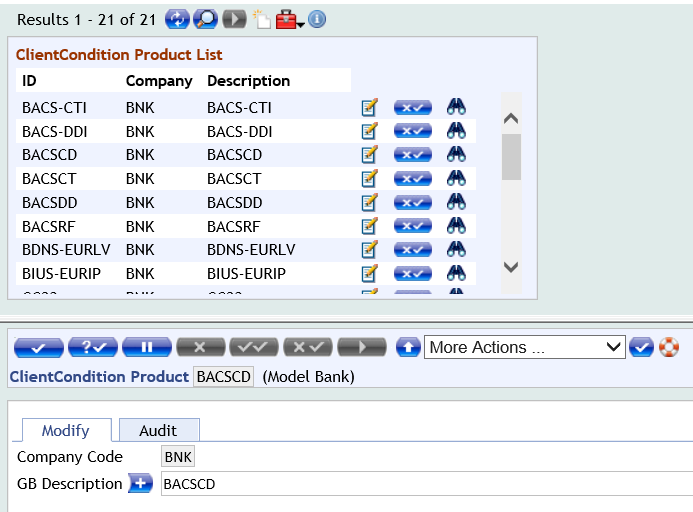
- Go to Admin Menu>Payment Hub>Client Conditions>Client Products. The list of client condition products are displayed on the upper pane. NOTE: The lower pane enables the user to view and edit the record selected from the list.

- To view a record, click
 .
. - To amend or edit a record, click
 .
. - To reverse a record, click
 .
.
- To view a record, click
- To create a new client condition product, click
 .
. - In the Client Condition Product field, enter the name of the product.
- Enter the description of the product in the required language.
- Validate and commit the product.
Client Conditions or Agreements
The user can configure a client condition. To perform this, do the following actions:
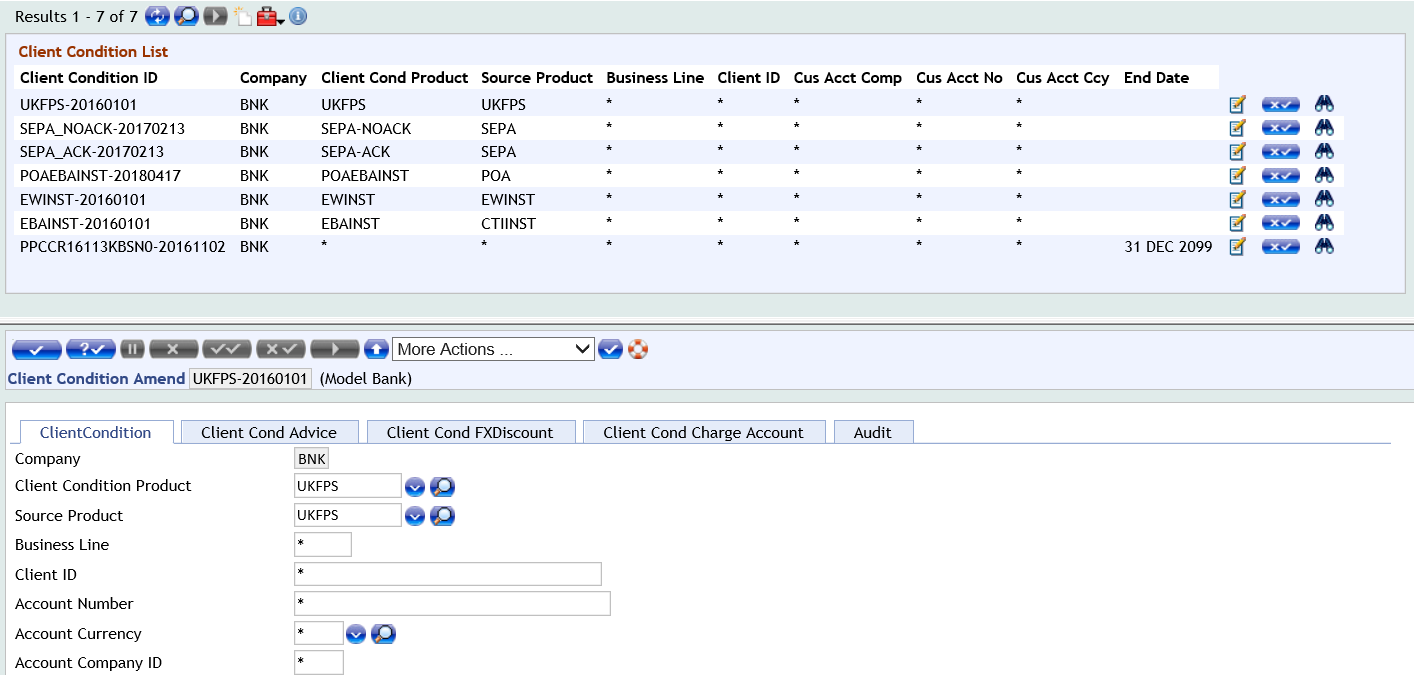
- Go to Admin Menu>Payment Hub>Client Conditions>Client Agreements. The list of client conditions defined in the system are displayed on the upper pane. NOTE: The lower pane enables the user to view and edit the record selected from the list.
- To view a record, click .
- To amend or edit a record, click .
- To reverse a record, click icon.
- To view a record, click
- To create a new client condition product, click .
- In Client Condition field, enter the name of the product.
- Enter the details related to the product configuration in the mandatory fields.
- Validate and commit the product.
 Input Attributes
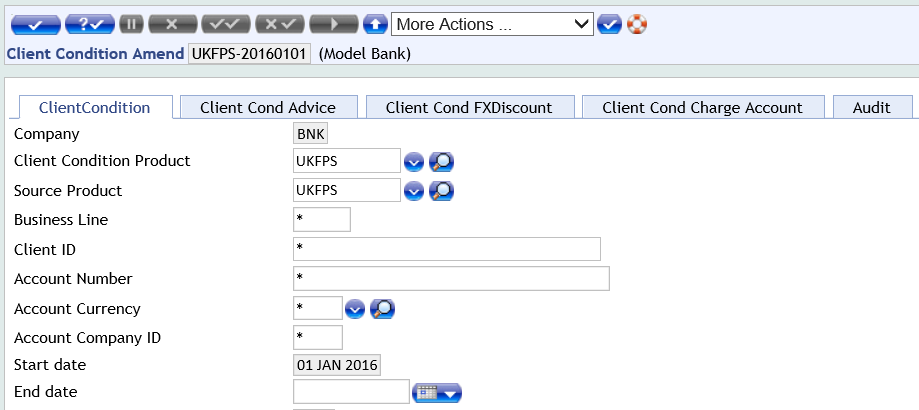
The user can configure client specific features using various combination of input attributes in the Client Agreements page. Client conditions are configured for each company, hence, Company ID is mandatory. To perform this, do the following actions:
- Click the Client Condition tab.
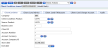
- Enter the required details in the following fields:
Field Description Client Condition Product A valid client product to create client agreement. NOTE: The client product is configured as an output of Product Determination module.Source Product Source where the payment originates. - Configure a valid source or ‘*’.
NOTE:- A client product can be associated with multiple sources.
- The bank can configure different client products for different sources or one client product for a source group.
NOTE: In batch transactions, the business line of the parent is used for debit side of child transactions. This is applicable for fields, such as Business Line, Client ID, Account Number, and Account CurrencyBusiness Line Business line of the customer. - This is linked to the business line captured in customer configurations (Target field).
- Configure a valid business line or ‘*’.
Client ID Customer ID created in Temenos Transact. - Configure a valid customer ID or ‘*’.
- If a client ID is configured, the client condition becomes specific for that customer.
Account Number Account number that is debited or credited based on the payment. - Configure a valid account number or ‘*’.
- If an account number is configured, the client condition becomes specific for the account.
Account Currency Currency of the account that is debited or credited based on the payment. - Configure a valid currency code or ‘*’.
Account Company ID Company to which the account belongs. - Configure a valid company ID or ‘*’.
Start Date Date from which the client condition record is active. - Multiple records can be available for different activation dates.
NOTE:- Only one record needs to be active at a time.
- Defaults to current date.
End Date Date till which the client condition record is active. - Multiple records can be available for different activation dates.
NOTE:- Only one record needs to be active at a time.
- Needs to be future dated
Output Attributes
The bank users can configure multiple output attributes for each client condition. These attributes influence the payment processing by using the payment engine. The configurable output attributes are as follows.
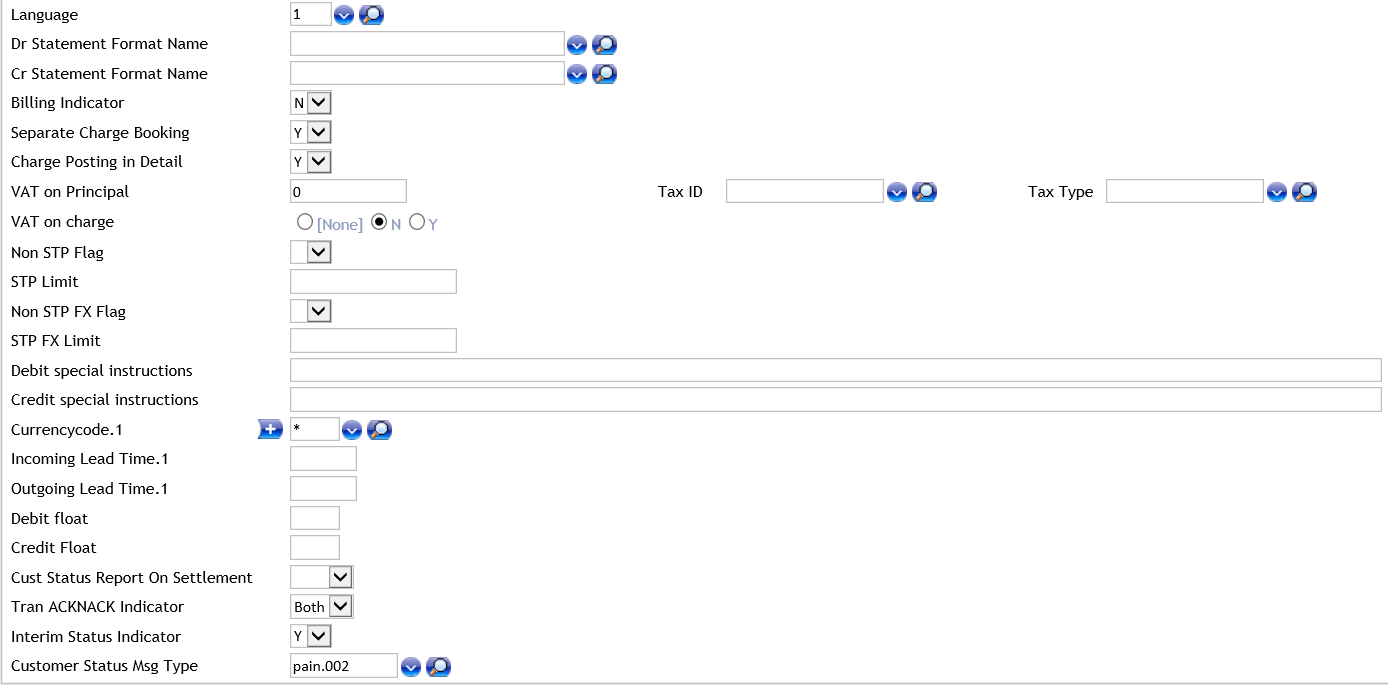
Enter the required details in the following fields:
Language and Statement Formats
| Field | Description |
|---|---|
| Language | Language in which the statement and advice is generated for the correspondent bank.
NOTE: The default value is blank. |
| Dr Statement Format Name | Debit account statement format.
|
| Cr Statement Format Name | Credit account statement format.
|
Billing Indicator
| Field | Description |
|---|---|
| Billing Indicator |
NOTE: If the Billing Indicator is set as Y, the calculated charges are stored as informational charge in Temenos Payments.
|
Separate Charge Booking
| Field | Description |
|---|---|
| Separate Charge Booking | Charge booking preference of the customer.
|
NOTE: If an Operator imposes a charge account for the party for which the client conditions component is invoked, the charges need to be posted to the imposed account separately (even if set as ‘N’ in the client agreement). The client may want to have the charges posted or booked separately to the imposed charge account.
Detailed Charge Posting
| Field | Description |
|---|---|
| Charge Posting in Details | Preference of the customer when multiple charges are applicable for the payment.
|
VAT and Tax
| Field | Description |
|---|---|
| VAT on Principal |
|
| VAT on Charge | Indicates whether the customer has to pay VAT on the charge amount. Configure one of the following values:
|
| Tax ID | ID of the tax record for tax calculation. NOTE: The TAX records are configured in the system by using the Temenos Transact TAX table, which has the tax rate. |
| Tax Type | Tax condition group for tax calculation. |
NOTE:
- Customer grouping for tax is maintained using the
TAX.GEN.CONDITIONapplication. - Customer group and Tax ID mapping is maintained using
TAX.TYPE.CONDITIONapplication.
Non STP Processing
| Field | Description |
|---|---|
| Non STP Flag | Configure whether the payment for the customer is processed by using STP or manual intervention. Select one of the following values:
|
| STP Limit | Configure a threshold amount in home currency.
NOTE: This check is performed when non-STP is set as N (STP for all transactions). |
FX Non STP Processing
| Field | Description |
|---|---|
| Non STP FX Flag | Indicates whether to process payments for the customer involving FX in STP or manual intervention (non-STP).
|
| STP FX Limit |
NOTE: Indicates the limit when Non STP FX Flag is set as N.
|
Special Instructions
| Field | Description |
|---|---|
| Debit special instructions | Special instructions for the Operator during debit. |
| Credit special instruction | Special instructions for the Operator during credit. |
Lead Time
| Field | Description |
|---|---|
| Currencycode | Configure a valid currency code or ‘*’. |
| Incoming Lead Time | Incoming lead time used for date calculation. |
| Outgoing Lead Time | Outgoing lead time used by Routing and Settlement. |
NOTE: Currency, Incoming Lead Time, and Outgoing Lead Time fields are part of the associated multi-value set. It allows the user to maintain multiple currency-wise lead times.
Float
| Field | Description |
|---|---|
| Debit float | Number of days to adjust the debit value date. |
| Credit float | Number of days to adjust the credit value date. |
Status Report
| Field | Description |
|---|---|
| Cust Status Report On Settlement |
NOTE: This setting overrides the corresponding setting in Source Settings.
|
| Tran ACKNACK Indicator | Specifies whether the customer initiating payment request requires an acknowledgement from Temenos Infrastrcture bank. Configure one of the following values:
|
| Interim Status Indicator | Specifies whether the customer initiating payment request requires an interim status confirmation when processing a payment. IMPORTANT: This is applicable for INST and NRINST payments. Configure one of the following values:
NOTE: Interim status is sent when payment is in the following statuses:
|
| Customer Status Msg Type | Message type to be used when sending a payment confirmation to the customer who initiated the payment request. Configure a valid status message type already defined in the system. EXAMPLE: Pacs.002 is the message type used to send ACK/NACK, or Interim Status report to indirect participant (when using ISO20022 messaging). |
Advice
The user can configure the customer specific advice related attributes in the Client Agreements page. To perform this, do the following actions:
- Click the Client Cond Advice tab.

- Enter the required details in the following fields:
Field Description Advice Indicator Configure one of the following values: - If a customer specific advice needs to be sent, set as Y.
- If not, set as N.
NOTE: If Advice Indicator is set as Y, configure the advice related fields given below. These fields are part of the associated multi-value set. The users can configure multiple advices and configure these fields for each advice.Debit/Credit Advice Type of the advice to be generated. - Configure one of the following values:
- For a debit advice, set as D.
- For a credit advice, set as C.
- For a charge advice, set as Ch.
Delivery Method Channel for delivering the advice to customer. - Configure one of the following values:
- To send the advice by email, set as Email.
- To send the advice by fax, set as Fax.
- To send the confirmation by phone call, set as Phone.
- To send the printed advice by post, set as Post.
- To send the advice by SMS, set as Sms.
- To send the advice using SWIFT (MT900 for debit and MT910 for credit advice), set as Swift.
Phone Confirmation Phone number to be contacted. NOTE: This field is required when the Delivery Method field is set as Phone.Sms Mobile number to send SMS. NOTE: This field is required when the Delivery Method field is set as SMS.Fax Fax number to send advice. NOTE: This field is required when the Delivery Method field is set as Fax.Email Email ID to send the advice. NOTE: This field is required when the Delivery Method field is set as Email.Mail Line 1(Post) Postal address line 1 of the customer address for sending advice by post. NOTE: This field is required when the Delivery Method field is set as Post.Mail Line 2(Post) Postal address line 2 of the customer. Mail Line 3(Post) Postal address line 3 of the customer. Mail Line 4(Post) Postal address line 4 of the customer. SWIFT BIC of the bank to send advice by SWIFT. NOTE: This field is required when the Delivery Method field is set as SWIFT.Attention Useful information text related to the advice. Advice Type Advice type that a customer requires. - Configure one of the following values:
- Single
- Group
- Blank
NOTE: This is applicable when the advice is sent by SMS or email.Advice Transaction Lower Limit Lower limit of payment amount in home currency beyond which an advice is sent by SMS or email. NOTE: This is applicable when the advice type is Single.
Configuring FX Discount for Customers
The user can configure the customer specific FX discounts in the Client Agreements page. To perform this, do the following actions:
- Click the Client Cond FXDiscount tab.
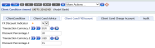
- Enter the required details in the following fields:
Field Description FX Discount Indicator Indicates whether to allow discount on FX rate for the specific customer or not.
Configure one of the following values:- If an FX discount needs to be provided, set as Y.
- If not, set as N.
NOTE: The users can configure the values in Transaction Currency and Discount Percentage fields, when set to Y.
These fields are associated multi-value sets. Hence, allows to configure multiple records for separate currencies with corresponding discount percentage.Transaction Currency Payment currency for which FX discount is provided to the customer. - Configure a valid currency code.
Discount Percentage FX discount percentage for the currency to be provided to the customer. - Configure the discount percentage for the respective currency.
Separate Charge Account Configuration for Customers
The user can configure the client specific separate charge accounts in the Client Agreements page. To perform this, do the following actions:
- Click the Client Cond Charge Account tab.

- Enter the required details in the following fields:
Field Description Separate charge Account Indicator Indicates whether a separate charge account is required for the customer.
Configure one of the following values:- If separate charge account is required, set as Y.
- If not, set as N.
NOTE: The user can configure this field, when Separate Charge Booking field in the Client Condition tab is set to Y.If Separate Charge Account Indicator is set to Y, the following fields are configured for entering details of the separate charge account (and at least one charge related record needs to be configured):
NOTE: These fields are part of associated multi-value sets. Hence, multiple records can be configured (for example, debit, credit, etc.).Indicator For Charge Account Leg of the payment for which charge account configuration is done.
Configure one of the following values:- For credit transactions, set as C.
- For debit transactions, set as Y.
- For all transactions, set as A.
Transaction Currency Payment currency for which the charge configuration is applicable. - Configure a valid currency code defined in the system.
Charge Account Company ID Valid company ID of the charge account. Charge Account Currency Valid currency code of the charge account. Charge Account Number Valid charge account number from which transaction charges are collected. Balance Check On Chg Act Indicates whether balance check of debiting charges is performed on the configured charges account. - Configure one of the following values:
- If a balance check needs to be performed, set as Y.
- If not, set as N.
Add Bookmark
save your best linksView Bookmarks
Visit your best links BACK
BACK


Are you sure you want to log-off?