| Bookmark Name | Actions |
|---|
Password Settings
The password settings feature within Spotlight allows employees to manage password settings and account lock and unlock settings for customers. Customers and prospects use their password to log into Infinity applications including Retail Banking, Consumer Lending, and Small Business banking.
Password settings determine when a password can be changed after how many unsuccessful login attempts a user account should be automatically locked out, and then subsequently reactivated.
An Administrator or a bank employee with appropriate permissions can view or edit the password settings.
Menu path: Security and Authentication > Password Settings
Spotlight displays the list of password expiry settings and account lock and unlock settings. An administrator can do the following:
- View Password Settings
- Edit Password Settings
View Password Settings
An administrator can use the feature to view and define password settings and account lock and unlock policies for customer applications.
Menu Path: Security and Authentication > Password Settings
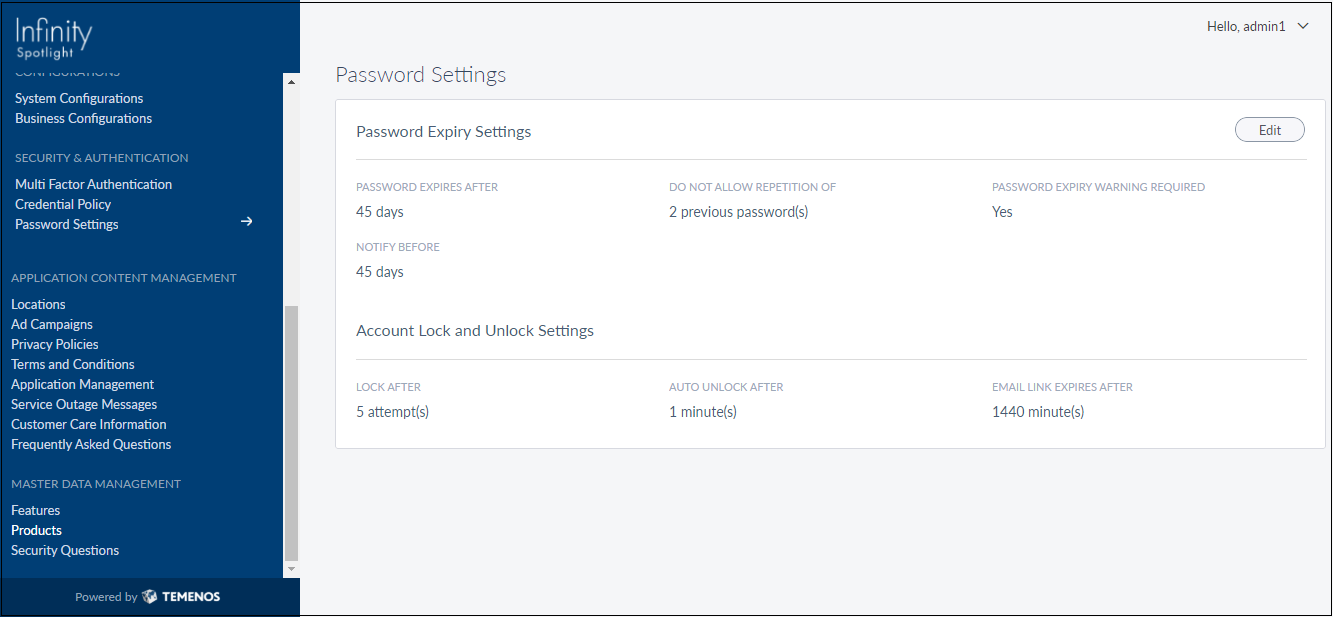
Click Password Settings under Security and Authentication from the left-hand pane. The Password Settings screen is displayed.
The app displays the following settings:
- Password Expiry Settings
- Password Expires after - Defines the number of days after which a user's password expires.
- Do not allow repetition of - Prevents a user from using one or more previous passwords.
- Password Expiry Warning Required - Defines whether a user will receive a warning notification ahead of their password expiry.
- Password Expiry Warning Threshold - Defines when a password expiry warning must be displayed to the user.
- Account Lockout Settings
- Lockout After - Defines how many times a user can enter an incorrect password before being locked out.
- Auto Unlock After - Defines the time period (in minutes) when a user account will be unlocked after it has been locked due to exceeding number of incorrect password attempts.
- Email Link Expires After - It shows the duration for which the activation/password recovery email link is valid.
As a bank employee (administrator or a role with necessary permissions), you can edit the Password settings.
Edit Password Settings
Use the feature to edit the existing password expiry and account lock and unlock settings.
Menu path: Security and Authentication > Password Settings > Edit


Click Edit in the top right corner of the Password Settings screen.
The Edit screen comprises of two sections - Password Expiry Settings and Account Lock and Unlock Settings.
Update the following details:
- Password Expiry Settings
- Password expires after – Defines the number of days the password is valid before expiring automatically. Click
 increase/decrease to change the number of days.
 - Do not allow – Defines the number of previous that the user cannot reuse when creating a new password. Click increase/decrease to change the count of previous passwords.
- Password expiry warning required – Select 'Yes' or 'No' to allow customers to receive a password expiry warning. Select 'Yes' to receive a warning before the password expiration. Otherwise, select 'No'.
- Password expiry notification – Defines the number of days before the password expiration the customer-facing application displays a warning message when the user logs in. Click increase/decrease to change the number of days for password expiry warning threshold.
- Password expires after – Defines the number of days the password is valid before expiring automatically. Click
- Account Lock and Unlock Settings
- Lock after – Defines the number of unsuccessful login attempts that can be before the account is automatically locked. Click increase/decrease the number of unsuccessful logins before the account is locked.
- Auto unlock after – Defines the number of minutes to unlock the account automatically if the account is locked due to exceeding the number of unsuccessful login attempts allowed. Click increase/decrease to change the duration of account lockout time.
- Email link expires after – Defines the validity (in minutes) of the activation and recovery email link that is sent to the user’s email address. Click to increase/decrease the duration to change the validity of the activation and recovery email link.
- Lock after – Defines the number of unsuccessful login attempts that can be before the account is automatically locked. Click
-
Click Update to save the changes.
NOTE: An administrator can cancel the process at any time. The changes will not be saved.
Add Bookmark
save your best linksView Bookmarks
Visit your best links BACK
BACK


Are you sure you want to log-off?