| Bookmark Name | Actions |
|---|
Logs
All actions performed by the employees are logged for audit purpose. The Spotlight application provides an option to view these audit logs along with all the logs for the transactions that the customer or member makes using digital banking applications. This feature is applicable to the users who have the required permissions to access it.
Menu path: Reports and Logs > Logs
The Spotlight application displays various types of logs on the Default System Logs tab. They are:
Select the required type to view the list.
Users also have the option to save a Custom View for the logs based on his requirements by applying specific filters to these logs. The filters saved from the Default System Logs tab are displayed in My Filtered Logs tab. These saved logs are specific to individual users and cannot be shared.
NOTE: Note: In the current version of the Spotlight, Retail Banking (MB and OLB) application logs are not functional/ integrated. Spotlight only provides the required UI to plug in Transaction and Customer Activity logs. However, logs are completely integrated and functional for any activities performed by the admin users.
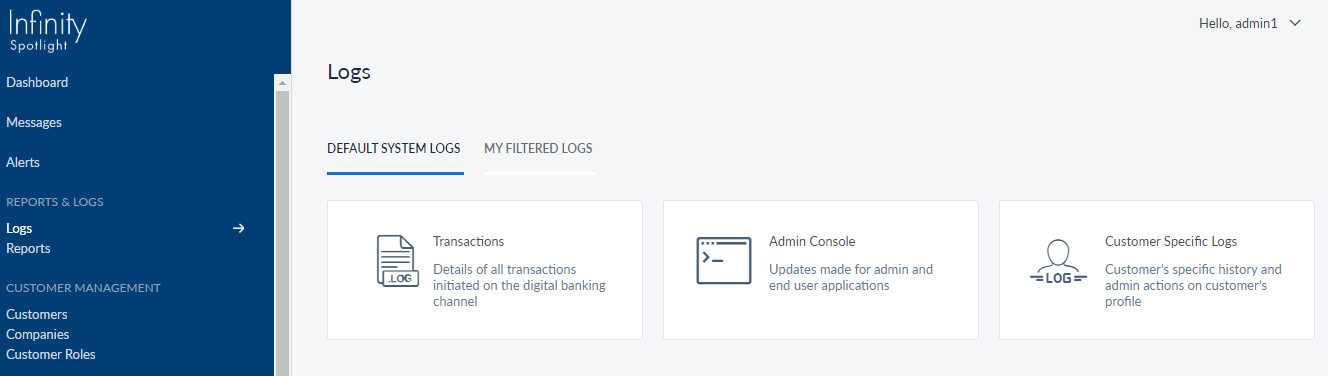
Transactions
The Spotlight application displays a list of all the transactions initiated in the digital app channels. The user is required to select the Activity Type, Date, Amount, and column items y clicking the filter icon . Based on the selections made, the columns of the log table are displayed with the updated. By default, the list displays the current day transactional logs. The backend information related Log Type, ID, Platform and other such information can be accessed by clicking View under the Other Info column.
Menu path: Logs > System Logs > Transactions

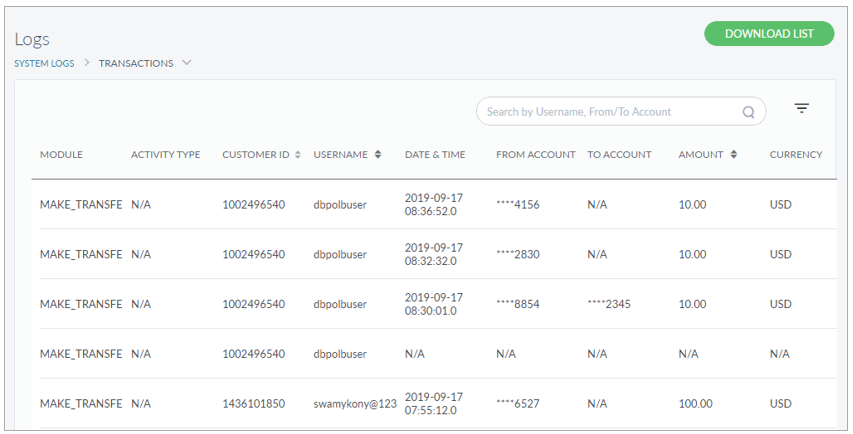

You can filter the list with Activity Type, Transaction Dates, and Transaction Amount if required. Do the following:
- Activity Type: Select the transfer type from the list.
- Date: Select the required date range from the date picker and apply.
- Amount: Select the amount range from Amount. You can also enter a custom range if the required range is not available among the given ranges.
- View Column Items: The user can select from 23 column items from the drop-down menu. The column items are All, Module, Activity Type, Customer ID, Customer Username, From Account, To Account, Amount, Currency, Payee Name, Payee ID, Person ID, Status, Channel, Date and Time, MFA Type, MFA Service Type, MFA State, Device, OS, DeviceID, IP Address, Reference Number, Other Info.
- In Other info section, click View to access the additional information about the log that shows the backend information including LogType, Platform, and App Version. Click JSON type to view the information about the information like Request Input, Request Output and more in JSON format.
- Apply the filter criteria.
The list is sorted by date (latest first) and you can download the list in the form of excel file if required.
By default, the list is sorted in latest date first order. You can sort the list based on any of the columns which have sort icon (denotes sorted by that column).
Use the search option to search for a particular user using search criteria. Enter the search keyword (Username, User ID, or Transaction ID) in full or in part (three or more characters). The app displays the matching records automatically.
You can save the filtered list using Save Filter if required.
Admin Console
All CRUD activities in the Spotlight application are logged for audit purpose. The Spotlight application logs display the list of all the updates made to Spotlight and users filter the results based on the requirement.
Menu Path: Logs > System Logs > Admin Console
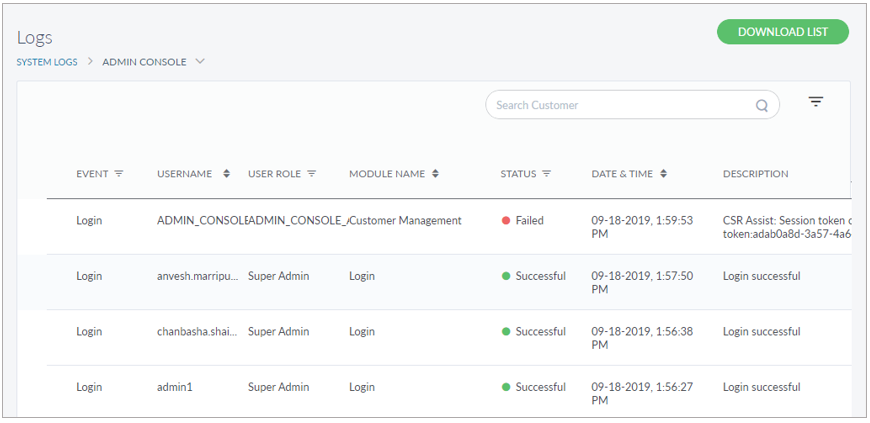

You can filter the list with Module name, and Date ranges if required. Do the following:
- Module: It contains the following modules retrieved from the database. Select the required module from the list:
- Alerts Management
- Branch and ATM Location Management
- Business Configuration
- Business Type
- Campaign Management
- Company
- Configurations Framework
- Credential Policies
- Customer Care Information
- Customer Management
- Customer Requests and Messages
- Customer Roles
- Feature Management
- Frequently Asked Questions
- Internal Users Management
- Lead Management
- Login
- MFA Configurations
- MFA Scenarios
- Password Settings
- Periodic Limits
- Permissions Management
- Privacy Policies
- Role Management
- Security Questions
- Service Management
- Service Outage Messages
- Terms and Conditions
- Travel Notification
- Date: Select the required date range from the date picker and apply.
- Apply the filter criteria.
The list is represented as rows with the following details: Event, Username, User Role, Module Name, Date and Time, and Description. You can download the list in the form of excel file if required.
By default, the list is sorted in latest date first order. You can sort the list based on any of the columns which have sorticon (denotes sorted by that column).
You can also filter the list by From Event, Username, User Role, Module Name, Status, and Date and Time.
- Event: Pick from the list (Create, Update, Delete, Login, Download File, and Communication).
- Username: Choose a username alphabetically from A-Z or vice versa.
- User Role: Pick from the list (Business, Front Line Staff, Manager, Operations and Super Admin).
- Module Name: Choose a module name alphabetically from A-Z or vice versa.
- Status: Pick from the list (Successful or Failed).
- Date and Time: Choose to view the updates happened during AM or PM.
Use the search option to search for a particular user using search criteria. Enter the search keyword (Username) in full or in part. The app displays the matching records automatically.
You can save the filtered list using Save Filter if required.
Customer Activity Logs
There are 2 types of logs associated with a customer: activity performed by the customer on digital banking applications and the activity performed by a bank employee from Spotlight. The application displays the list of all the activities carried out by the customer or admin user in the customer's account. Unlike Transaction and Spotlight logs, customer activity logs do not have a default list. Users are required to search for a specific customer to view the associated logs.
Menu path: Logs > System Logs > Customer Activity Logs
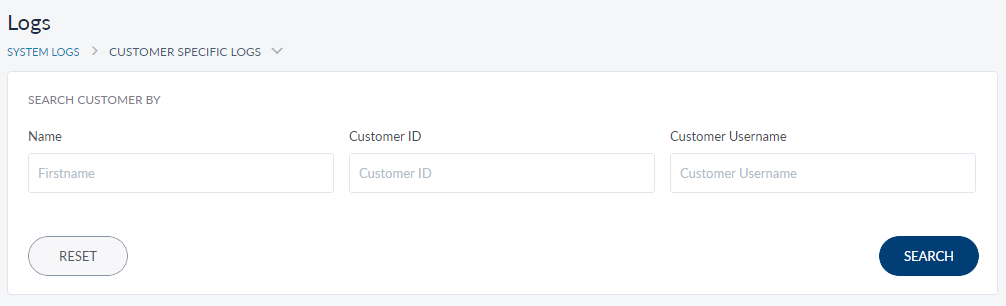
The app displays the activity history of the selected customer or member. Enter any or all of the below search criteria to find the required customer:
- Customer Name
- User ID
- Username
NOTE: Note: Clear the search criteria with the Reset button.
The Spotlight application displays the list of the matching results as rows with the following details: Name, Username, User Id, Contact Number, and Email Id. You can sort the list based on any of the columns which have sorticon (denotes sorted by that column). Select a customer row to view details.
Menu path: Transaction and Audit Logs > System Logs > Customer Activity Logs > Results > Click on a customer row
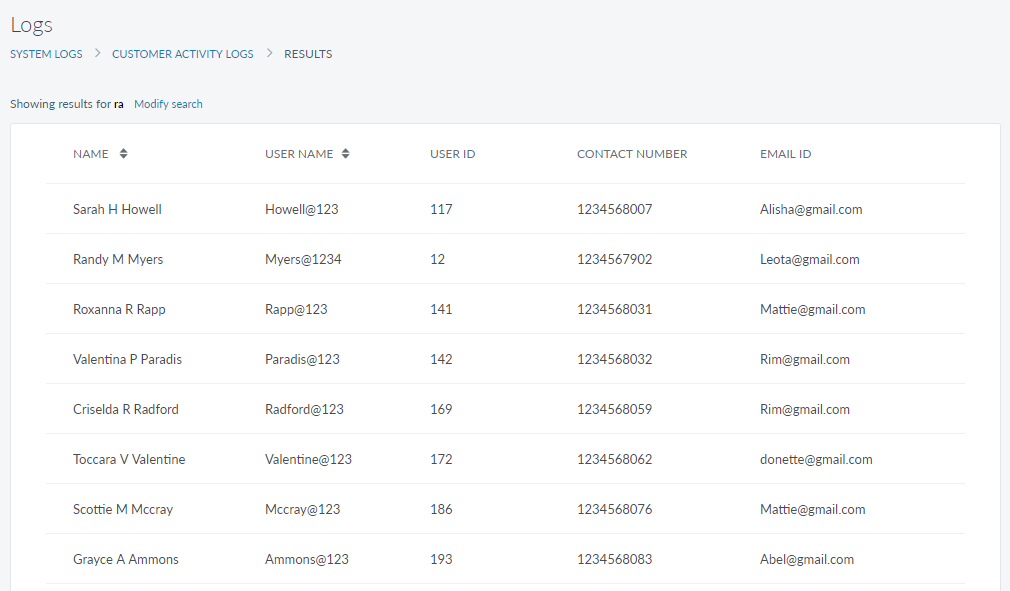
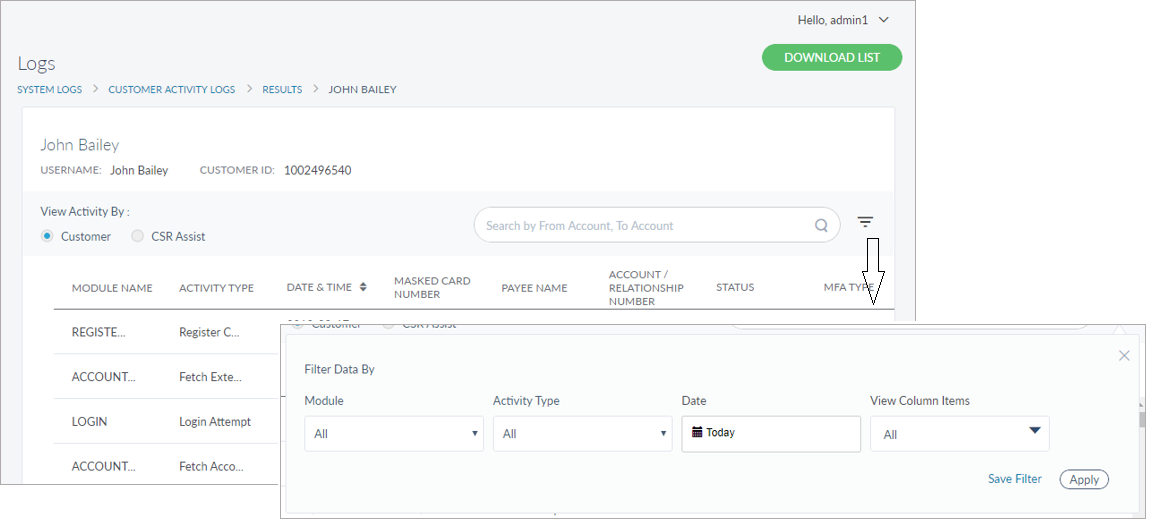
The Spotlight application lists the selected customer's activity logs. You can download the list in the form of excel file if required. Use the filter icon to access specific information. Do the following to filter the activities list if required:
- Module: It contains the modules like Login, Profile, Transfers, Bill Pay, P2P, Wire Transfers, Messages, Onboarding Application and more. Select the specific module type if required. By default, All is selected.
- Activity Type: The activities are retrieved from the database based on the selected module. Select the specific activity type if required By default, All is selected.
- Date: Select the required date range from the date picker and apply.
- View Column Items: The user can select from 23 column items from the drop-down menu. The column items are All, Module, Activity Type, Date, From Account, To Account, Amount, Currency, Reference Number, Masked Card Number, Payee Name/Recipient Name, Payee ID, Person ID, Account/Relationship Number, Status, MFA Type, MFA Service Key, MFA State, Channel, Device/Browser, OS, DeviceID, IP Address, Other Info.
- In Other info section, click View to access the additional information about the log that shows the backend information including LogType, Platform, and App Version. Click JSON type to view the information about the information like Request Input, Request Output and more in JSON format.
- Apply the filter criteria.
Use the search option to search for a module in the activity list using search criteria. Enter the search keyword (module name) in full or in part (three or more characters). The application displays the matching records automatically.
You can save the filtered list using Save Filter if required.
Save Filter
Use this feature to save the filter criteria as a custom log for any future use. These saved logs can be directly accessed from My Filtered Logs tab. These custom logs are visible only to the admin users who created them.
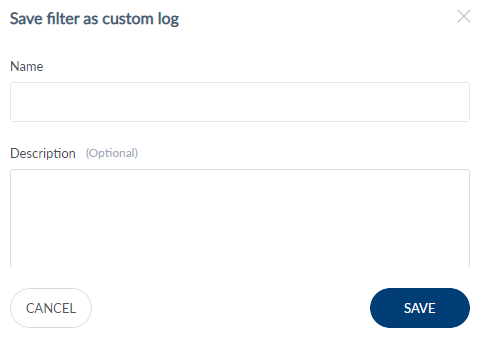
Do the following:
- Name: Enter a name for the custom log. Has a 60 characters limit.
- Description: Enter a description for the custom log. Has a 70 characters limit.
- Save the custom log.
The log gets listed in My Filtered Logs tab.
NOTE: You can cancel the process at any time. The changes are not saved.
My Filtered Logs
The users can access their saved filters from the My Filtered Logs tab.

Add Bookmark
save your best linksView Bookmarks
Visit your best links BACK
BACK


Are you sure you want to log-off?