| Bookmark Name | Actions |
|---|
Manage Messages
Customer care employees can view all messages sent by the end-user using the secure messaging feature of the mobile or online banking application and respond to these messages. Threads are grouped by their status and placed in a common queue, so customer service representatives of that department can pick any of them up and provide an appropriate response.
A thread is a collection of messages. When a customer sends a message from the Secure Message section, it starts the thread. The subsequent interactions between the customer and the bank employee through the same messages window are part of that thread. A new thread is created only when the end user creates a new message.
Any employee who has the permissions to access the Message module can respond to the thread. The thread gets assigned to whoever replies to the thread, but this does not stop anyone to assigning the thread to themselves or anyone else using the on-screen options.
Use the feature to manage messages sent by end-user. This feature is applicable to the admin users who have the required permissions to access it.
Menu path: Messages > New Message
The app displays a list of messages. You can do the following:
- View message lists
- Create a new message.
- Access templates.
- Search for a message.
- View message thread or history.
- Filter messages.
- Reply to a message.
- Assign a message to respective department.
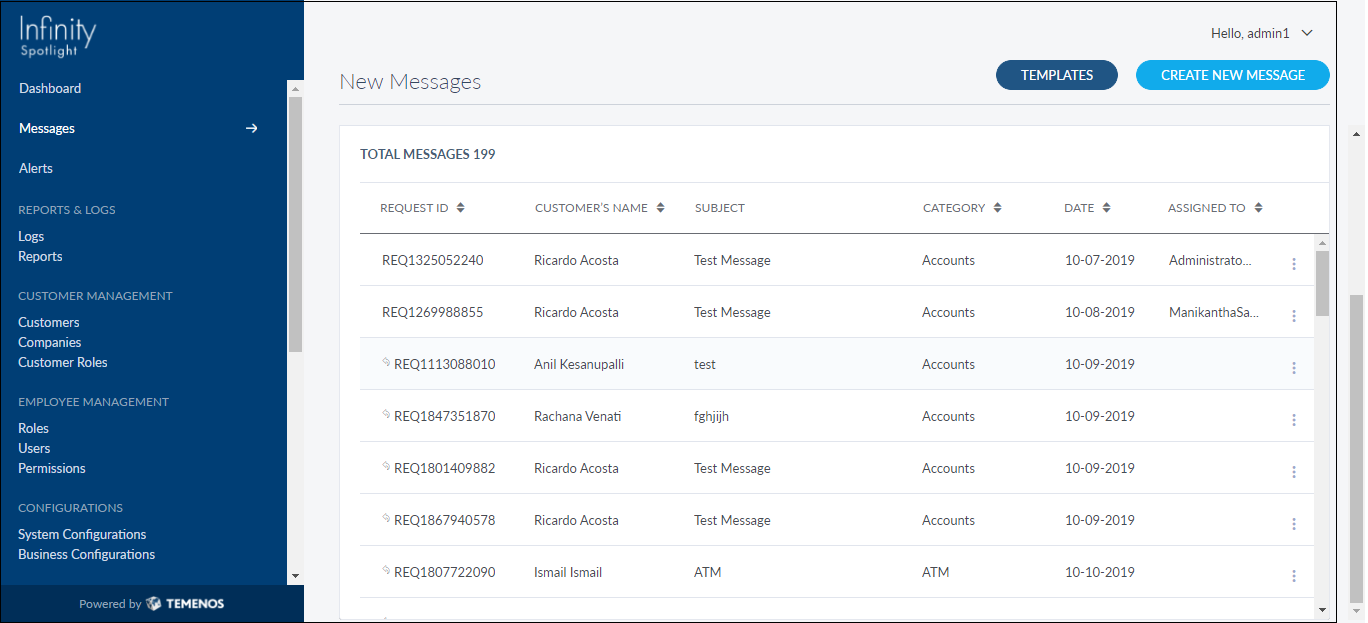
View Message List
There are 2 main views in the Message module: Status and My Queue. The threads are categorized in five tabs - New, In Progress, Resolved, Archived, and My Queue. The first 3 tabs direct relate to the thread status. Once resolved, messages are moved to Archives after 6 months. These messages are removed from the customer app message list and from the list of messages in the first 3 tabs. Archived messages are not considered in Search and filter queries.
My Queue is a consolidated view of all the threads that are assigned to the CSR that is currently logged in. Here, thread status is just a column. The 'Assigned To' column available in the other tabs is replaced by the 'Status' column, since the assignee is the same for all the threads in the list.
The app displays a list of messages.
Menu path: Messages > Select the required message tab
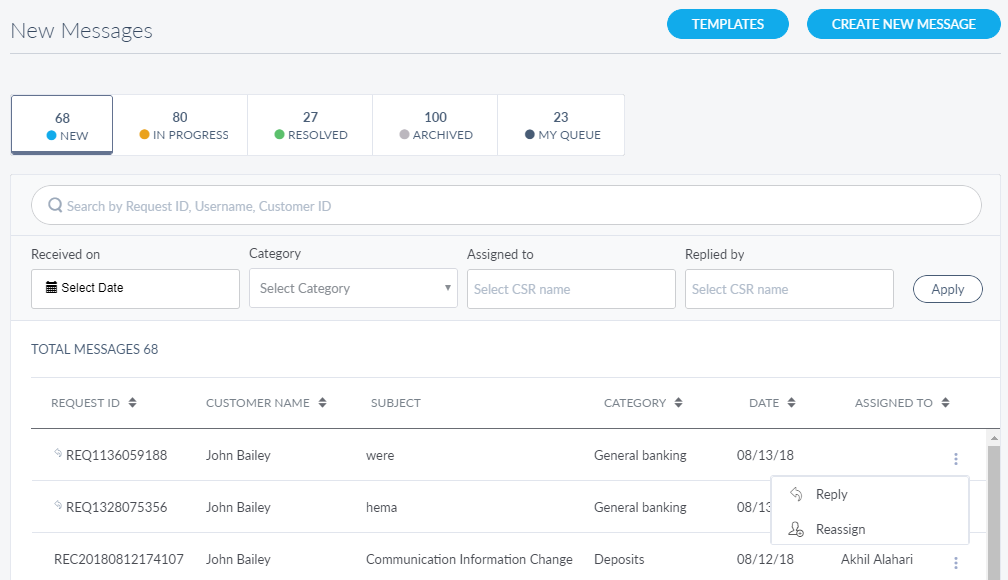
The messages list in New, In Progress, Resolved, and Archived tabs are represented as rows with the following details: Request ID, Customer Name, Subject, Category, Date and Assigned To. The rows in the message list in My Queue tab are similar to other tabs except for the Status details instead of Assign To details.
You can sort the list based on any of the columns by using the sort icon (
 denotes sorted by that column).
Pagination is available and you can navigate to the required page by choosing it from the list.
You can do the following:
- Filter list in each tab as required.
- Click Template to manage templates.
- Click a message to manage message thread or history.
- Click Create New Message to create a new message.
- Click the contextual menuavailable on each row to open and do the following. Click again to close the menu:
- Search for a message using the search criteria.
Filter Messages
Use the feature to get the required messages list in the required message type tabs. Apply any of the below mentioned filter criteria to get the required list of messages.
- Received On: Select the required date range from the date picker and apply them to view the list of messages received with in the selected date range.
- Category: Select the required category from the list to view the messages under the selected category.
- Assigned to: Enter the required CSR name to get the list of messages assigned to that particular CSR.
- Replied by: Enter the required CSR name to get the list of messages for which that particular CSR has replied to.
Create New Message
Use the feature to compose a new message.
Menu path: Messages > Create New Message
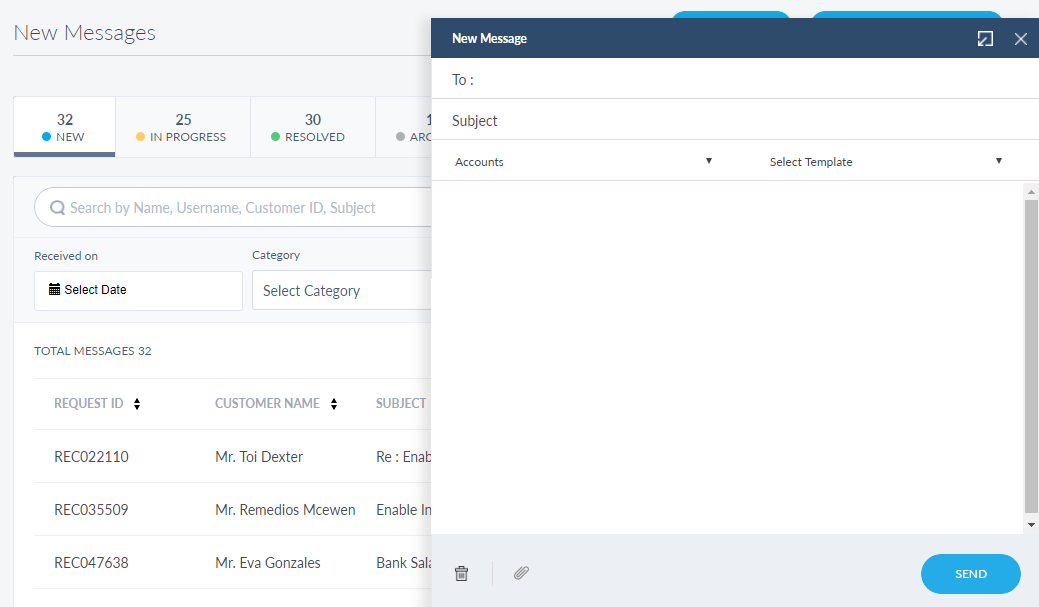
You can do the following:
- Enter the recipients' email address in To. You can send the new message to multiple recipients at the same time.
- Write the subject of the email in Subject.
- Select the required Message Category from the list.
- Select the required template for the new message from the Select Template list.
-
Select attach icon
 to select any required files if required. The supported file formats are txt, png, jpg, jpeg, doc, docx, and pdf.
NOTE: You can attach a maximum of five files, and the maximum allowed file size is 1 MB. The maximum character limit for Subject is 50, for message body is 500, and the maximum number of attachments per message is 5.
- Click
 to minimize the new message window if required.
 - Click Send, the message will be sent to the recipient.
You can delete the new message at any time if required.
Search Message
Use the search option to search for a particular message using search criteria.
Menu path: Messages > New Messages > Search
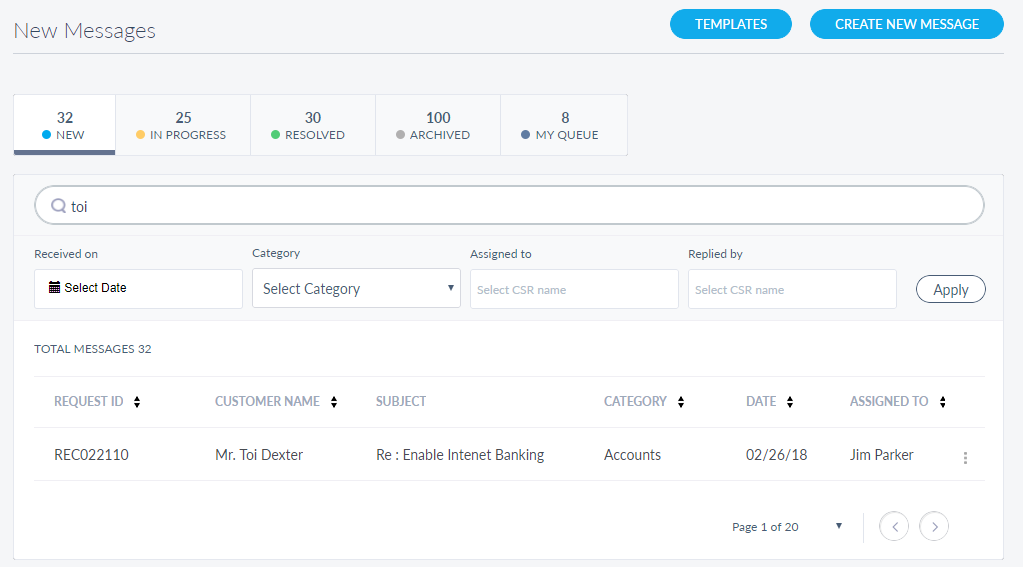
The search results display the messages from New, Pending and Resolved message tabs. Enter the search keyword (name, username and customer id) and apply the search criteria.
The app displays the matching records automatically.
View Message History
Use the feature to view the history of the selected message. You can also assign the message to the related department or reply to the message from here.
Menu path: Messages > Select the Required Message tab > Click on the message row
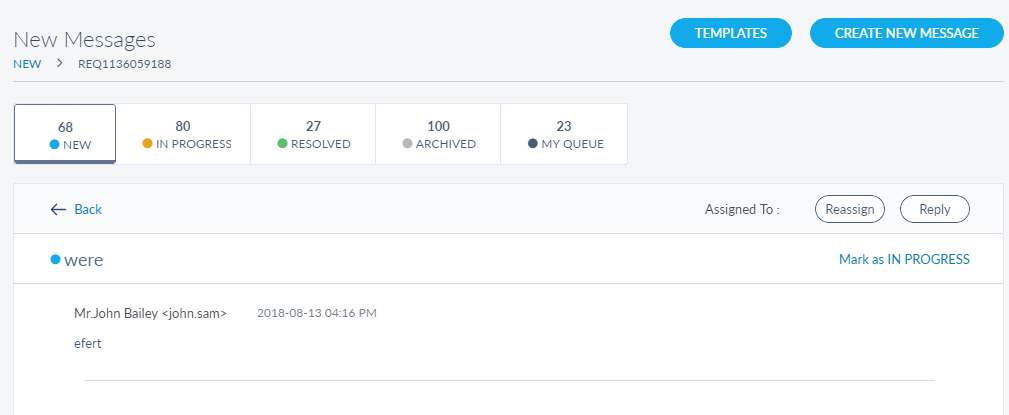
The app displays the following details:
- Subject of the message.
- Sent By details.
- Sent On details.
- Message body.
- Attachments if any.
You can do the following:
- Click on attachments icon and download the attachments if required.
- Select Mark as IN PROGRESS link to change the status of the selected message to in progress if required.
Click Back to navigate back to the message list.
Reply to a Message
Use the feature to respond to any required message sent by the customer.
Menu path: Messages > Select the Required Message tab > Click on the message row > Reply
You can also reply to a message with the help of contextual menu available on each row in the message list.
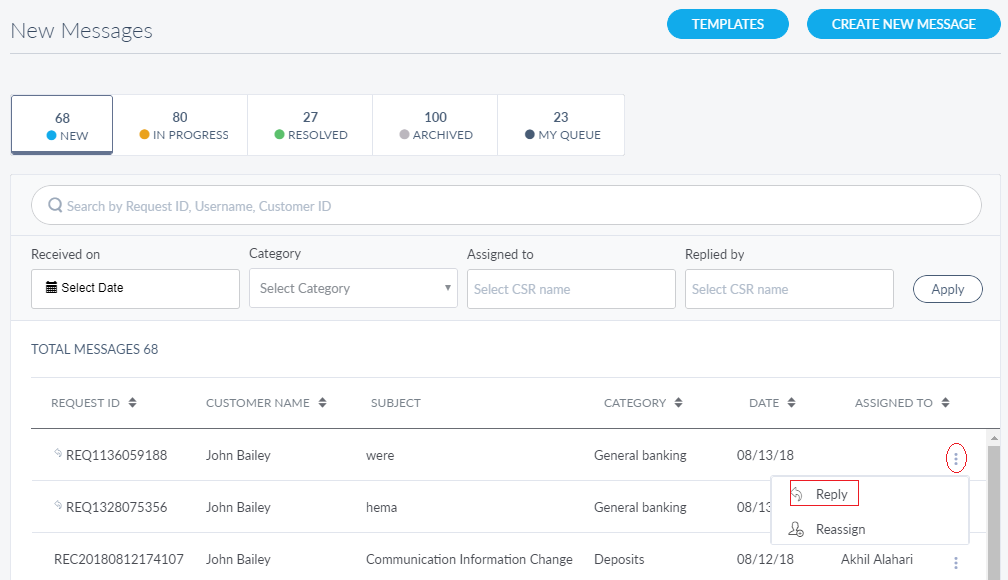
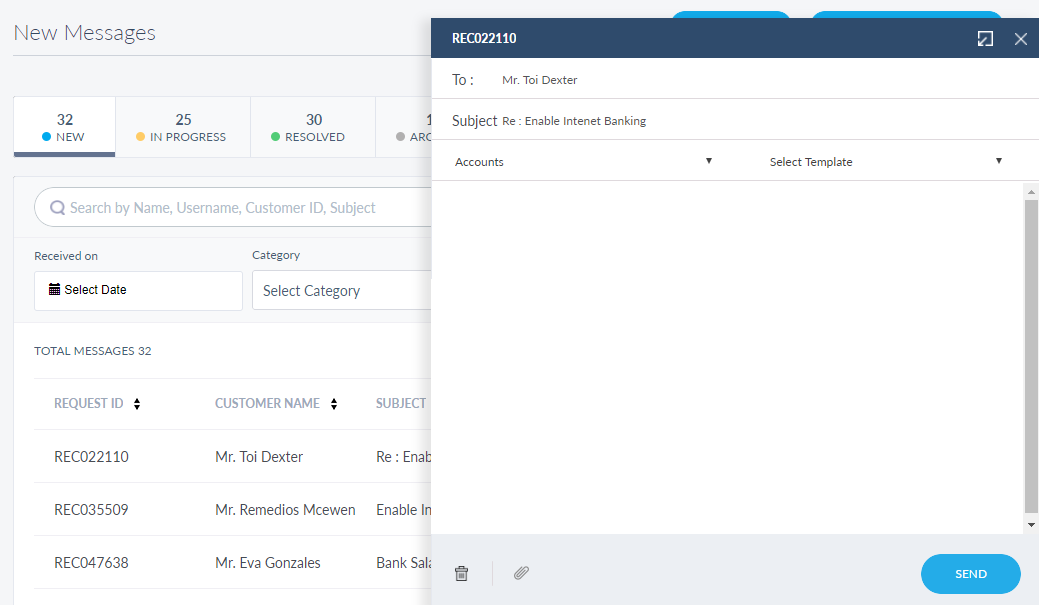
You can do the following:
- The reply message window is similar to create window and contains To, Subject, and Category details auto-filled from the selected message.
- Select the required template from the Select Template list and edit the template as required, and click Send.
- Note that if you navigate away from the reply message, then it is saved as a draft message in the message thread. Click Draft, to reopen the reply message.
- A log is maintained for all the replies for a message in the message thread or history.
You can mark the status of the message as resolved if no further action is required on that message else the status of the message is changed to In Progress.
NOTE:
- The application automatically assigns the message to you when you send a reply to the message thread.
- When you reply a message thread whose status is New, the status is automatically changed to In Progress.
- You can attach a maximum of five files, and the maximum allowed file size is 1 MB.
Assign a Message
Use the feature to assign a new unresolved message thread to yourself or any other admin user (of related department). If an admin user responds to an unassigned thread, then the thread is automatically assigned to that particular user. Assignment is mainly for tracking and auditing purpose. A CSR can also reply to a message that is assigned to someone else. By doing so, that message is assigned to the CSR user who replied to the thread.
Menu path: Messages > Select the Required Message tab > Click on the message row > Assign / Reassign
You can also assign a message with the help of contextual menu available on each row in the message list.
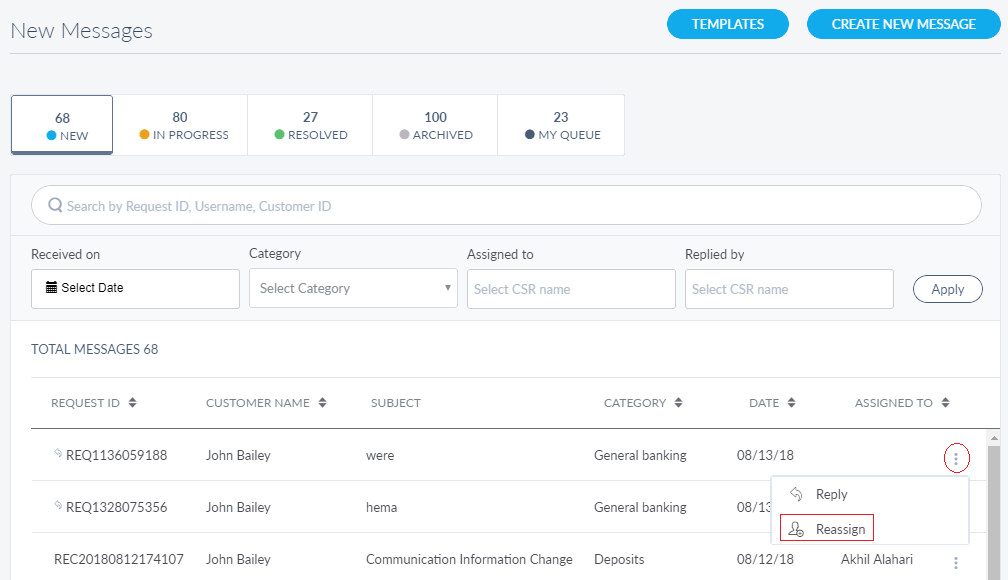
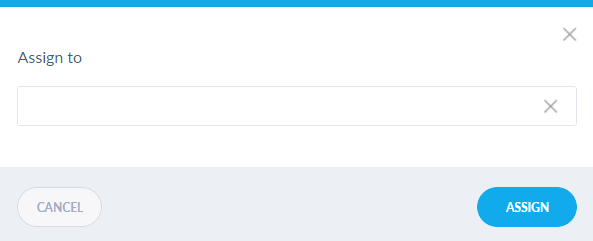
You can do the following:
- Enter the required admin user name in full or in part and select the required user from the list in Assign to.
- Select Assign to me if you want to assign yourself to the selected message.
- Click Assign, the message gets assigned to the selected user.
NOTE: You can cancel the process at any time. The changes are not saved.
Add Bookmark
save your best linksView Bookmarks
Visit your best links BACK
BACK


Are you sure you want to log-off?