| Bookmark Name | Actions |
|---|
Features
Features are a group of services that allow a bank customer to perform activities related to managing their various accounts. These features can be personal finance management, bill payments, funds transfer and so on. A set of actions are grouped under each feature for a better classification of services that are being offered by a financial institution.
Use the feature to view all the banking features with the Bank/Credit Union.
Menu path: Master Data Management > Features
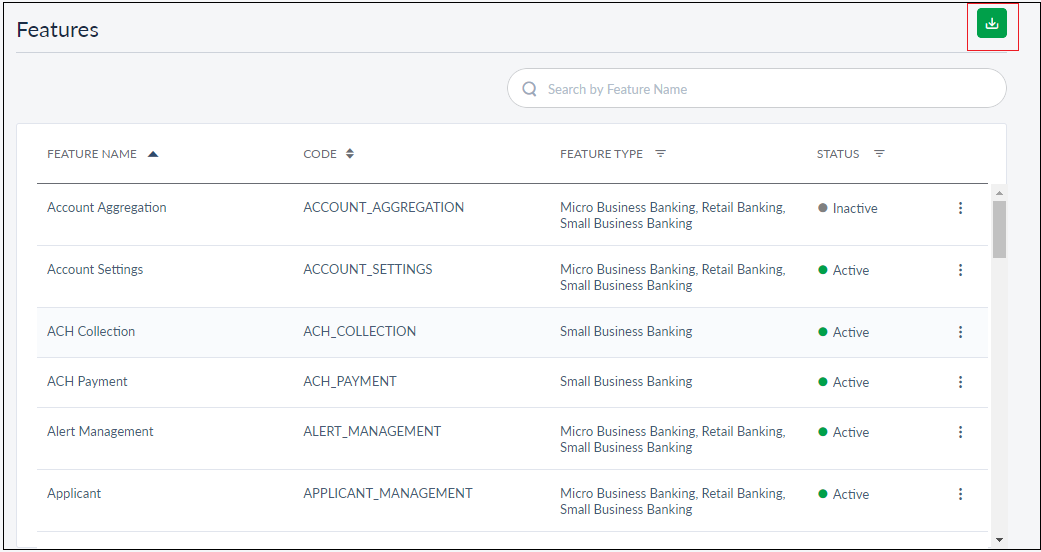
The application displays the list of features as rows with the following details:
- Feature Name: Name of the feature (account/card).
- Code: It is the unique identifier of a feature
- Feature Type: Category of the feature.
- Status: Status of the product (Active/Inactive).
All the details listed here are fetched from the back-end system, and the CSR can view only the listed information. Sort the list based on any of the columns by using the sort icon (
 denotes sorted by that column). You can also filter
 the list by Feature Type and Status (active or inactive). Using the download icon on the top right of the page, the CSR can download the list of features along with the details in an excel file.
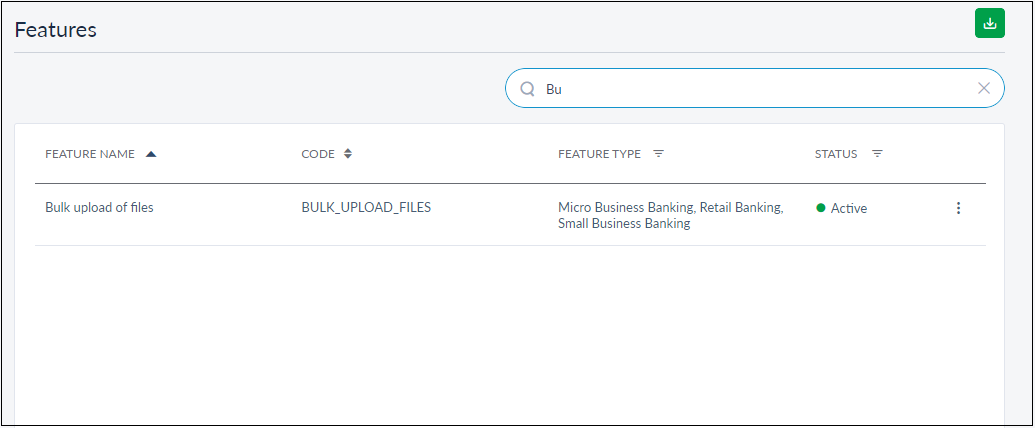
Search
CSR can search for the required feature using the Search button. Enter the product code or name in Search. The application will display the list of features matching the search criteria.
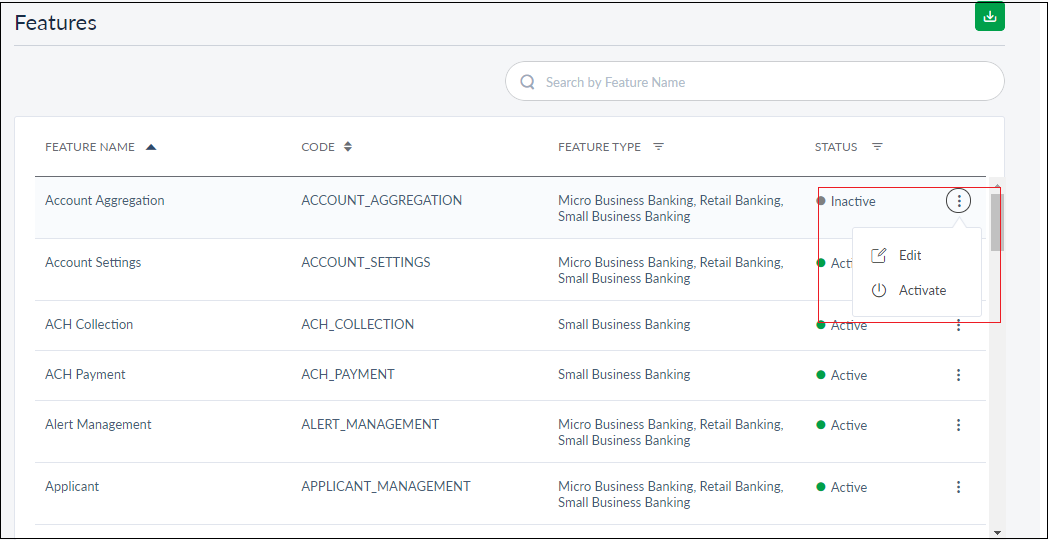
Contextual Menu
The contextual menu shown against each feature lets the user to Edit and Activate/Deactivate (depending on the feature status). It will also be shown on the feature details page.
View Feature Details
Click the required row to view the respective feature details. If a deactivated feature is selected for viewing the details, a message will be shown mentioning the same shown in the figure below.
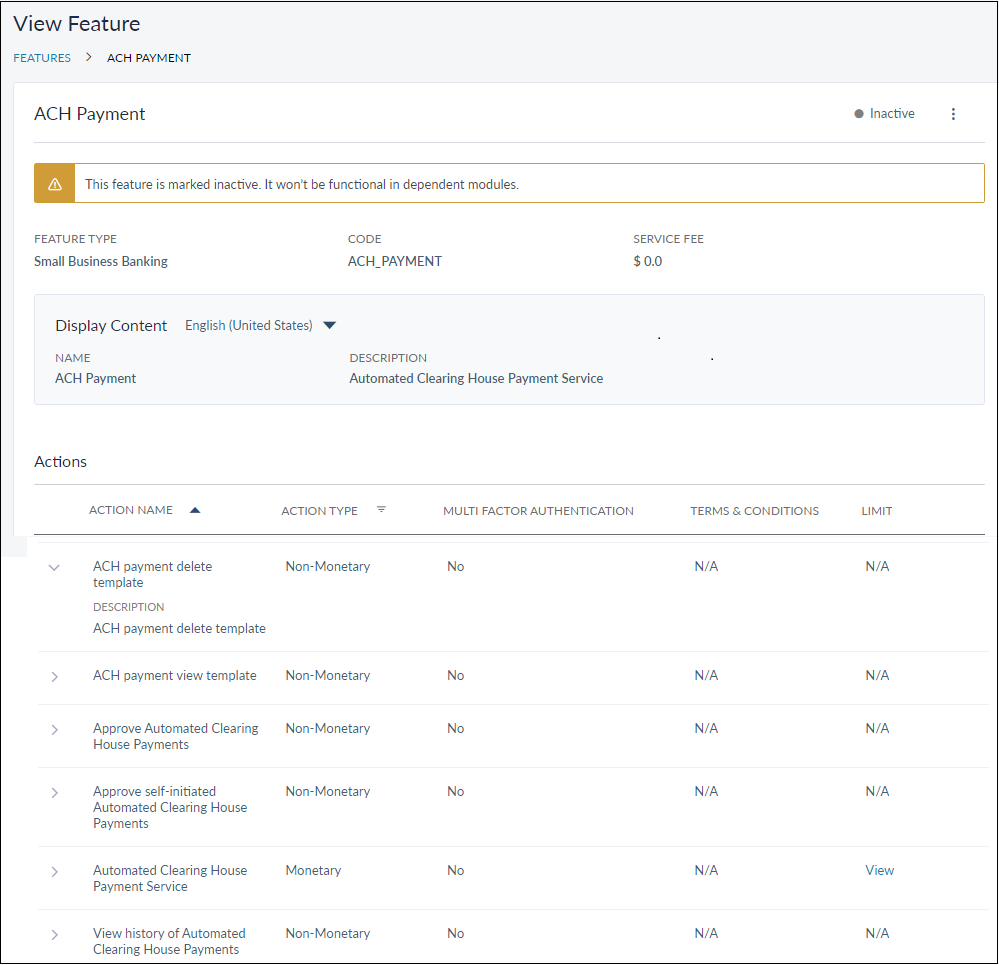
The page displays the feature details including name, it current status, feature type, code, service fee, and the display content. The content is a brief description of the feature shown in the configured language. The user can check if the content is available in other languages from the drop-down menu. The languages to select from are: English (UK and US), German, French, Spanish, Italian, and Swedish.
The page also contains a list of actions categorized under the selected feature. They are categorized into Monetary and Non-monetary under Action Type. The description for each action can be seen by clicking the arrow against it. The other details include whether an action requires multi factor authentication, what are the terms and conditions for it, and if limits are defined. Limits can be defined only for the Monetary actions. The user can view the T&C and limits, if defined, for an action by clicking the View button against it.
Edit Feature
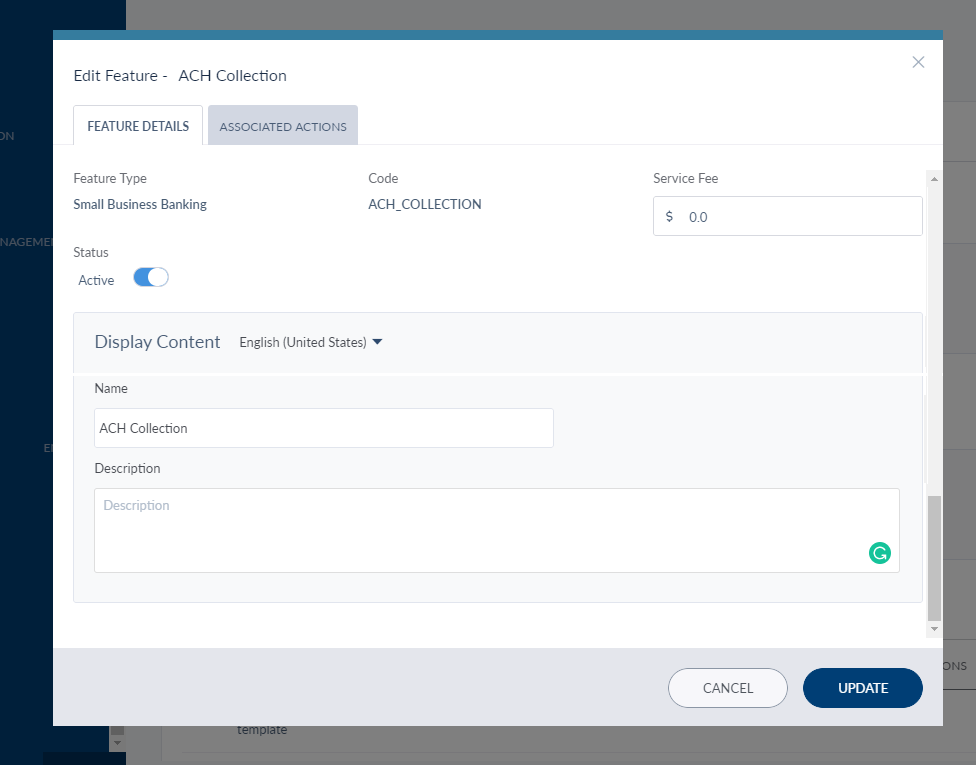
To edit a feature, click the Edit option from the contextual menu shown against each feature on the feature list page or from the feature details page. The edit feature pop-up window has two tabs - Feature Details and Associated Actions.
Edit Feature Details
The following fields can be modified on the Feature Details tab:
- Status - Toggle it to activate or deactivate the feature
- Service fee: Mention a numerical figure.
- Description: Modify the description of the feature. The maximum words allowed are 100. A description for a feature is mandatory and cannot be left empty.
The other details - Feature Type, Code, and Name cannot be edited.
Edit Associated Actions
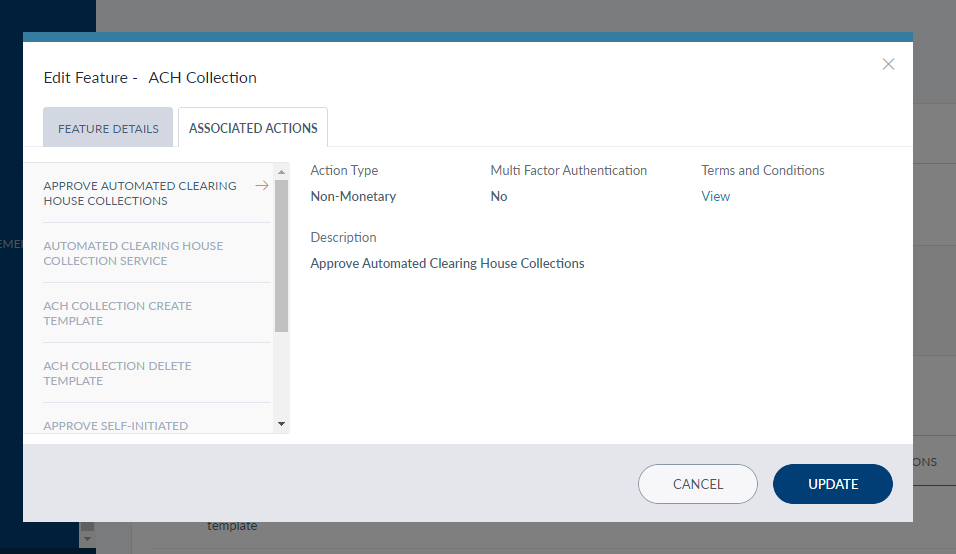
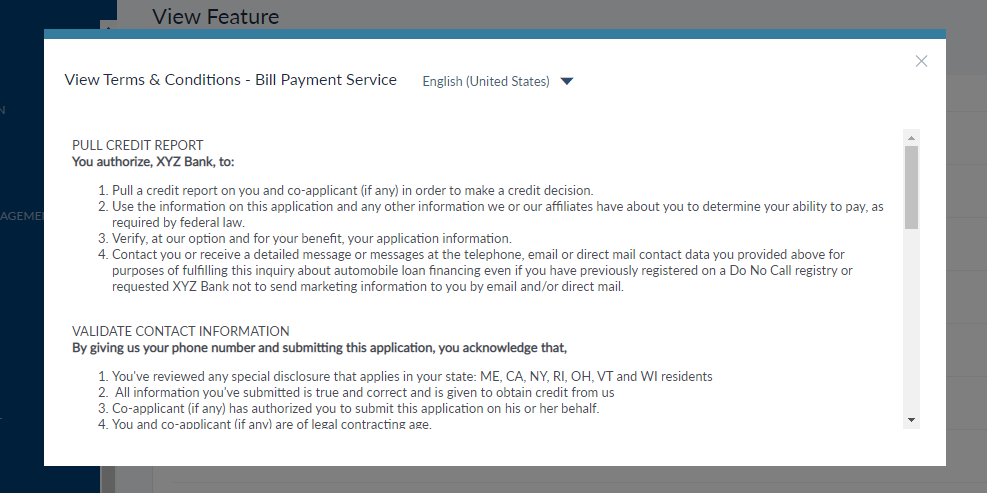
The user can edit the actions categorized under the selected feature from the Associated Actions tab. The actions mapped to the feature are listed on the extreme left of the edit pop-up window. For the Non-monetary action, the user can only view the terms and conditions by clicking the View button. The terms and conditions can be viewed in multiple languages, if defined, from the drop-down menu.
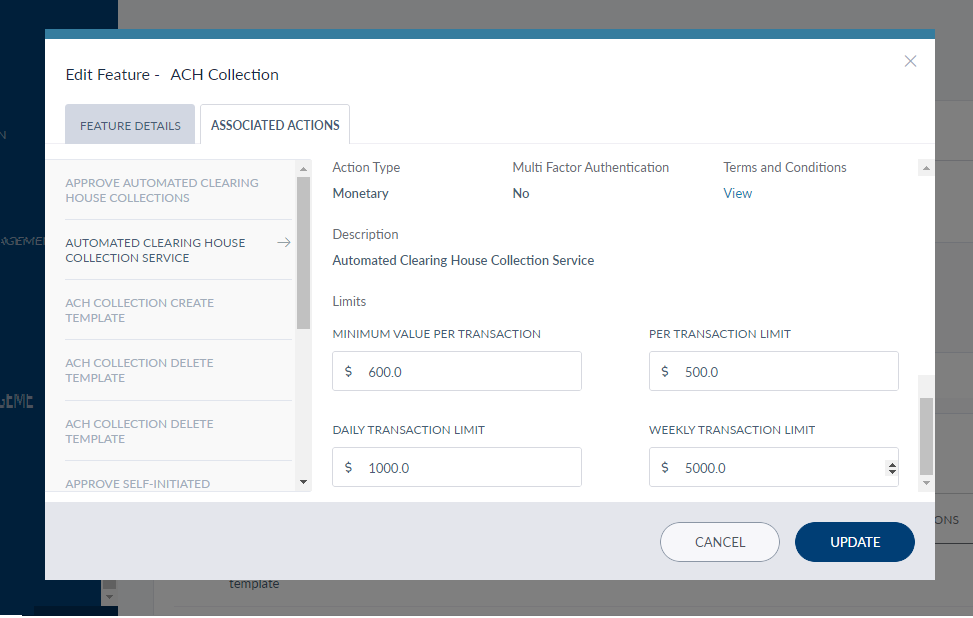
For the Monetary actions, the user can define transaction limits for:
- Minimum value per transaction
- Per transaction limit
- Daily transaction limit
- Weekly transaction limit
The user can also view the terms and conditions for the action similar to the non-monetary transaction actions.
Deactivate/Activate Feature
To activate or deactivate a feature, click Active/Deactivate option from the contextual menu. The feature status - Active or Deactivate - will be shown based on its current status. The user can edit a feature even if it deactivated.
Add Bookmark
save your best linksView Bookmarks
Visit your best links BACK
BACK


Are you sure you want to log-off?