| Bookmark Name | Actions |
|---|
Can't Sign In
Use the feature to retrieve the forgotten user name or reset the password by providing identification details.
Menu path:
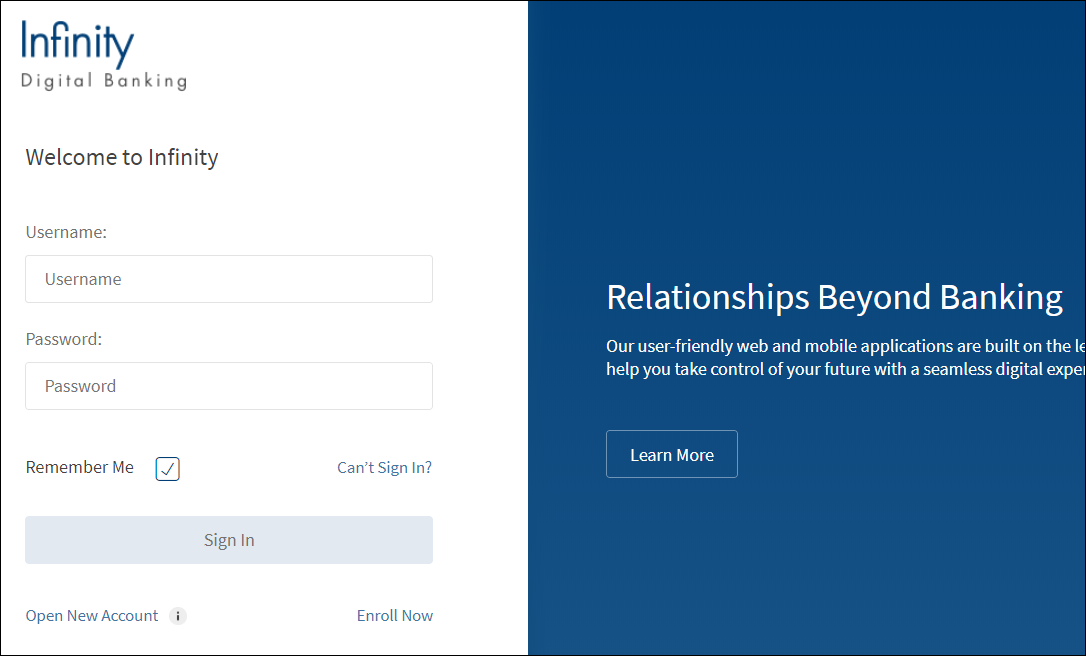
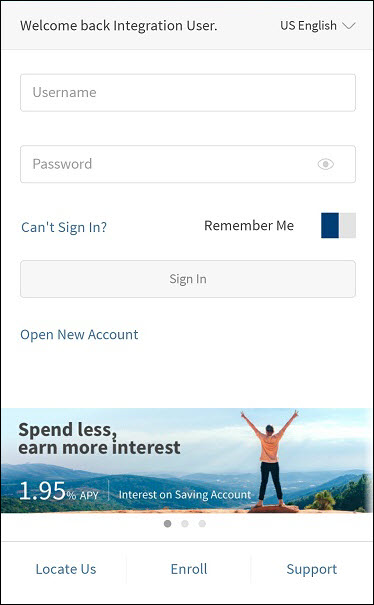
- Online Banking: On the sign in screen, click Can't Sign In? The application displays the verification screen.
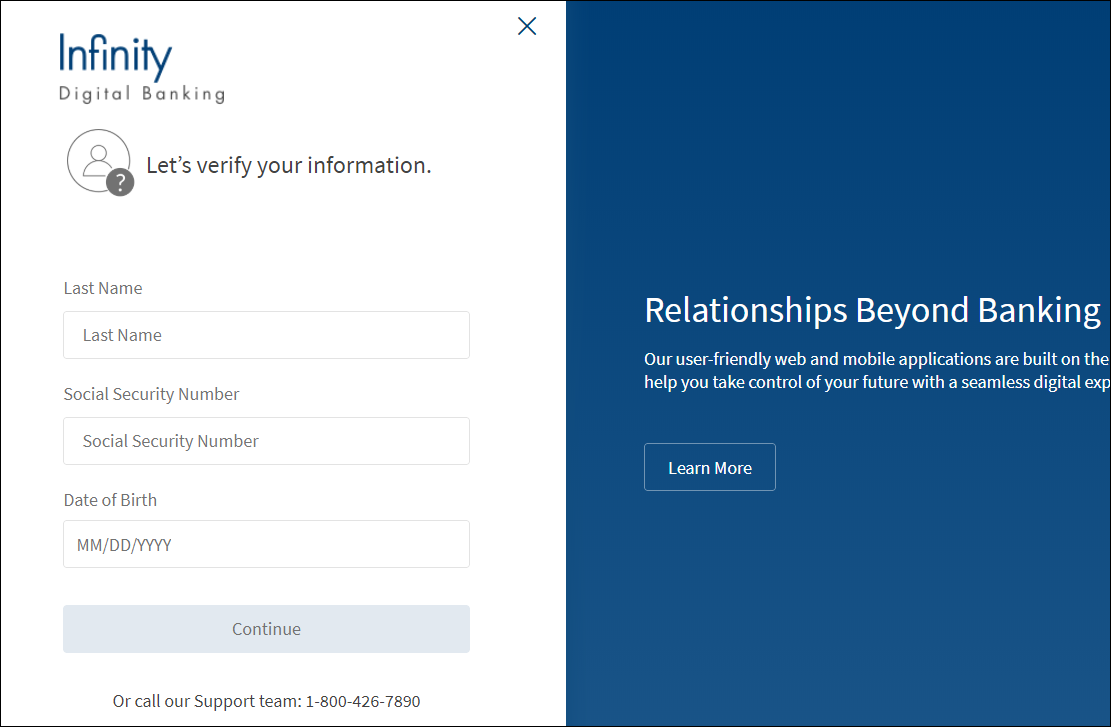
- Mobile Banking: On the sign in screen, tap Can't Sign In? The application displays the Forgot Credentials screen.
Mobile Banking Screens
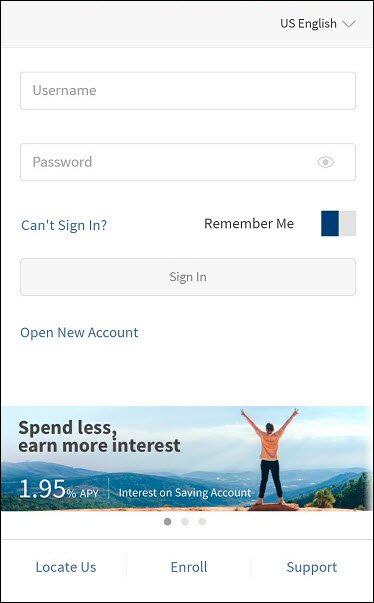
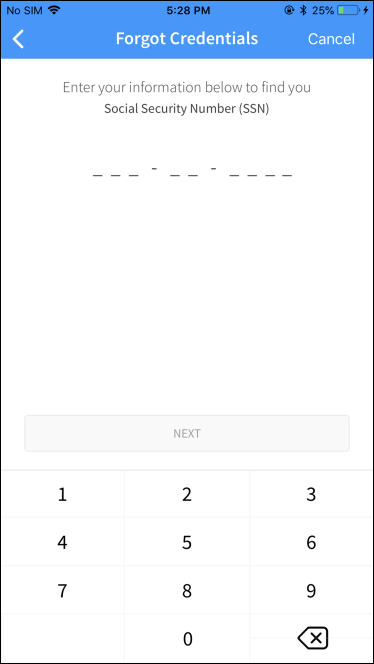
The following identification details are required for verification against the details available in the back-end system:
- Enter the Last Name.
- Enter the Social Security Number (SSN). The SSN should be a valid 9-digit number. The application displays an error message in case a wrong number is entered.
- Enter the Date of Birth in MM/DD/YYYY format.
- Click Continue. The application displays the verification confirmation (Welcome Back) screen.
NOTE:
-
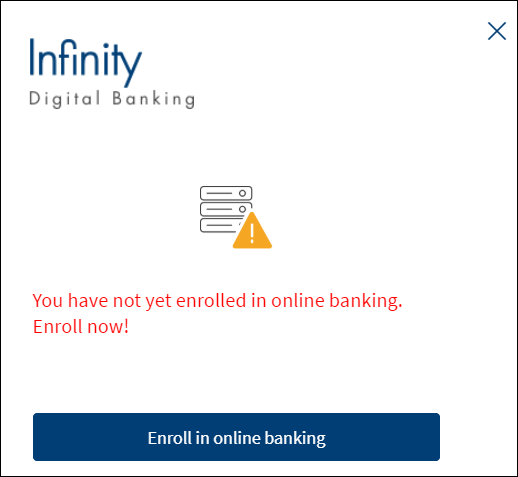
If you are not registered or enrolled for banking, the application displays an appropriate message and displays the link to enroll.

-
If the information provided is incorrect, the application displays an appropriate message.
- If the information provided is correct, the application displays the retrieved user name.
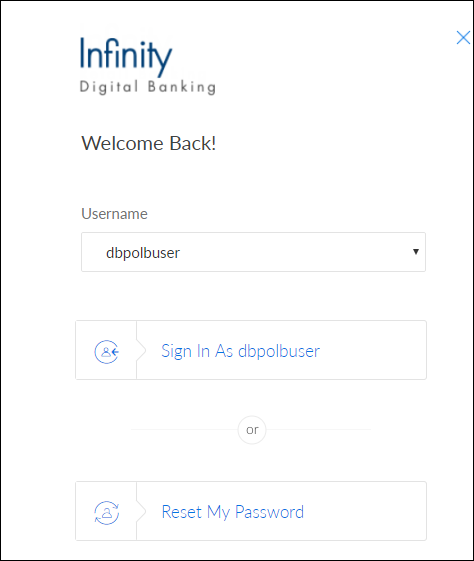
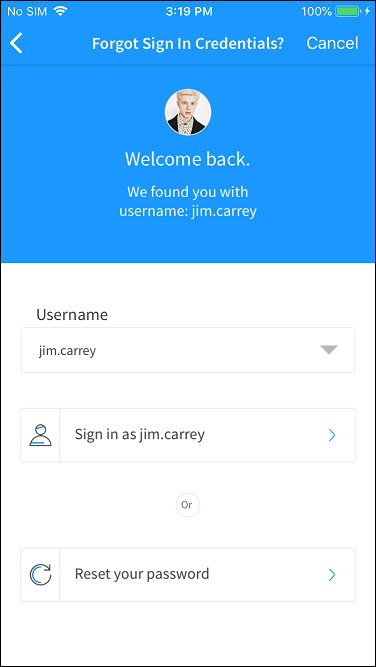
You can either retrieve the user name or reset the password.
Retrieve User Name
If the correct information is provided on the verification screen, the application displays all the retrieved user names associated with the user on the Welcome Back screen. The application allows the user to select the user name to sign in to the application.
NOTE: You can have multiple online banking accounts (for example, if you have multiple businesses or separate personal and business accounts).
-
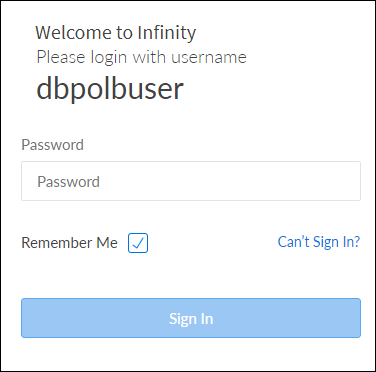
Click Sign In using the retrieved user name.
- Enter the password and sign in to the application.
Mobile Banking Screen
Reset Password
The application displays the Welcome Back screen and provides an option to reset the password.
To reset the password, follow these steps:
- Click Reset My Password.
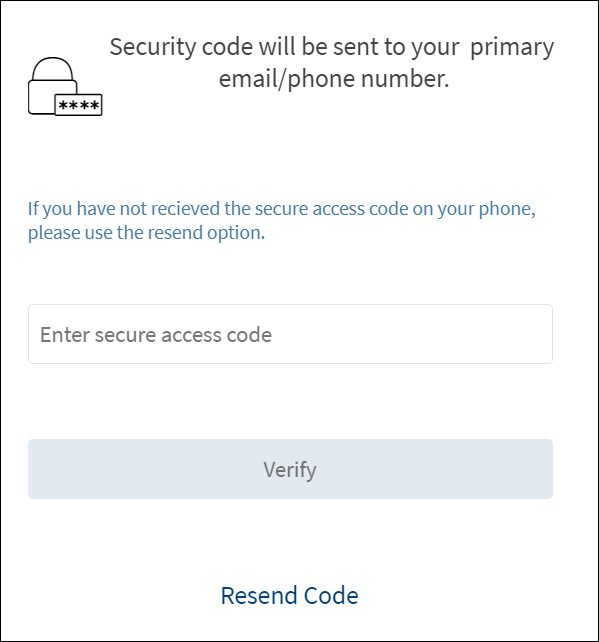
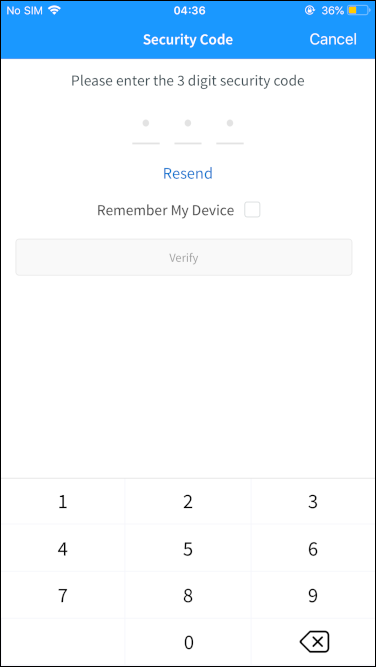
- MFA Authentication: Depending on the bank configuration, you must provide additional authentication such as providing the secure access code to reset the password.
- Select the mode of contacts such as the registered phone or the registered email ID for receiving the secure access code. You can either select both or any one mode of contact to receive the secure access code. The secure access code is sent to your registered mobile number and email ID or anyone based on your selection.
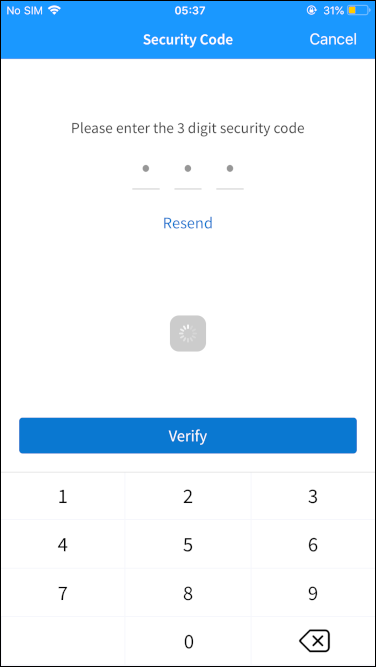
- Enter the secure access code received to your mobile or email ID. Verify the OTP entered.
In case you have not received the OTP, you can use the OTP resend option to receive the OTP again. - If you enter an incorrect OTP or do not provide any OTP response, the application requests you enter the correct OTP. If you enter an incorrect response more than five times (configurable), the application displays an error message and navigates you back to the Sign In screen.
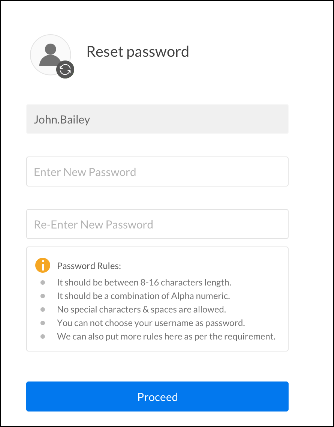
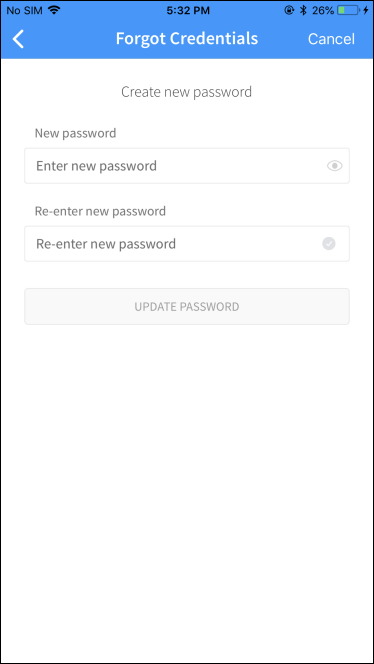
- Once the OTP is verified successfully, the app displays the Reset your Password screen.
-
Enter the new password and confirm by re-entering the new password. The password rules are displayed to enter the password. The password must match the defined rules.
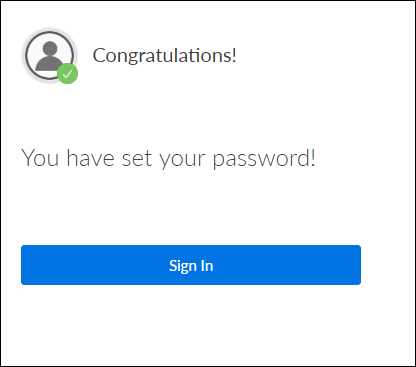
- Click Reset My Password. Password reset confirmation screen is displayed after the password is updated successfully.
- You can proceed to the Sign In screen or choose to sign in later.
NOTE: The password rules and MFA during signing in are configured in the Spotlight application.
Mobile Banking Screens
NOTE:
- If the information provided is incorrect, the app displays an appropriate message.
- New Password field validation:
- The field is case-sensitive.
- Minimum 8 and Maximum 24 characters. The values are configurable.
- Alpha, numeric (a-z, A-Z, 0-9) and special characters required:
- Minimum of one uppercase, one lowercase, and one numeric character.
- Special characters allowed are ! # $ % ( * ) + , - / ; = ? [ \ ] ^ _ ' { }.
- Cannot be 9 consecutive digits.
- Cannot be the same as the username.
- All characters should not be the same.
- Other Validations
- CVV: 3 digits long (numeric only)
- OTP: 6 digits long (numeric only)
Configuration
- The password rules are configured in the Spotlight application.
- The MFA during signing in are configured in the Spotlight application.
Add Bookmark
save your best linksView Bookmarks
Visit your best links BACK
BACK


Are you sure you want to log-off?