

| Bookmark Name | Actions |
|---|
Deploying Party Microservice on Azure
This section explains how to deploy the Party microservice on the Azure cloud. To do so, you need to perform the following tasks:
Deployment Artefacts
The folder structure of the Party microservice is available as a single release bundle. For example, ms-party-package-azure-<release_number>.zip.
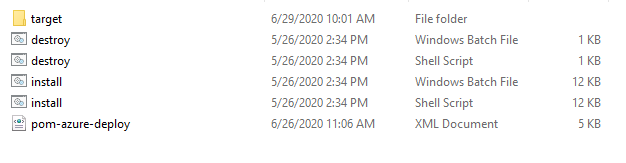
This bundle contains the following files:
ms-party-package-azure-<release_number>.jar-
Azure Script files:
- install.sh/install.bat: This script is used to deploy the Party microservice in the Standalone mode.
- destroy.sh/destroy.bat: This script is used to undeploy the microservice and delete the Azure services from the Azure environment.
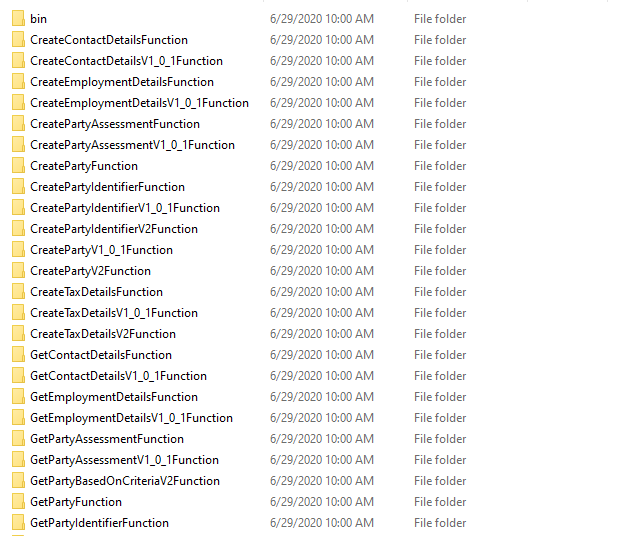
- Folder structure for the
ms-party-package-azure-<release_number>.zipfile is as follows.
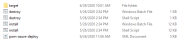
Pom-azure-deploy.xmlfile deploys the Azure function on the Azure portal.
Deploying Party Microservice on Azure
Prerequisites
Before deploying Party microservice on Azure ensure you have the following:
- Install the Azure Command Line Interface. For more information about the installation, click here.
- Install Maven.
- Install Mongo Shell.
Download the Mongo Shell from Mongo Atlas under the tab named Connect with Mongo Shell by clicking Connect.
- Active connection string of Mongo Atlas cluster. The Mongo Atlas Cluster must be acquired for Java driver version 3.4.
To deploy Party microservice on Azure, follow these steps.
- Download the generated zip file from the target folder into the installation directory.
- Extract the zip file.
- In Command Prompt, go to the installation directory.
- You can also change the name of the default Azure function app in the script. In the case of app name change, the folder (ms-party-azure\target\azure-functions\<app folder>\) that is available in the name of the app must also be changed.
- In addition to the API key, to enable the internal authentication, you must perform the JWT Authentication in the installation scripts.
- Modify the installation-specific details such as resource group, location, and DB details in the install.sh/install.bat script.
- After this, execute either
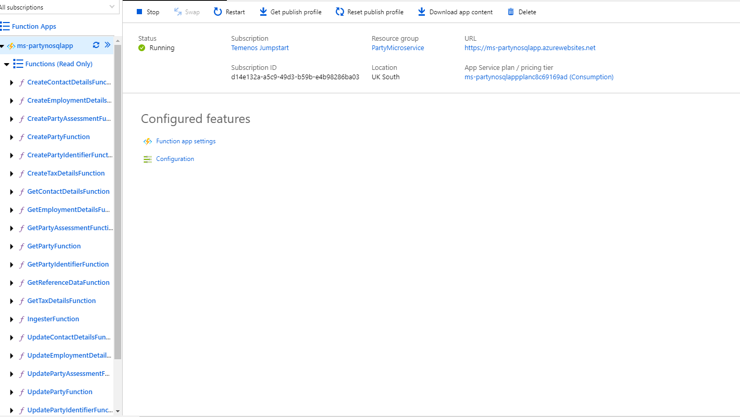
install.shorinstall.bat.After successful installation, these Azure functions are created.
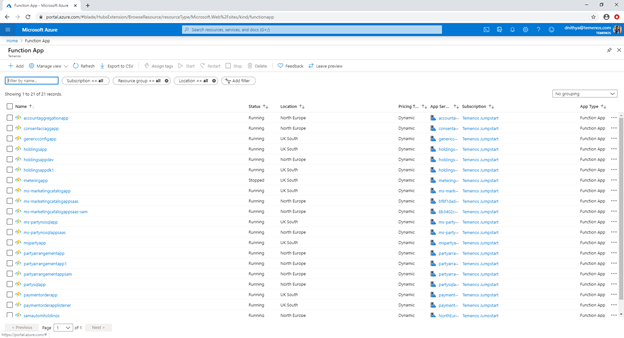
- Sign in to the Azure portal and verify if the Resource Group and the Function App are created.
Function App

Party Functions

- Obtain the API key for each endpoint by using the
func azure functionapp list-functions <function-app-name> --show-keyscommand. Alternatively, you can also obtain the API key from the Azure function GUI.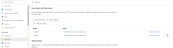
- Obtain the endpoints of the Azure Function App from the Azure Function App. The URL of the sample function app is as follows:

The Get Function URL provides the complete URL along with the API key.
- After the successful deployment, database, collections, and reference data(master data) are loaded into the mongo server database for the Party microservice.
Add Bookmark
save your best linksView Bookmarks
Visit your best links BACK
BACK


Are you sure you want to log-off?